
Looking for a faster way to locate specific features, sketches, or fittings in SOLIDWORKS without endlessly scrolling or searching through the feature tree?
The solution is simple: right-click the desired item in the feature tree and add it to your Favorites for quick access.
This action creates a Favorites folder at the top of the SOLIDWORKS feature tree, where your selected items are grouped together. Using this method, you can access sketches or features within seconds.
As demonstrated in the image below, features have been added to the Favorites folder.
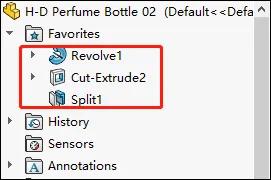
Note: Ensure that the Display Favorites folder option is enabled by going to Tools > Options > Feature Manager.
2. You can also organize your favorites by creating subfolders to group related features. Simply select the feature, right-click, and add it to a new favorite folder.
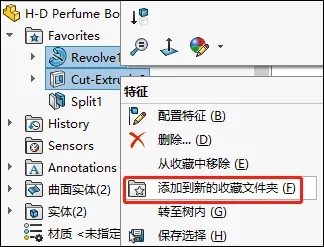
The image below shows two subfolders created within the Favorites folder.

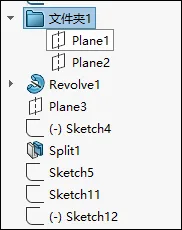
3. Additionally, you can add multiple features to a single new folder, as shown below.
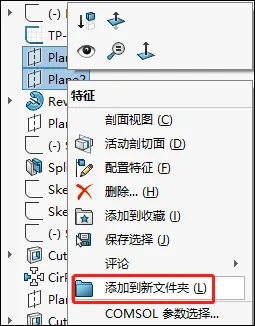
This approach allows you to group all modeling steps related to a specific feature into one folder, making it easier to find and edit later.
















Must log in before commenting!
Sign Up