
Source: BimLearning

Tekla Structures is a highly versatile structural BIM software designed for creating, assembling, managing, and sharing detailed 3D models with multiple materials. These models contain essential construction information and can be utilized throughout the entire project lifecycle—from initial building and infrastructure planning to manufacturing, construction, and maintenance. Tekla Structures supports design, detailed specification, and information management.
The Tekla software interface has evolved significantly since Tekla 2016 (compared to versions 21.1 and earlier). If you are using an older version, the interface may look different. This article focuses primarily on Tekla 2022 as an example.
1. Initial Software Launch Interface:
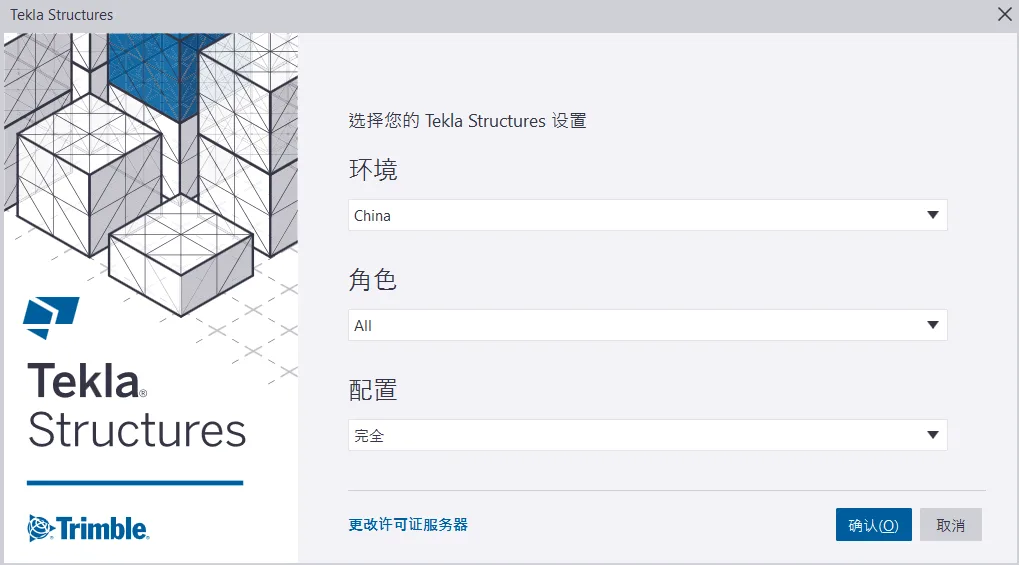
This interface includes options for Environment, Role, Configuration, Change License Server, Confirm, and Cancel. Here is a detailed explanation of each:
Environment: This refers to region-specific settings and information. It defines available sections, material grades, default values, drawing settings, component settings, reports, and templates tailored for a specific area. By default, Tekla comes with a blank project environment. When working on a project for a particular country, it’s recommended to download and install that country’s environment. For instructions on downloading and installation, please refer to Tekla Learning Lesson 1 – Download and Install the Main Program.
Role: Roles are user group configurations that restrict access to certain files and settings within the environment. The user interface is customized per role, hiding irrelevant options to provide a cleaner and more user-friendly experience.
Configuration: This defines the set of features authorized under your license. For example, if certain modules like steel structure or concrete are missing when opening a model, it may be due to an incorrect configuration selection.

For detailed information on Tekla Structures Standard configurations and permissions, see the Standard Configuration section in Tekla Learning. Details on Tekla Structures Flex configurations are available on the official Tekla website and will not be covered here.
Change License Server: Starting with Tekla 2019, online license configuration was introduced. After Tekla 2021, the ability to switch accounts was added. You can switch between different license types by changing the license server settings.
Note: Online licenses require a Trimble ID registration and permission granting. For guidance on registering a Trimble ID and activating an educational license, please visit Tekla Account Registration and Educational License Activation.
Internal licenses are managed through a local license server. If the license is activated on your computer, no additional input is needed during verification. If activated on a server, enter 27007@ followed by the server’s IP address or computer name in the license server field. For more details, see Tekla Learning Lesson 2 – Tekla Structures FlexNET License Server Installation.
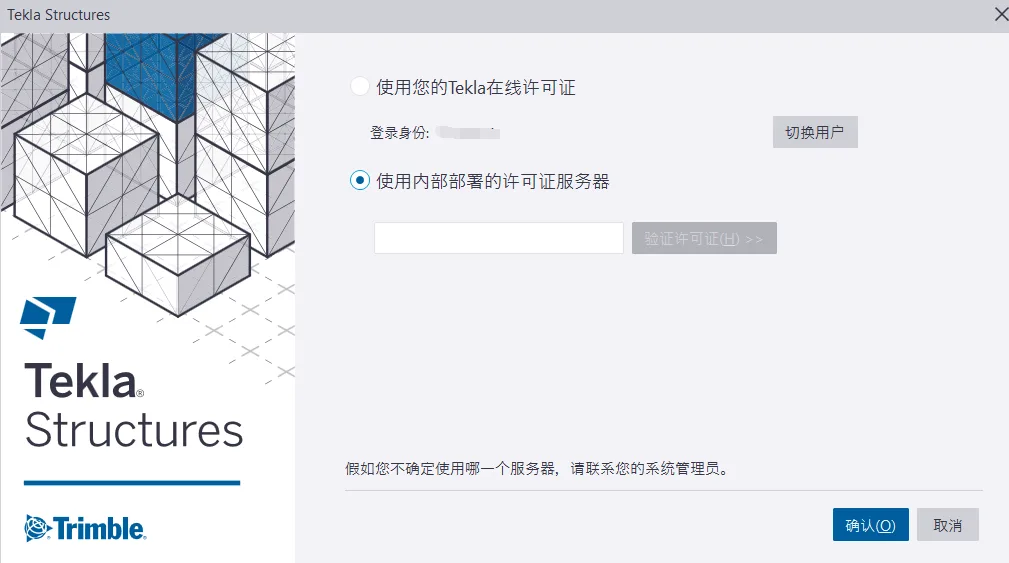
After selecting your license type and clicking Confirm, you will see the following interface:
The left sidebar features categories such as Latest, All Models, Shared Models, and New Models.
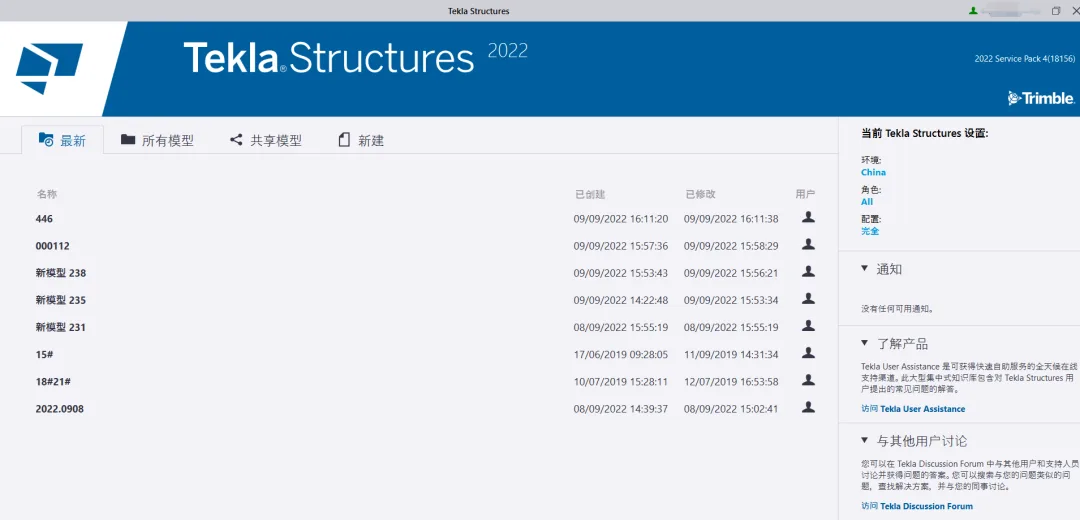
Latest: Displays recently opened and saved models.
All Models: By default, models are stored under C:TeklaStructuresModels. You can also browse other locations to find additional models.
Shared Models: If you have been invited to join a shared model organization, those models will appear here.
New: Opens a dialog box to create a new model. You can modify the model name here (it’s recommended to use English or meaningful names, with a maximum length of 40 characters, and avoid special characters such as / ; : |).
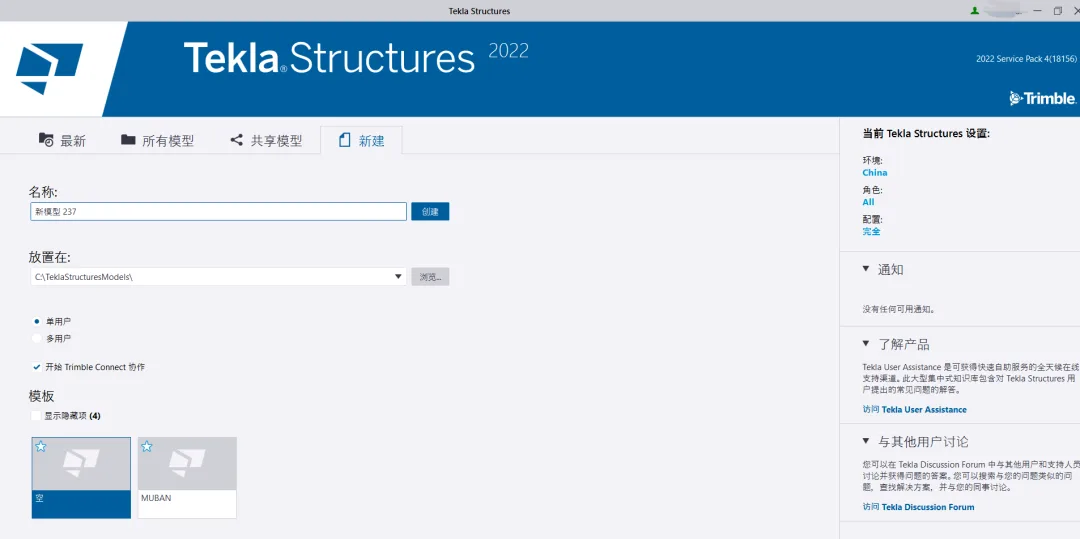
When creating a new model, you can customize the save location (by default, it saves under the Tekla models folder).
You can also specify whether the model is Single User (only one person can use it at a time) or Multi-user (accessible by multiple users and stored on a model server), and whether Trimble Connect collaboration is enabled.
Template: Tekla offers several default templates to choose from, and you can create your own templates to reduce repetitive work.
After setting all the options, click Create to start your new project.
Note: This article is shared for personal use only and not for commercial purposes. If there are any infringements, please contact us promptly. Due to limited knowledge, mistakes may be present. Feel free to leave comments for corrections or questions.
















Must log in before commenting!
Sign Up