
This article is from the WeChat official account: Yuanchuang BIM.
The Project Browser function in Revit is incredibly powerful, integrating all views, schedules, drawings, groups, and other project content. It plays a crucial role in model creation, drawing, and measurement tasks. This article focuses on techniques for grouping and sorting “views” within the “Project Browser.”
1. Accessing Browser Organization
The Browser Organization feature allows you to group and sort views, drawings, and schedules efficiently. You can open the ‘Browser Organization’ dialog box in two ways:
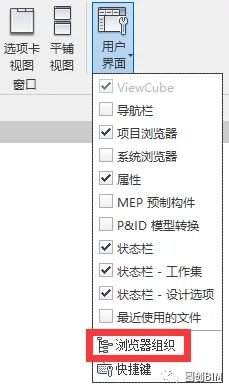
① Go to the View tab → Window panel → User Interface dropdown → Browser Organization;
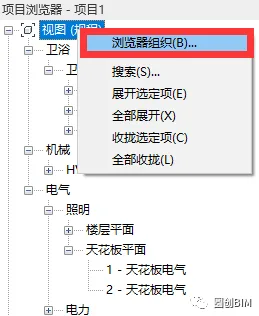
② Right-click on View within the Project Browser → select Browser Organization.
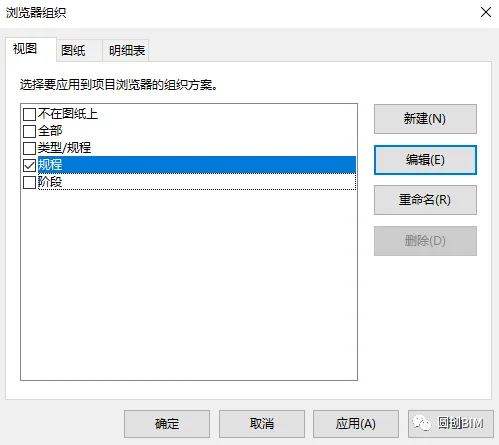
The combination of filters, grouping, and sorting conditions used in Browser Organization is called an organizational scheme. You can create multiple organizational schemes for project views to support various stages of work.
2. Adjusting Internal Organizational Schemes
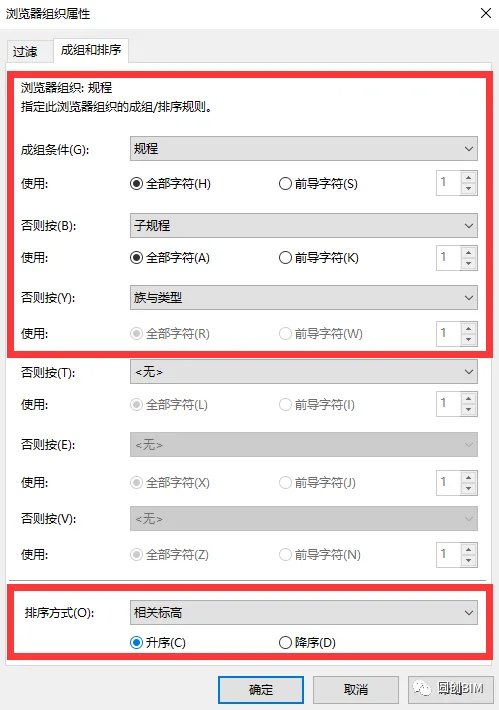
Revit includes several built-in organizational schemes based on different grouping and sorting methods. You can also create new schemes by modifying grouping conditions and sorting options.
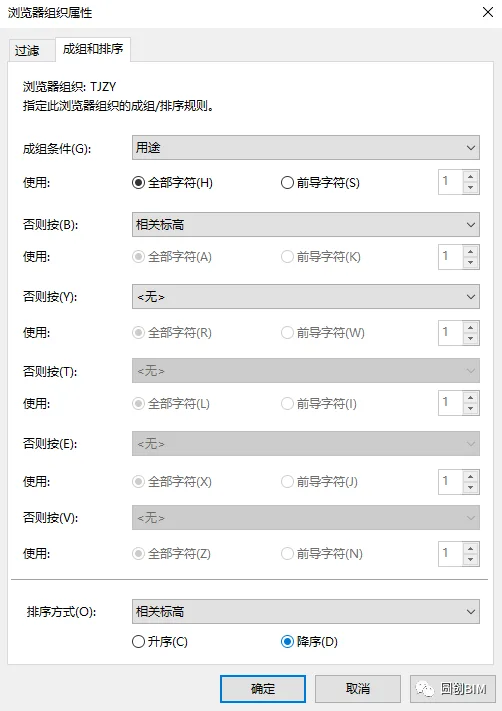
Within Browser Organization, you can define up to six levels of grouping. Items can be sorted in ascending or descending order based on selected attributes.
3. Customizing Parameters for Grouping
When the default grouping options don’t meet your needs, you can create custom parameter fields for views by adding shared parameters. This allows for more tailored grouping based on your specific workflow.
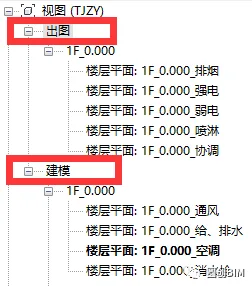
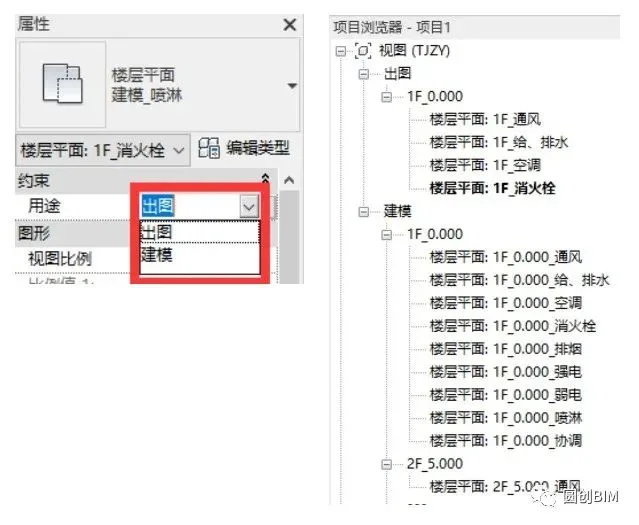
For example, in mechanical and electrical engineering, distinguishing between detailed modeling and drawing views is essential. You can then use secondary sorting rules based on floor elevation and overall discipline-specific view plans.
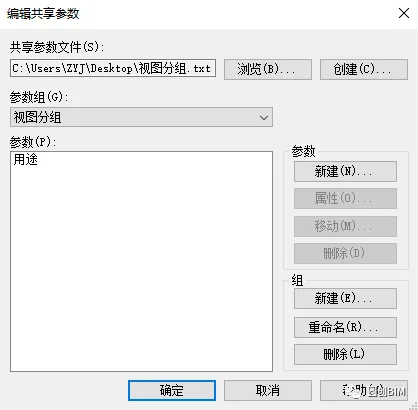
- Create Shared Parameters: Start by creating a new shared parameter named ‘Purpose’.
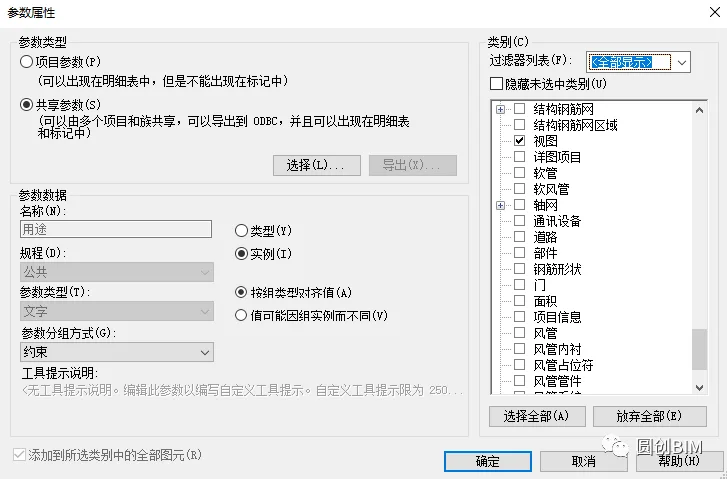
- Add Shared Parameters to Project Parameters: Select ‘Constraint’ as the parameter group and choose ‘View’ from the list. Click ‘OK’ to add the parameter.
- Create a New Organizational Scheme: Open the Browser Organization dialog, create a new scheme, and use the newly added parameters along with other relevant criteria for grouping and sorting.
- Set Classification for Plan Views: Assign different attributes to the ‘Purpose’ parameter according to project requirements to achieve the desired grouping effect.
That’s all for today’s sharing. See you in the next issue!
Contribution | Technical Department
Editor | Yang Yang
















Must log in before commenting!
Sign Up