
Here are several commonly used modeling tools in software:
1. Attribute Palette
The floating panel below the Project Browser serves as the property options palette. When you select an element, the property palette displays the element’s type and its parameters, as illustrated in Figure 1. This palette is primarily divided into three sections:
(1) The top row features a preview box and the type name within the type selector palette. This allows you to choose the appropriate component type from a list, replacing the existing type directly without the need to modify element parameters repeatedly.
(2) Below, the instance property parameter palette contains various parameter lists that show instance-specific parameters and their values for the currently selected element. These include constraint class, graphic class, dimension class, identification data class, stage class, and more. You can adjust the visual size and other attributes of the selected graphic element by modifying these parameter values.
(3) By clicking the edit button, the system opens the Type Properties dialog box, as shown in Figure 2. Here, you can copy and rename object types, and modify type parameter values to change the appearance size of all elements sharing the same type as the selected element.
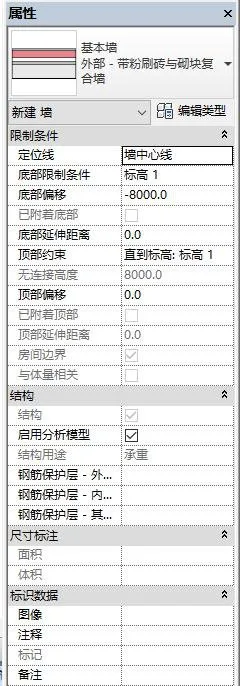
Figure 1: Attribute Palette
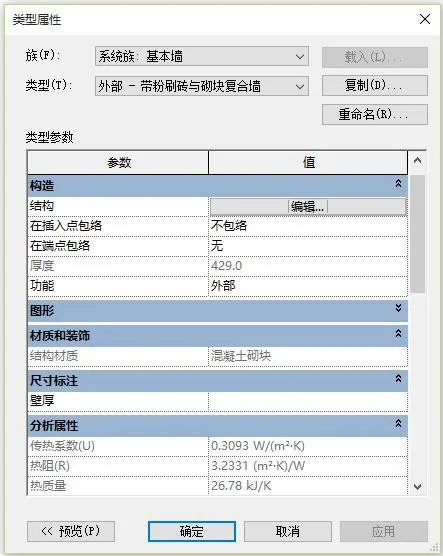
Figure 2: Type Attributes
2. View Control
In Revit, a view differs from a traditional drawing because it is a projection of the BIM model within the project, displayed according to specific rules. This is demonstrated in Figure 3:
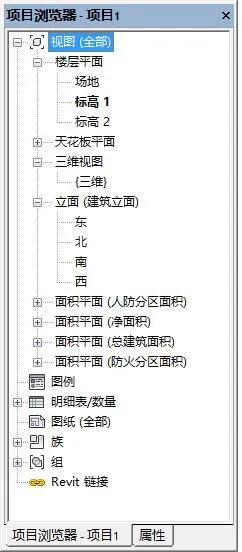
Figure 3: Project Browser (View Control)
All available views and drawings are organized within the Project Browser for easy management. The Project Browser allows you to quickly switch between views and manages all information related to the current project, including resources such as views, schedules, drawings, families, groups, and linked Revit models.
The most frequent task during project design in Revit is toggling between different views through the Project Browser. Additionally, the ViewCube navigation tool provides fast and intuitive orientation of the model in 3D views. By default, this tool is located in the upper right corner of the 3D view window.
















Must log in before commenting!
Sign Up