
In standard highway route planning, besides the topographic base map and necessary annotations, the design primarily involves a road centerline and station number annotations along the centerline.
The route labeling feature in Civil 3D can be fully customized to align with local mapping conventions in China, effectively meeting annotation requirements. The main types of route labels include: main station numbers, auxiliary station numbers, curve points, station number chain breaks, design speeds, longitudinal section curve points, and super elevation critical points, as illustrated in Figure 1.
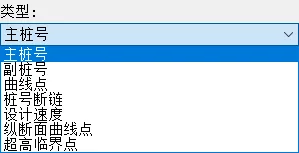
Figure 1: Types of Route Labels
1) Creating a Route
Start by creating a route object within the drawing. The system automatically generates route labels by default, as shown in Figure 2.
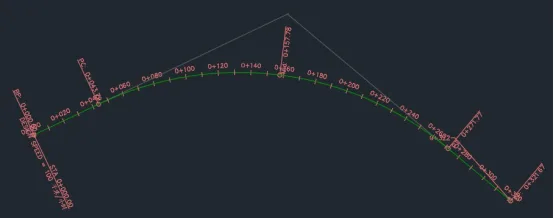
Figure 2: Default Route Label
2) Editing Label Styles
Upon reviewing the default station number annotation format, it becomes clear that it does not meet the annotation style standards used in China. The Civil 3D localization module includes pre-built label style sets tailored for Chinese users. These can be swapped with commonly used highway or urban road annotation formats familiar in China.
To apply these styles, select the route object, right-click to open the Edit Route Label dialog box, and click the Import Label Set button at the bottom. From the dialog that appears, choose the desired label set, confirm, and close the dialog. The route labels will update accordingly, reflecting styles consistent with Chinese design practices, as shown in Figure 3.
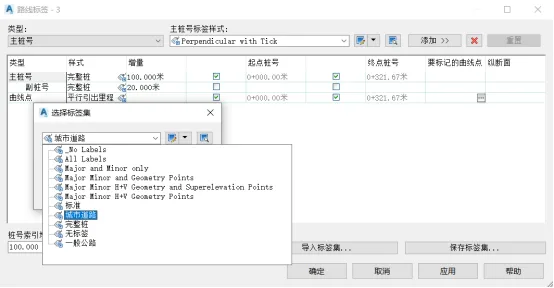
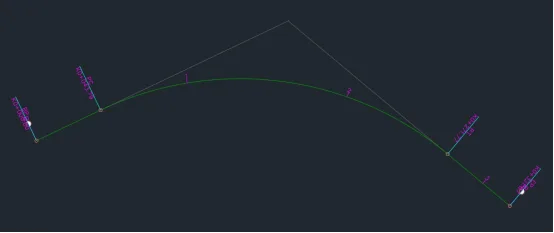
Figure 3: Localized Label Styles for Application
3) Customizing Label Styles
In certain cases, the built-in label style sets may not fully satisfy specific project requirements. This necessitates creating and customizing label styles. For example, to create a custom label style for urban roads with a 20-meter step size and station spacing:
Select the route object, right-click to open the Edit Route Label dialog box (see Figure 4), delete the current label style, and begin creating a custom label style.
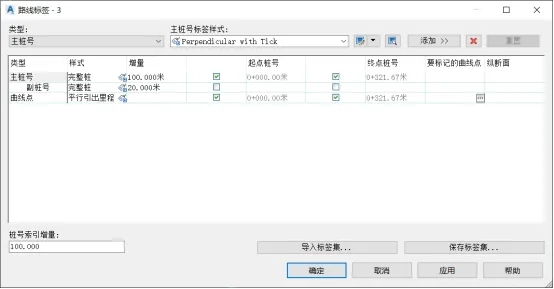
Figure 4: Route Label Dialog Box
Add the main station type and set the label style to kilometer station. After applying, the route label will display the commonly used kilometer posts according to local mapping conventions, as shown in Figure 5.
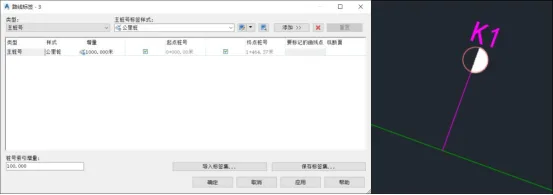
Figure 5: Kilometer Post Label
To further customize, select the kilometer post label style within the Edit Route Label dialog box and click the Edit Current Selection command. This opens the label style editor, allowing you to modify the current label style as needed, as shown in Figure 6.
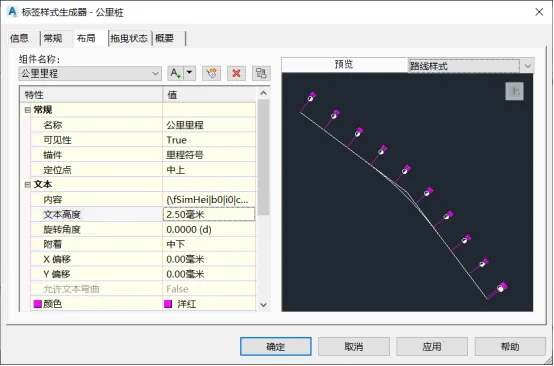
Figure 6: Label Style Editor
Next, add sub-station numbers (with a 20-meter step size), horizontal curve feature points, and other necessary elements one by one. After completing these additions, click Save Label Set in the lower right corner to finalize your customized route label style set, as seen in Figure 7.
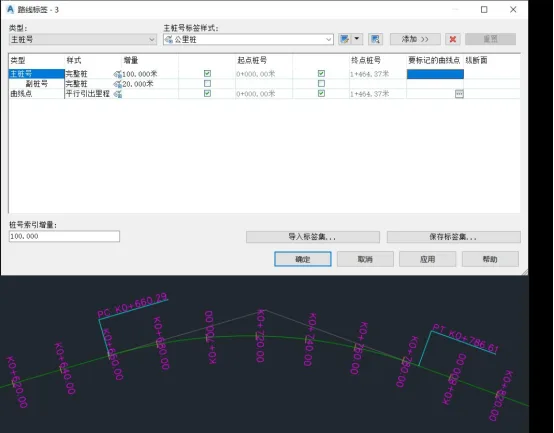
Figure 7: Customized Localized Chinese Municipal Annotation Style
By customizing label styles, you can also create annotations for route intersections, line design information, pile-by-pile coordinate data, and route map details.
















Must log in before commenting!
Sign Up