
This article is from the official account: Water God talks about C4D.
Recently, many group members have expressed frustration with controlling lighting in Cinema 4D (C4D), struggling to achieve their desired effects. Often, projects rely on a single HDR image, resulting in images that appear either dull or overexposed in certain areas.
While C4D’s built-in lighting system offers some functionality, it has limitations—such as the inability to precisely aim light at specific spots. Even using target objects, adjusting lighting can be cumbersome. Today, Shuiye shares two practical C4D lighting tips that will transform your workflow and make it hard to go back to the old methods.
Achieve Precise Lighting: “Point and Illuminate” Concept
This technique allows you to click on any position of an object with your mouse, and the light will illuminate that exact spot. This greatly enhances lighting accuracy and truly enables arbitrary control over where your light hits.
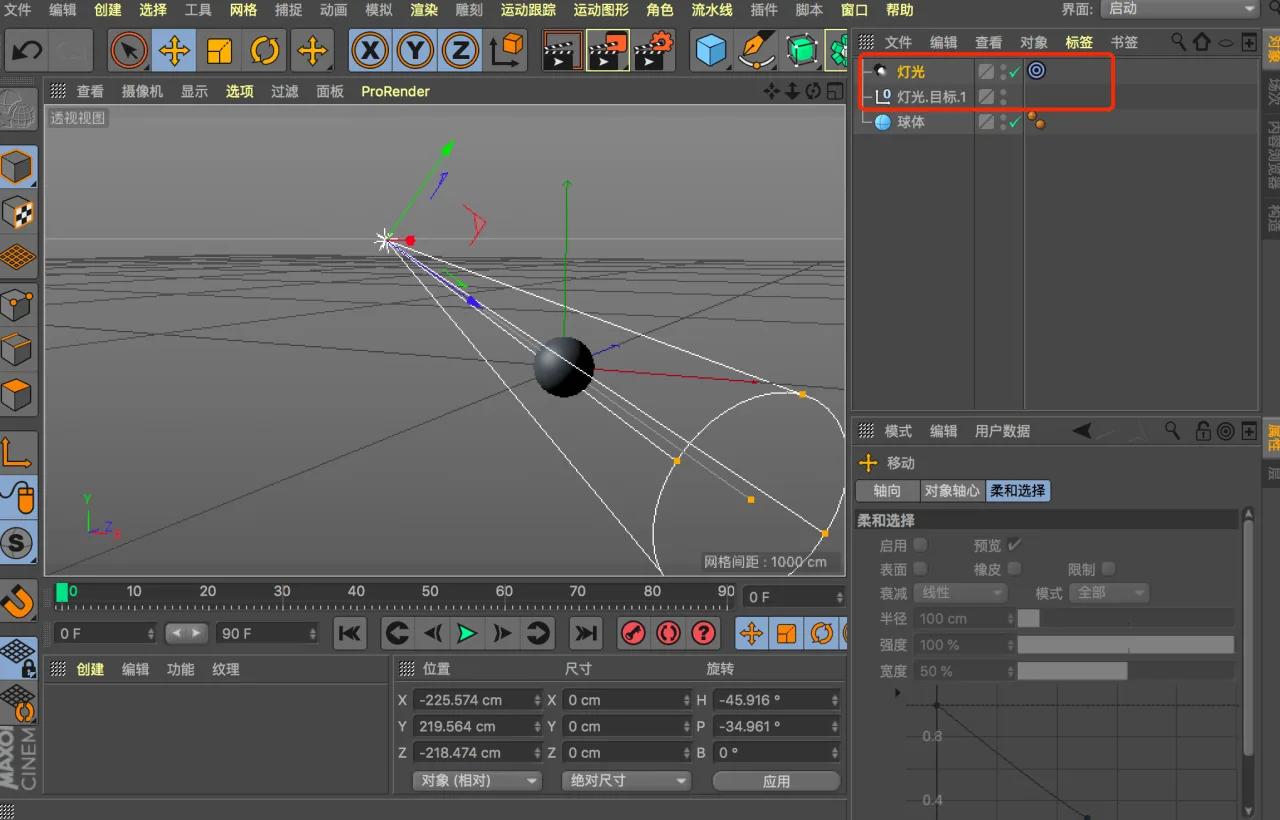
To start, assign a Target Tag to your light and set the target object that you want to illuminate.
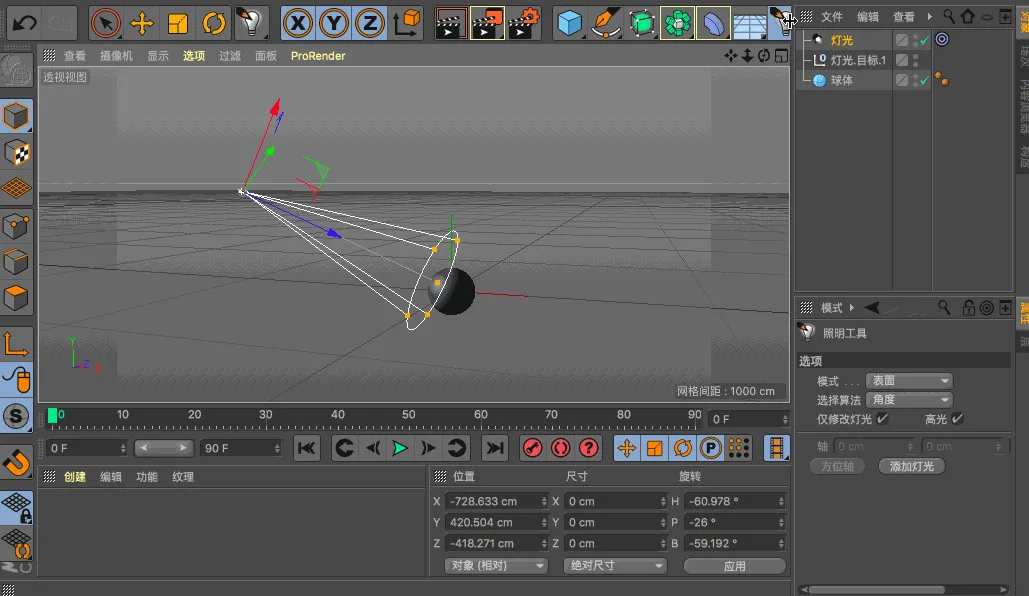
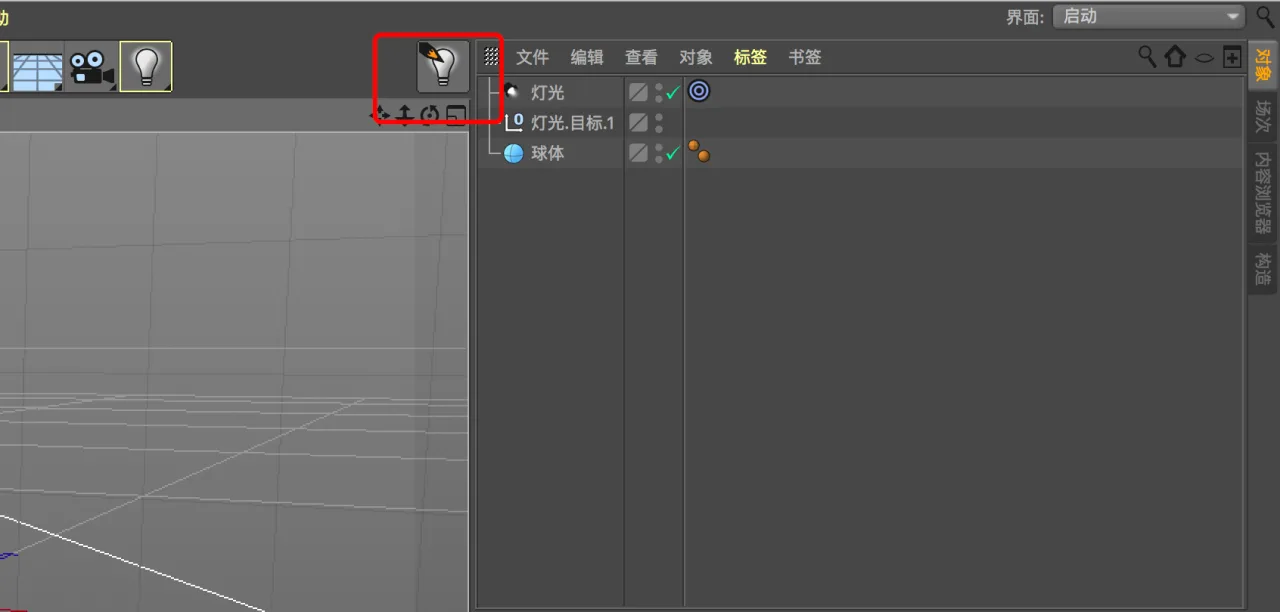
Next, press SHIFT+C to open the global search command, type “Lighting Tool” into the dialog box, and drag this tool to your toolbar. Click “Use” to activate it. Now, the light will respond to your mouse clicks, allowing you to “point and illuminate” precisely where you want.
Quickly Preview Octane Lights Without Reloading
When setting up lighting, we often use the three-point lighting technique, meaning a scene typically includes at least three lights. To preview the effect of a single light, you usually need to turn off the others and wait for Octane Renderer (OC) to reload. This process becomes time-consuming in complex scenes.
Here’s a handy method to preview each light individually without reloading.
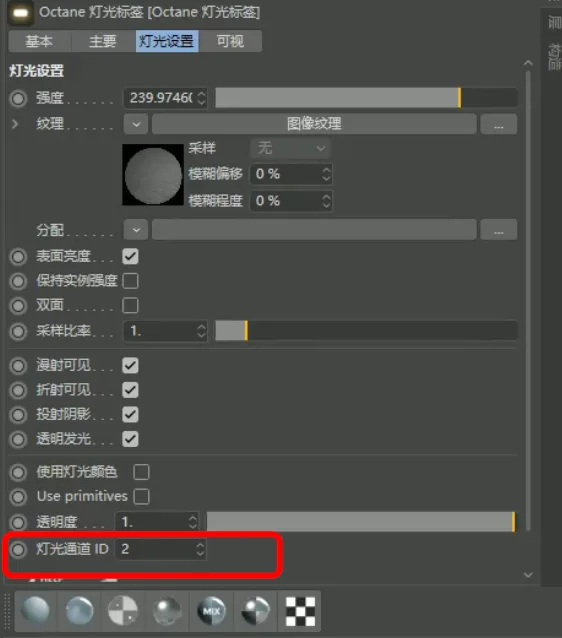
First, assign a unique Light ID to each of your lights.
Then, open Render Settings → Octane Render Settings → Light Channels. Enable channel rendering and check the channels corresponding to the Light IDs you assigned.
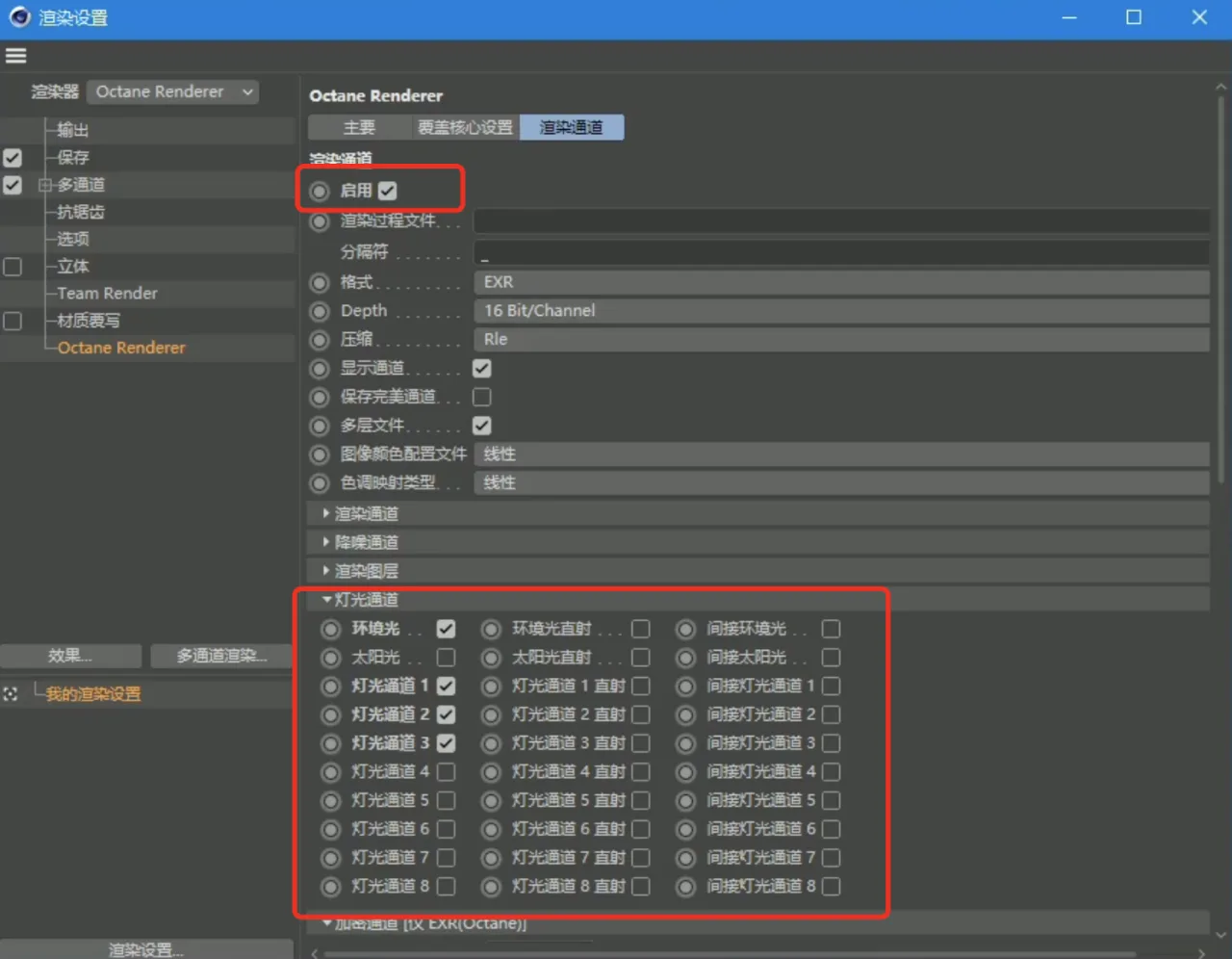
Now, in the Octane render panel, you’ll see switches for each light channel. Simply toggle these switches to turn lights on or off without triggering a full scene reload, significantly improving your workflow efficiency.
















Must log in before commenting!
Sign Up