
This article is from the official account: BIM Center of Guangdong Heavy Industry Institute.
Since there are many topics to cover today, the editor has split the content into two parts. This article focuses on the first part.
Today’s Tip: Graphic Overlay Combination
Default shortcut key: None (you can set your own shortcut)
To locate the Graphic Overlay Combination command, click the bottom menu and select Graphic Overlay Combination.
Begin by opening ARCHICAD software.
Next, differentiate the objects whose colors you want to change from other objects. You can use layers, sizes, materials, and other criteria for this distinction.
Then, click the Graphic Overlay Combination command located in the menu bar at the bottom of the screen.
(The Graphic Overlay Combination command is shown in the image above.)
After clicking the command, a dialog box for graphic overlay combinations will appear.
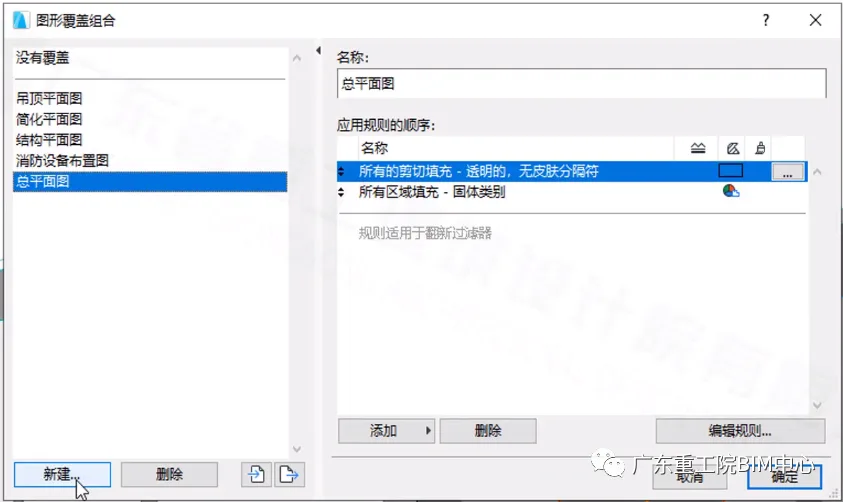
(The dialog box for Graphic Overlay Combination is shown above.)
Click the New button to create a new combination. Enter a name for it and click OK.
Select the newly created combination, then click Add. This will open a dialog box for setting graphic overlay rules. Here, specify conditions that differentiate objects whose colors need to be changed from those that don’t.
(For example, as shown in the video, if you want to make a wall transparent, you can distinguish the wall to be made transparent from others by layers. Then, select the layer corresponding to the wall you want to modify and add a new rule.)
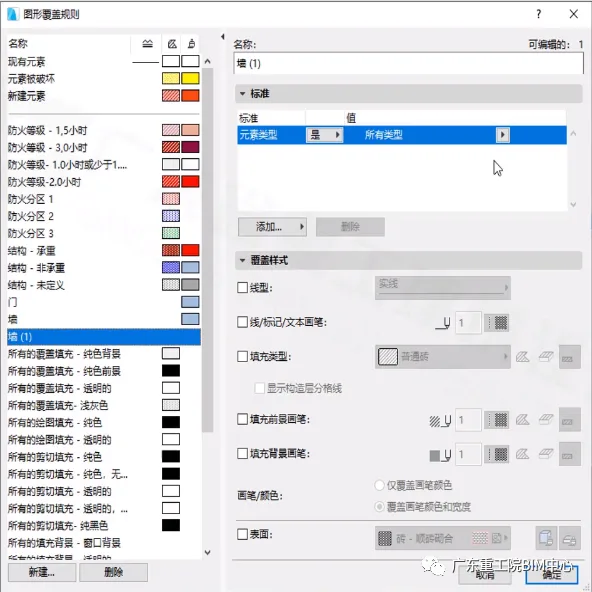
(The dialog box for setting graphic overlay rules is shown above.)
Next, click on the surface color option and choose the color you want to apply.
(For instance, if you want the wall to become transparent, select a transparent color.)
Finally, click OK to finish the process!
















Must log in before commenting!
Sign Up