
This article is brought to you by the official account: BIM Center of Guangdong Heavy Industry Institute.
Today’s Tip: Using the Mesh Tool to Draw Straight Slopes
Default Shortcut Key: None (can be customized by the user)
You can find the Mesh Tool in the left menu bar of the ARCHICAD interface.
Start by opening ARCHICAD and locating the ramp model you want to create.
Once you know the platform data at both the bottom and top of the slope, drawing a straight ramp becomes straightforward.
Select the Mesh Tool and double-click to open the dialog box. Enter the starting height and slope thickness here. For example, if the bottom floor height is 0 and the floor thickness is 300mm, then the slope thickness should be set to 300mm.
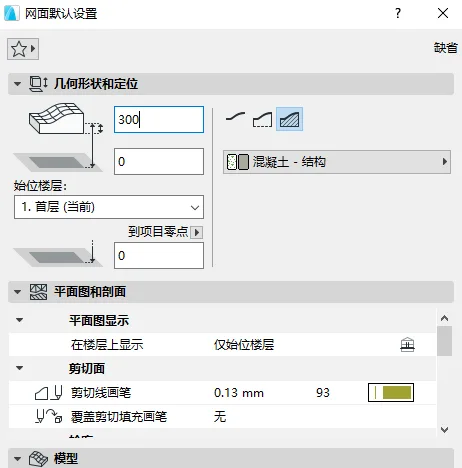
(The mesh settings panel is shown above.)
After entering the ramp data, click OK and draw the ramp between the two platforms. At this stage, the ramp is created as a floor slab.
Next, switch to the 3D view to edit the model.
Click on the ramp model, then left-click on the boundary line edge that you want to raise.
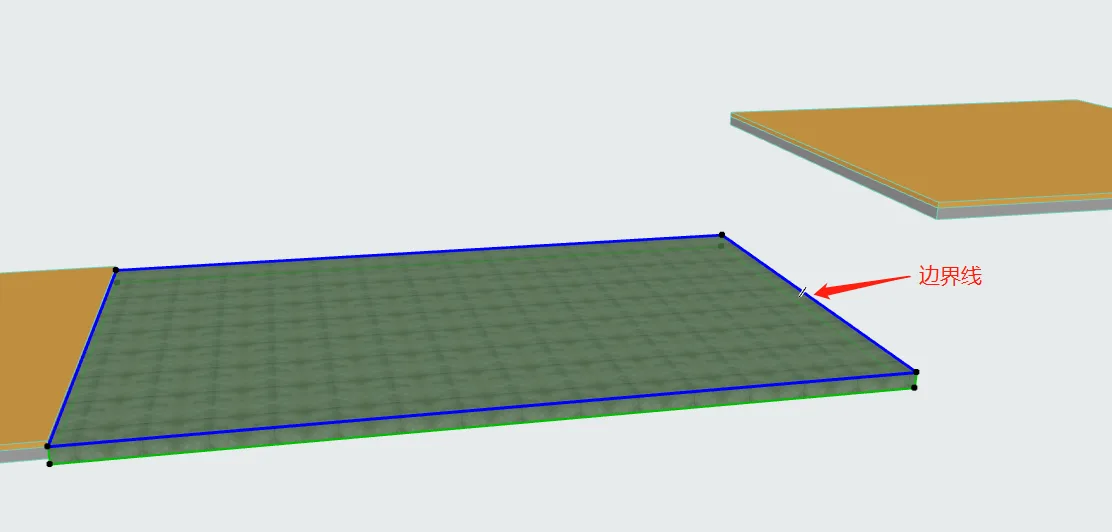
(The ramp boundary line is highlighted in the image above.)
In the dialog box that appears, select the mesh point you want to raise and adjust its height to the desired level. This completes the ramp.
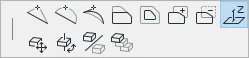
(The location of the mesh adjustment points is shown above.)
After raising the mesh point to the desired height, your ramp is complete.
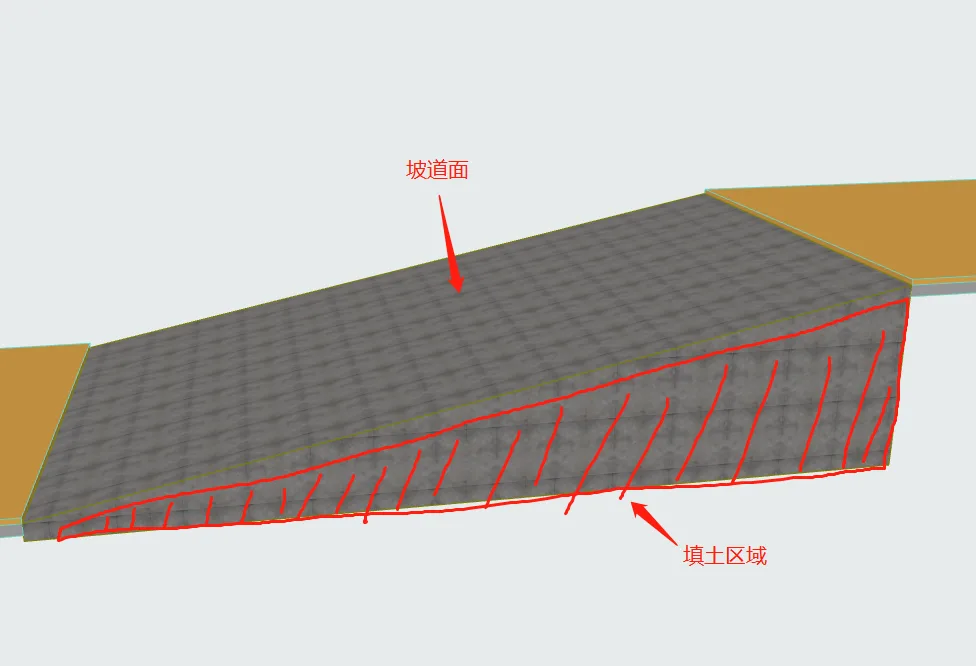
(Here is the completed ramp as shown above.)
If you only need a ramp surface of a specific thickness without filling the entire area, copy the slope, move it down by the slope thickness, and use the Solid Element Tool to cut the slope accordingly.
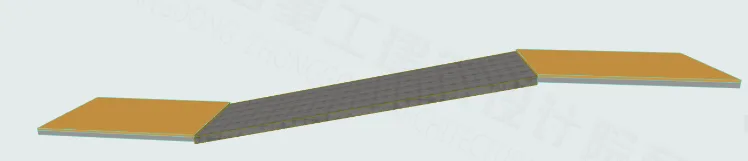
(The ramp without the backfill area is illustrated above.)
















Must log in before commenting!
Sign Up