
Source: BIM Center of Guangdong Heavy Industry Institute
Today’s Tip: How to Import Texture Materials into ArchiCAD (AC)
Default Shortcut Key: None
To access surface materials: Menu Bar > Options > Element Properties > Surface Material.
To access building materials: Menu Bar > Options > Element Properties > Building Materials.
01 Importing Materials
Importing and using texture materials in ArchiCAD involves two key steps: importing materials and assigning them.
First, let’s import the material. Navigate to Menu Bar > Options > Element Properties > Surface Material.
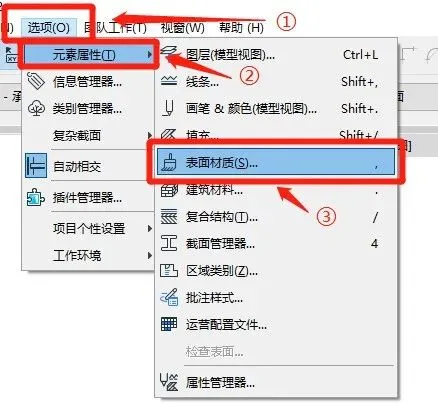
(The location of “Surface Material” is illustrated above.)
In the Surface Material window, click “New”. In the dialog box that appears, rename the new surface (here, we name it “Tip Wood”), choose either to copy an existing material or create a new one, then click “OK”.
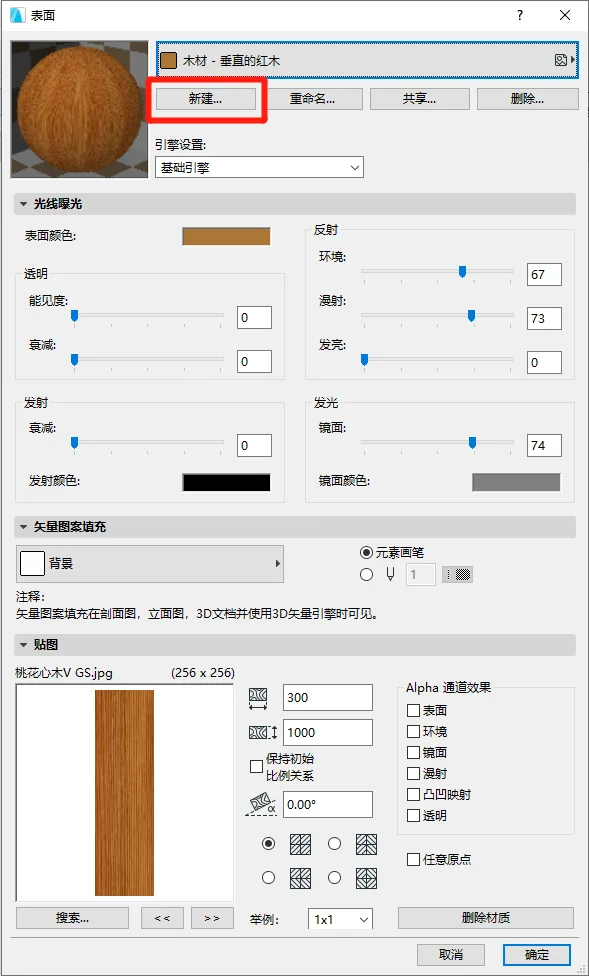
(This is the “Surface Material” interface.)
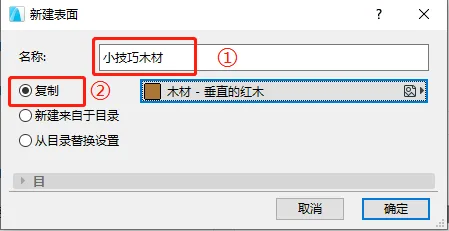
(The “New Surface” dialog box is shown above.)
Next, within the Surface Material interface, click on “Search”.
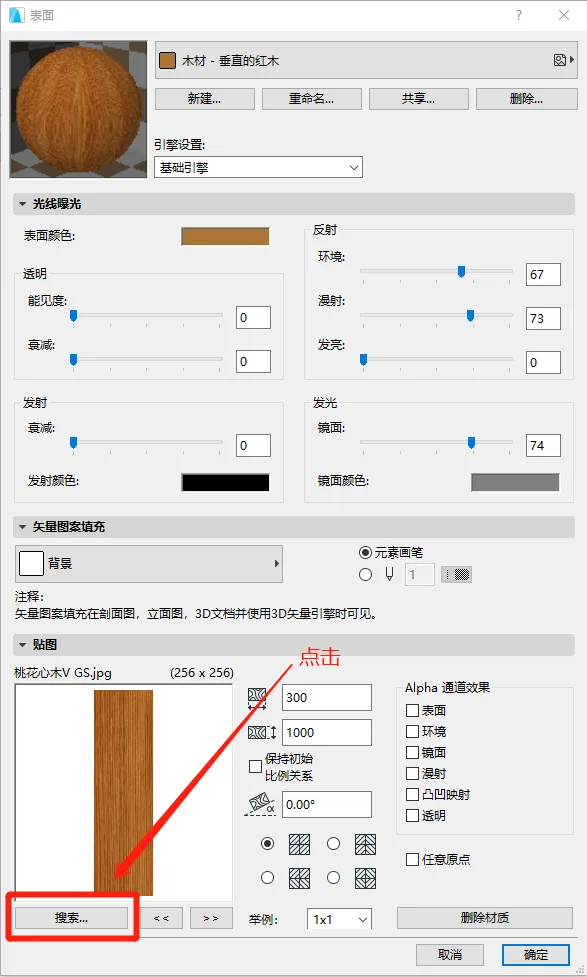
(The search location in the “Surface Material” window is highlighted above.)
From the “Load Images from Gallery” window that appears, select “Add”.
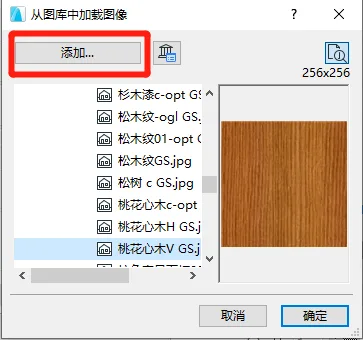
(Use the “Add” option as shown above.)
Locate the desired texture material in the pop-up file browser and open it.
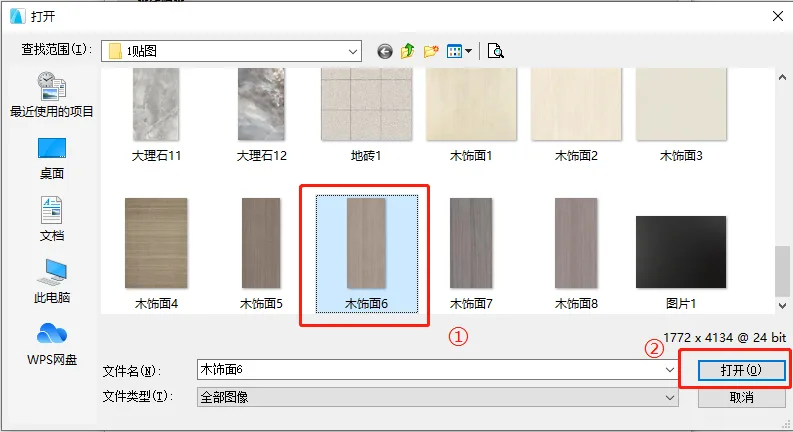
(Opening the texture material is illustrated above.)
Then, select the newly imported texture in the “Load Image from Library” window and click “OK”.
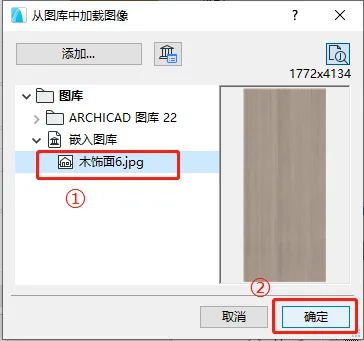
(Loading the image is shown above.)
After importing the texture, click “OK” to finalize.
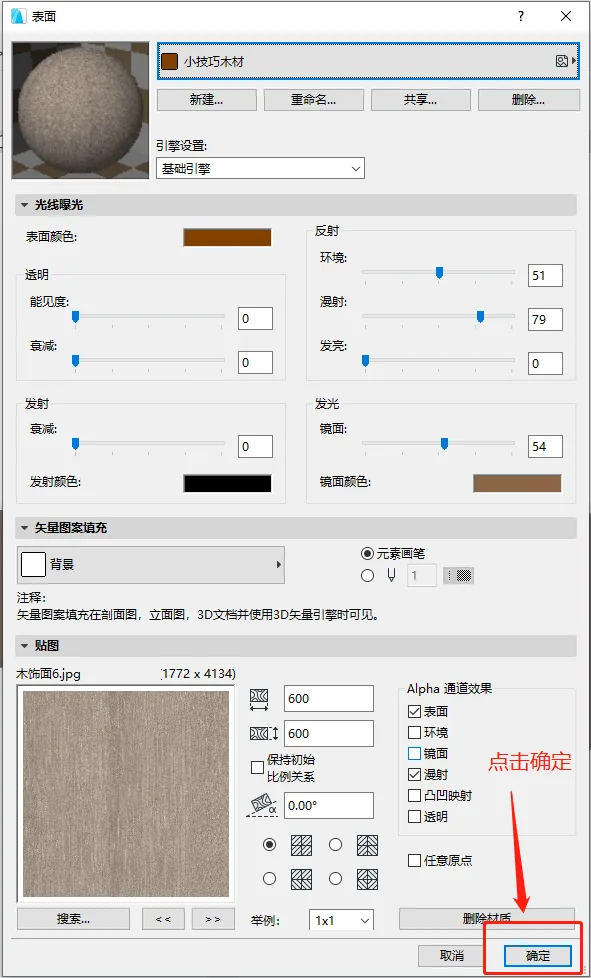
(Material import process as shown above.)
At this point, the texture material has been successfully imported. The next step is to assign the texture material.
02 Assigning Texture Material
Navigate to Menu Bar > Options > Element Properties > Building Materials.
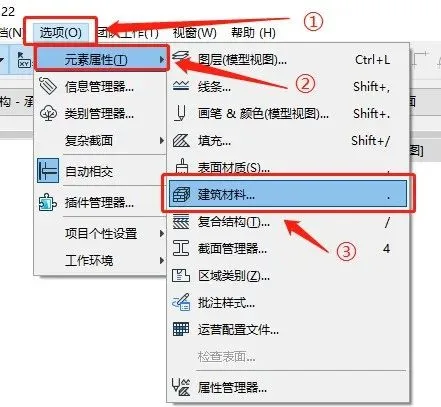
(The location of “Building Materials” is shown above.)
In the Building Materials window, click “New”.
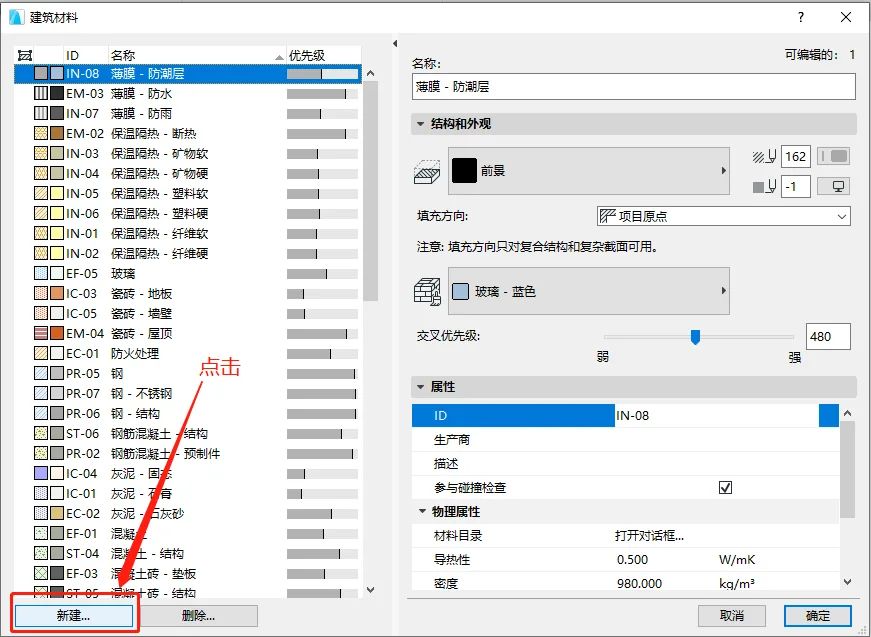
(Creating new building materials is illustrated above.)
In the “New Building Materials” dialog, rename the material (here, “Tip Wood”), select “Copy” or “New”, then click “OK”.
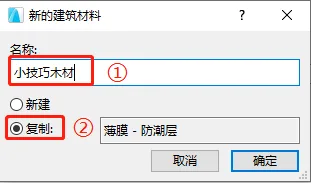
(Renaming the building material is shown above.)
Next, in the Building Materials window, locate the surface material you imported earlier and select it. Click “OK” to confirm.
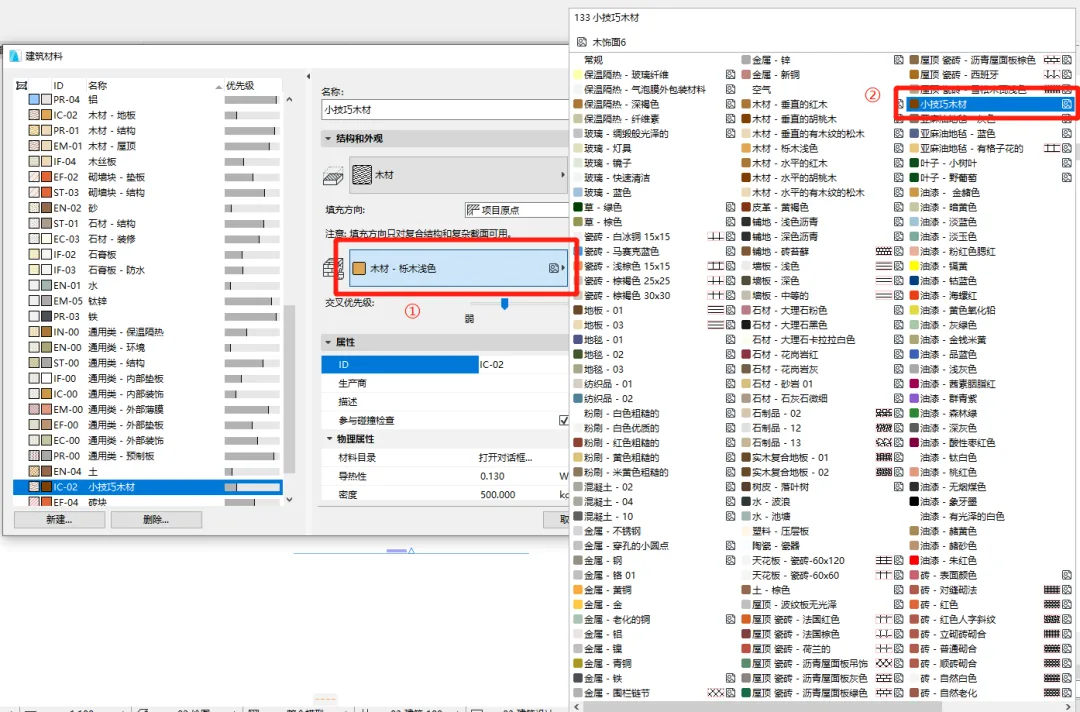
(Selecting the imported texture in surface materials is shown above.)
Now, the imported texture material is ready to use. Select the element you want to apply the texture to, then assign the material.
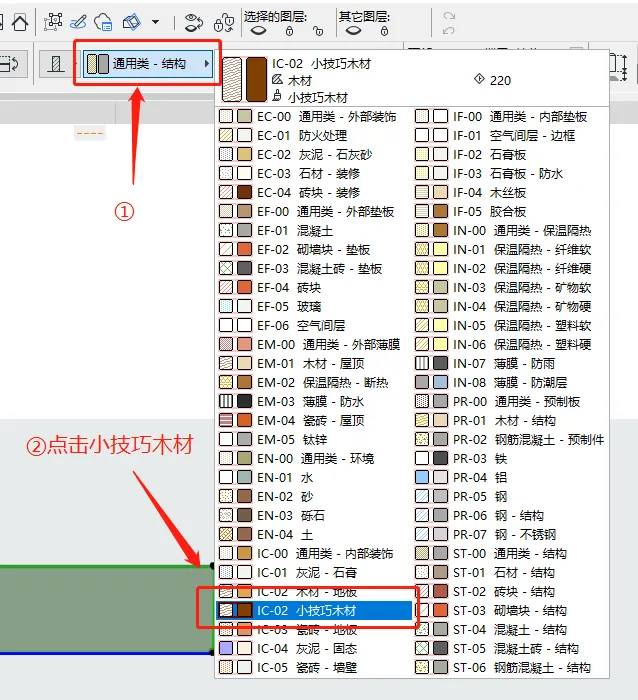
(Assigning the material to elements is demonstrated above.)
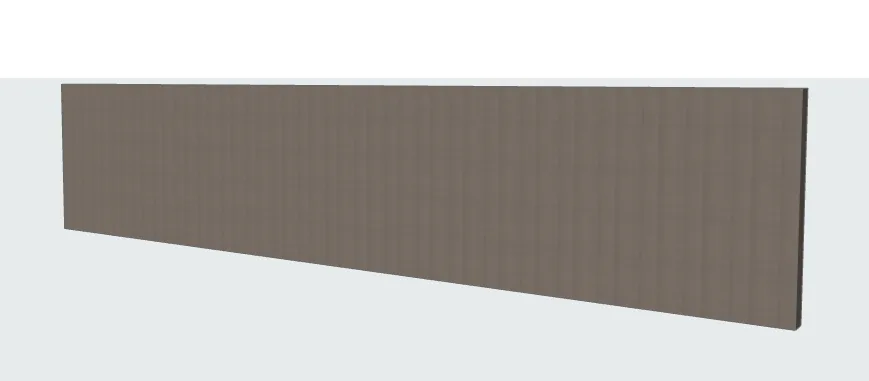
(The completed assignment is shown above.)
















Must log in before commenting!
Sign Up