
Background
While building an anchor slot in a prefabricated segmental beam model, I encountered a non-standard anchor slot. Achieving a hollow cut with the conventional metric model proved challenging, and the slot needed to be reusable. After careful consideration, I decided to create a hollow volume to import into the project for cutting purposes.
Steps
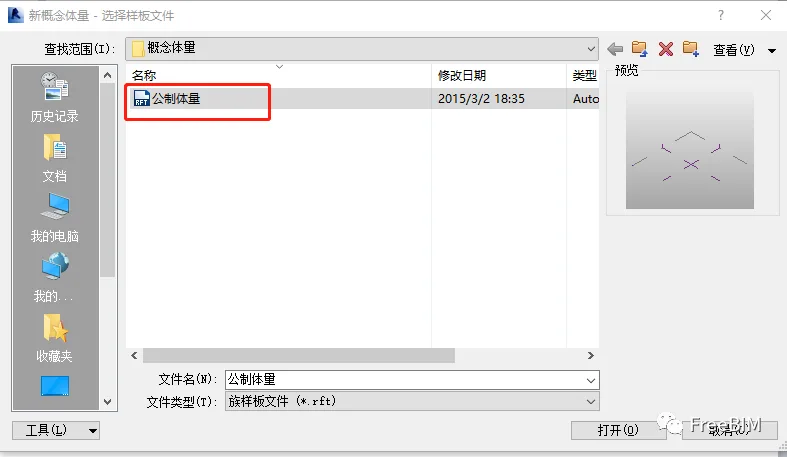
1. Create a new metric volume.
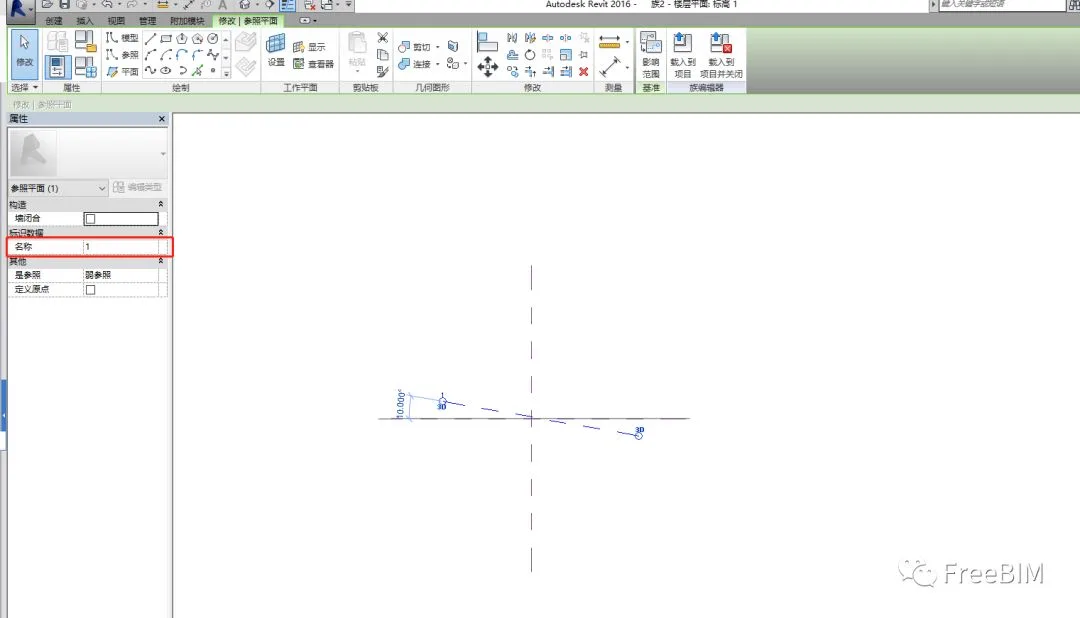
2. On the elevation view, create a sloping reference plane and name it according to your preference in the identification data.
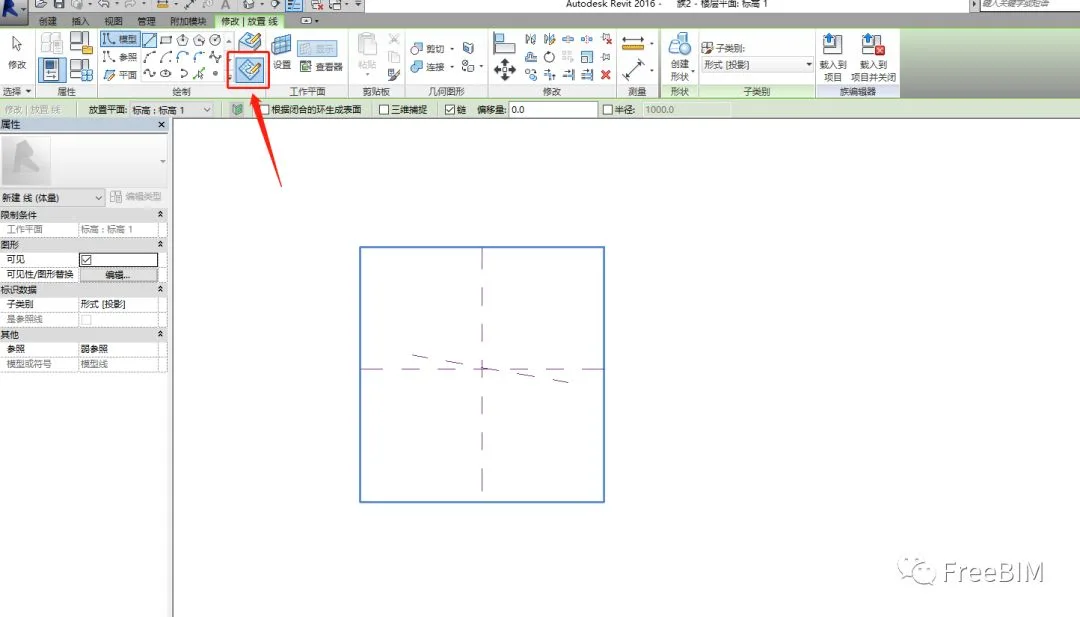
3. Draw model lines on the work plane by selecting the “Pick Work Plane” option. When creating a new work plane name, choose the one you just named (in this example, it’s named “1”).
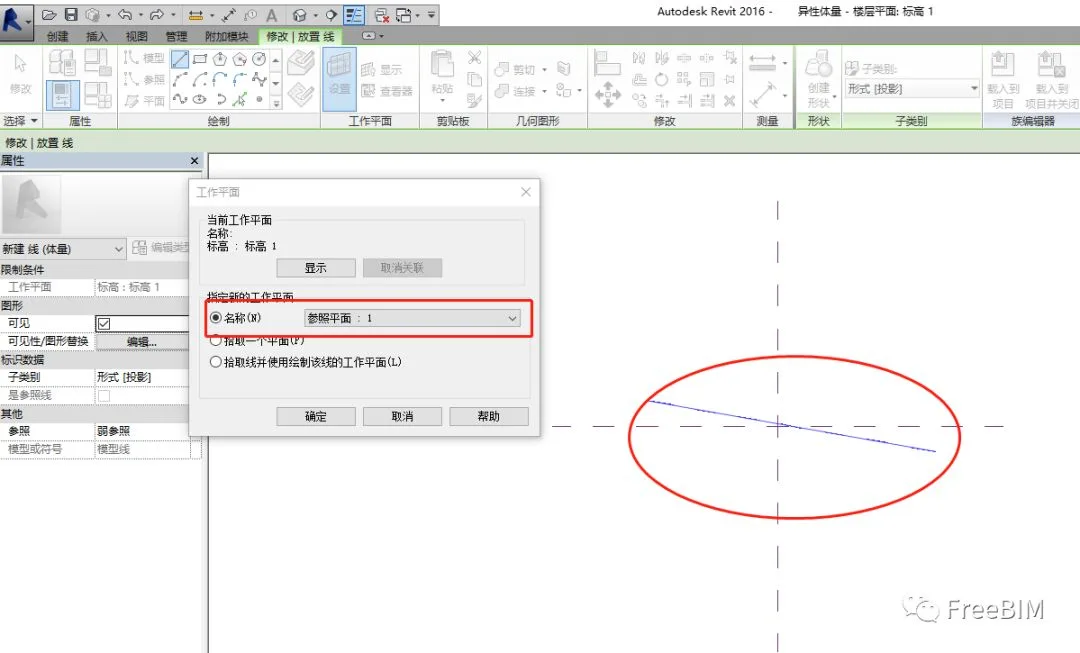
4. Draw the shape of the slope on the reference plane.
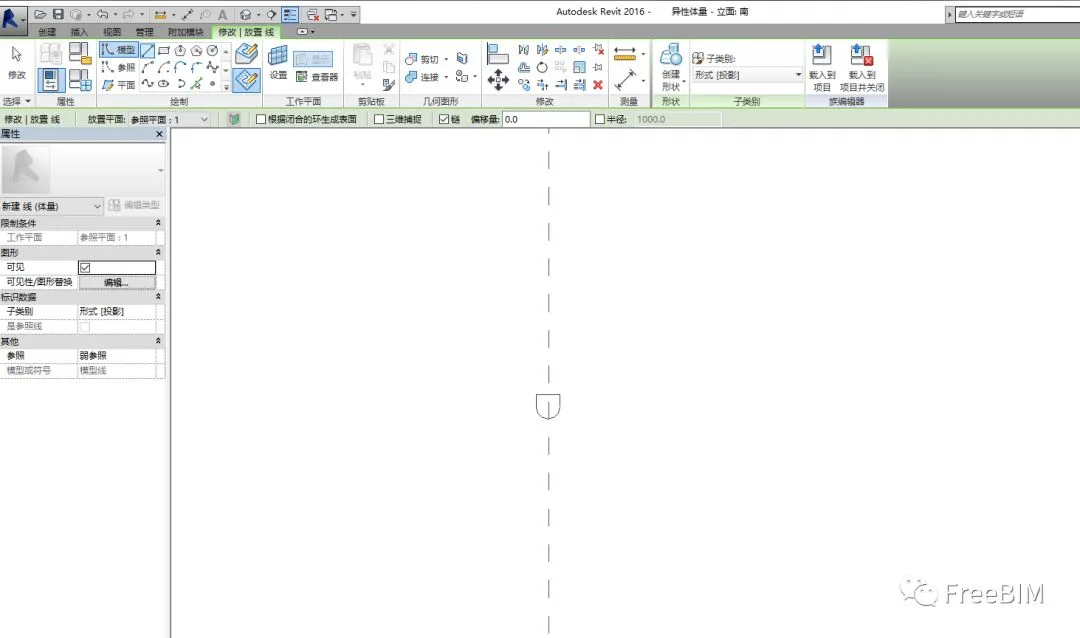
5. Draw another shape on a second plane where you want the hollow cut. You can also pick a plane here without naming it.
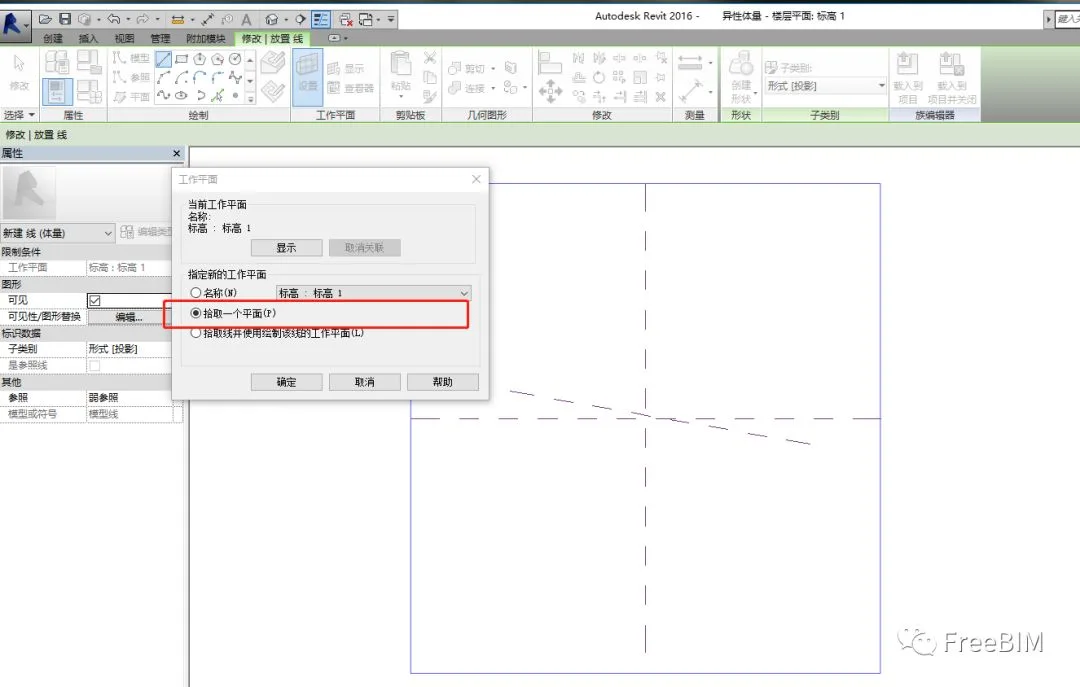
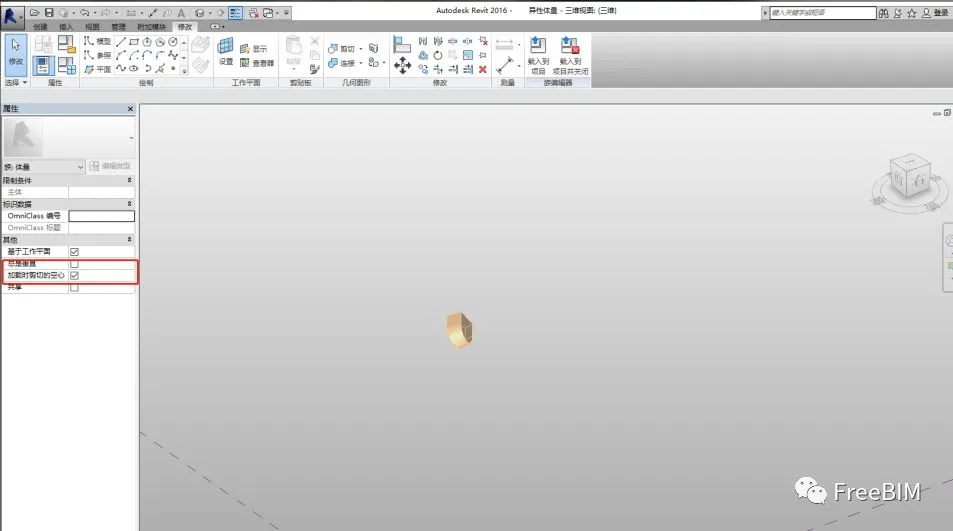
6. These are the two model line shapes you have drawn. Select both shapes, click to create a hollow form, and check the option for hollow shape cut during loading. Then save your work.
7. Load the hollow volume you created into the project, position it where needed, and use it to cut the desired hollow shape.
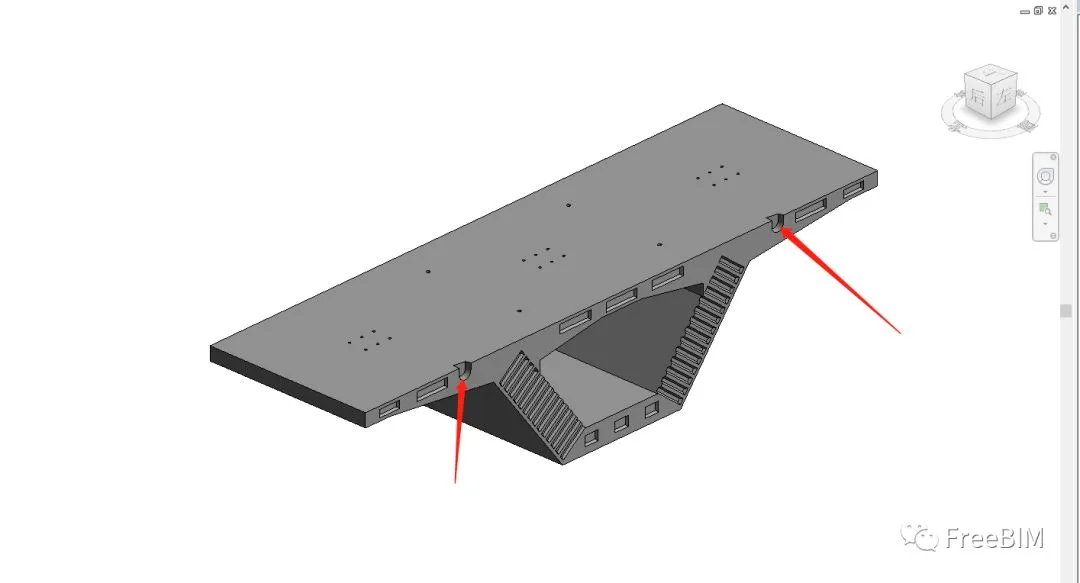
Note:
1. The volume can only be loaded into the project and cannot be used as a standalone suite.
2. When drawing model lines, you have the option to choose or pick a work plane.
Source: FreeBIM
Author: Xiao Sihua
















Must log in before commenting!
Sign Up