
Background
Why is it that when someone else submits a model, the view hierarchy appears clear, well-organized, visually appealing, and easy to navigate, yet when working with your own model, finding a view feels difficult and you constantly have to control visibility to filter it? How can this be acceptable under scrutiny?
A well-structured view organization improves modeling efficiency, reduces communication overhead, and establishes a professional image. So, how can we customize our own view organization?
Process
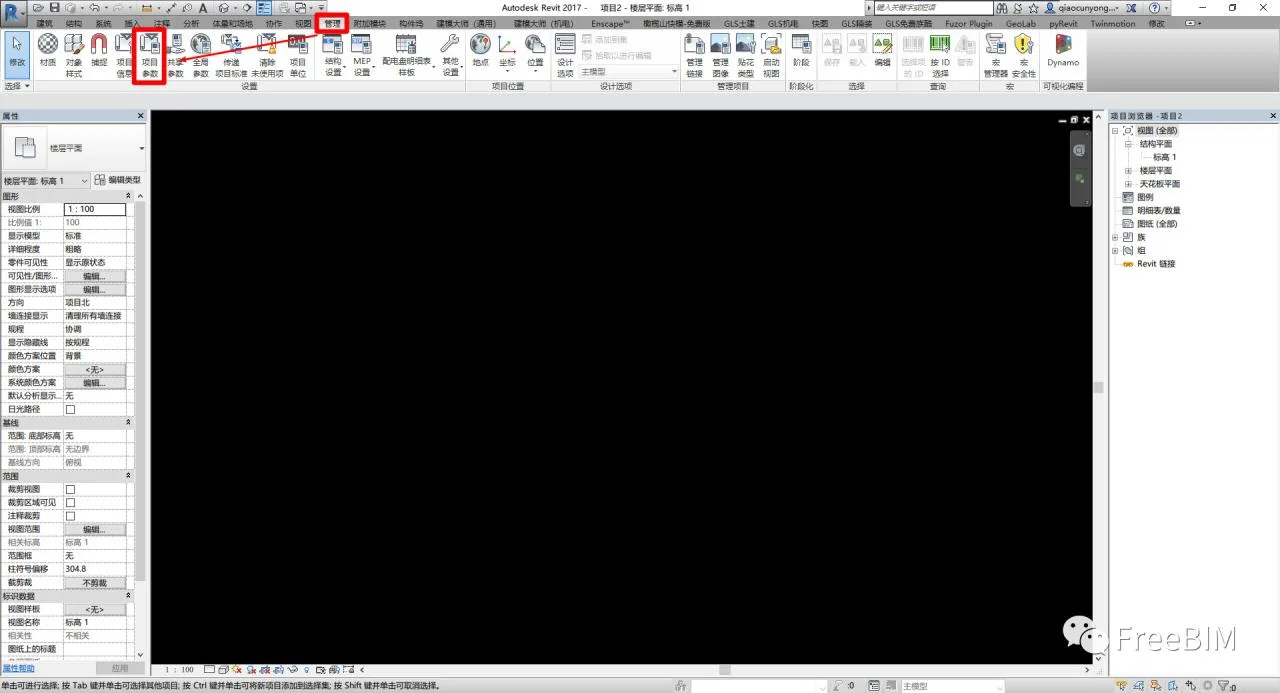
1. First, locate and open the Project Parameters in the Management panel.
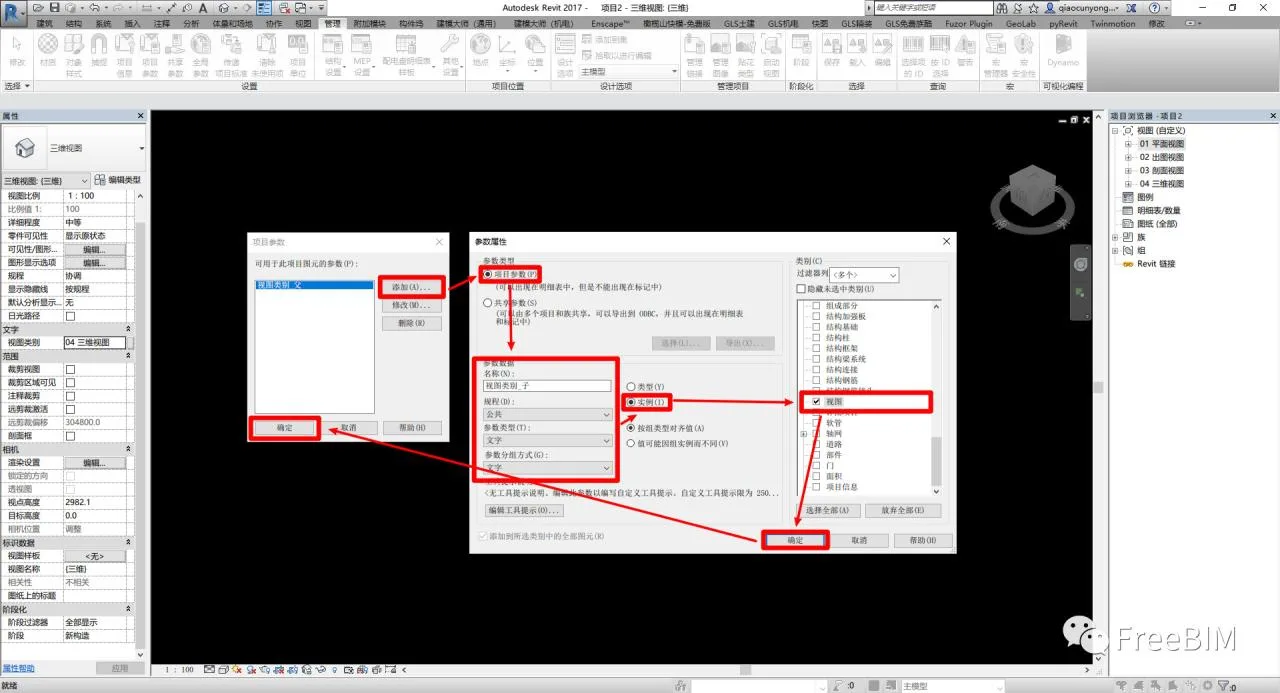
2. In the pop-up Project Parameters dialog, click Add and create two new parameters named View CategoriesParent and View CategoriesChild, as shown below.
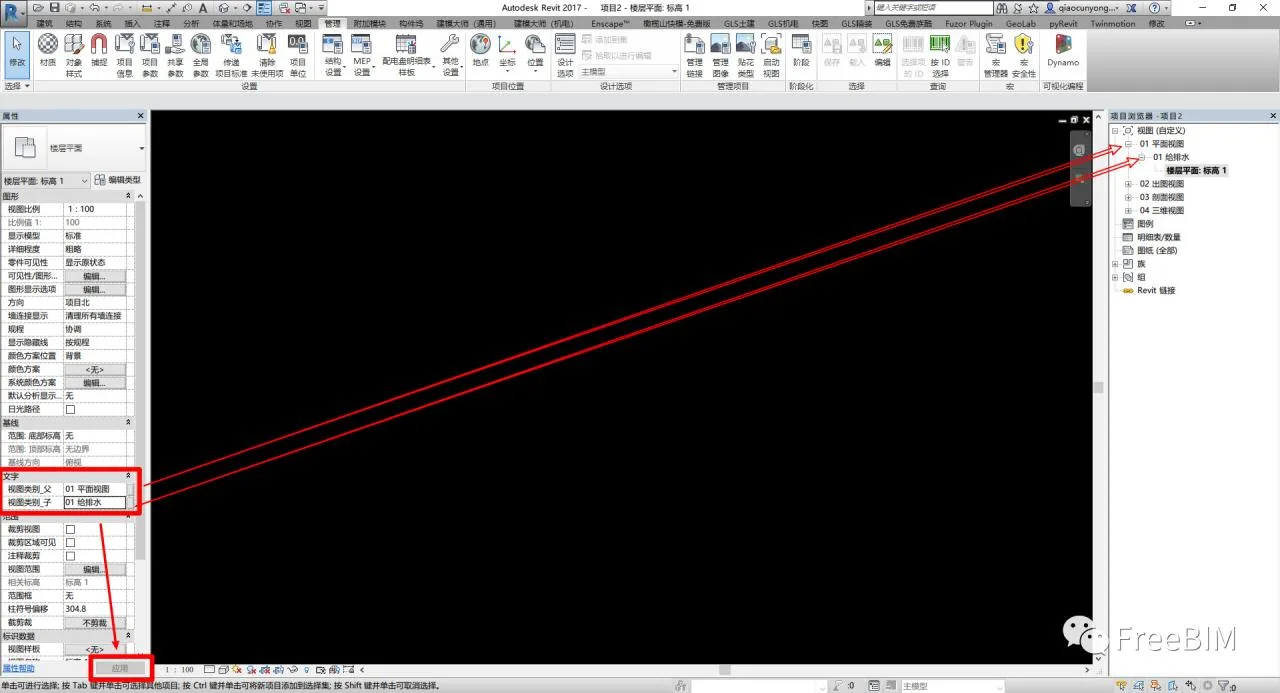
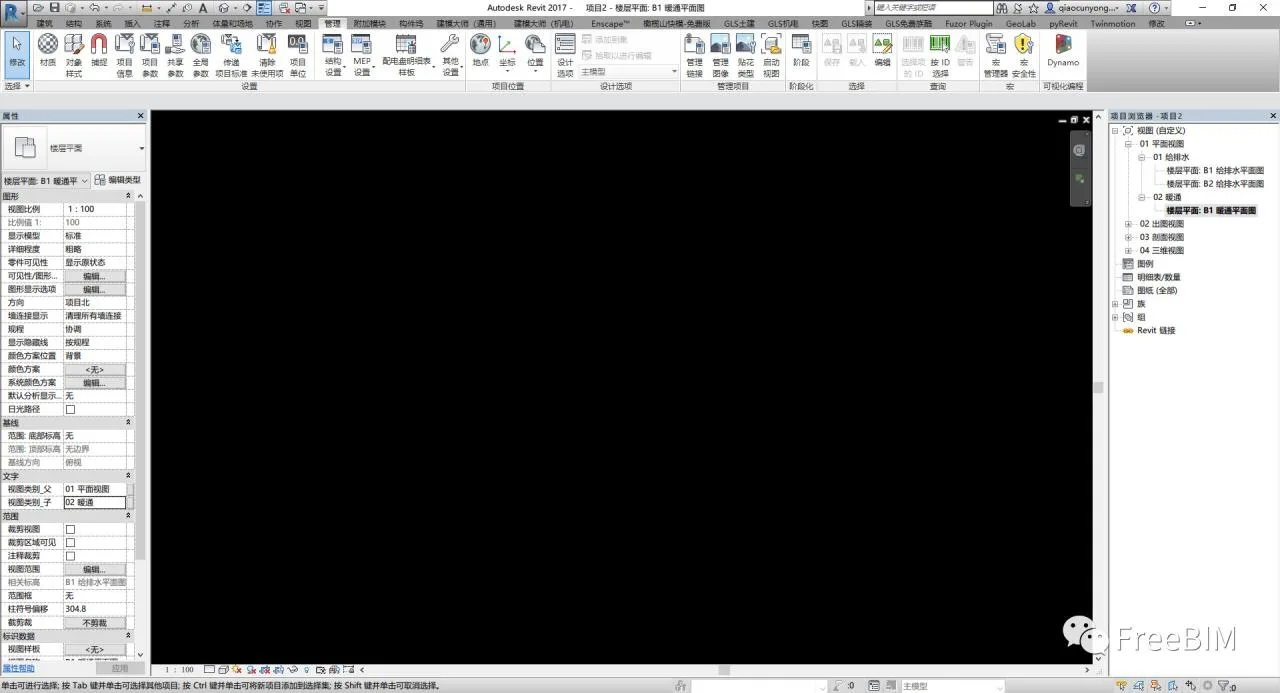
3. Switch back to the view. Under the Text category, you will now find the newly added project parameters View CategoriesParent and View CategoriesChild. Open a plan view, and in the property panel’s View CategoriesParent field, enter a name according to your project—for example, “01 Plan View.” In the View CategoriesChild field, enter a subcategory such as “01 Water Supply and Drainage.” Click Apply in the bottom left corner. Repeat this process for other views to organize them accordingly. The diagram below illustrates the relationship between these two parameters.
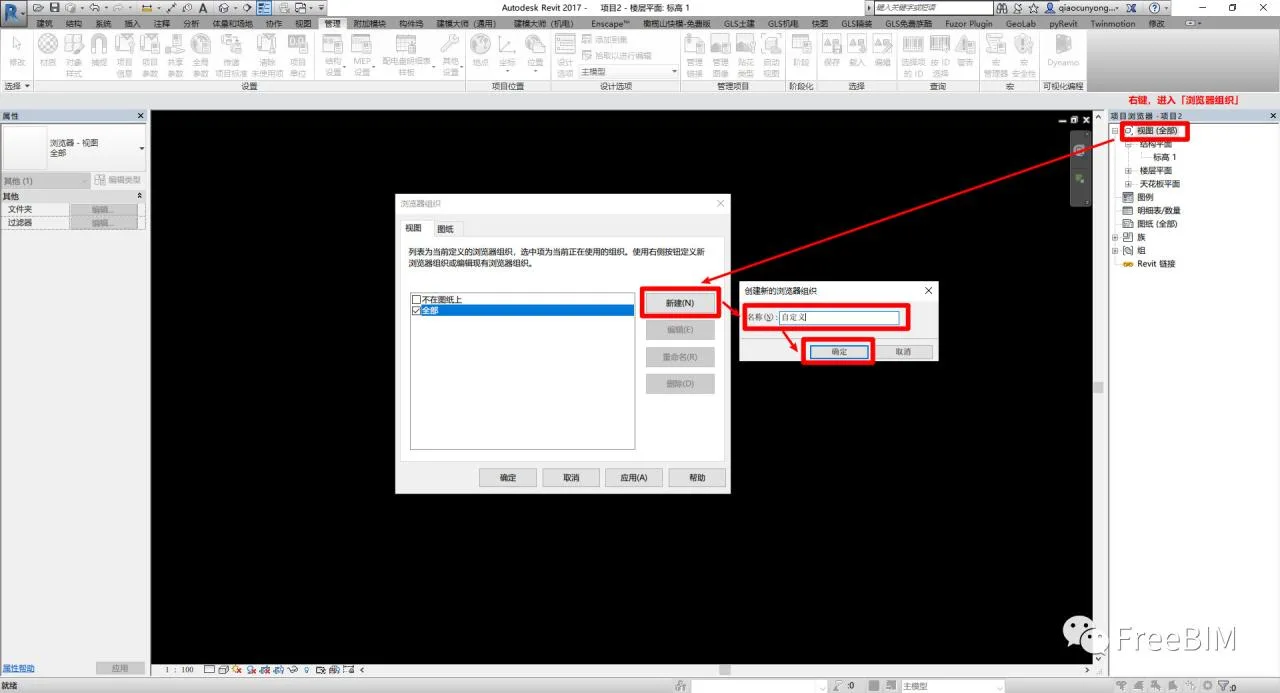
4. Next, right-click on View in the Project Browser and select Browser Organization. Click New to create a new browser organization. You can name it “Custom” or use your company’s name.
5. Configure the Browser Organization Properties dialog as shown in the image below.
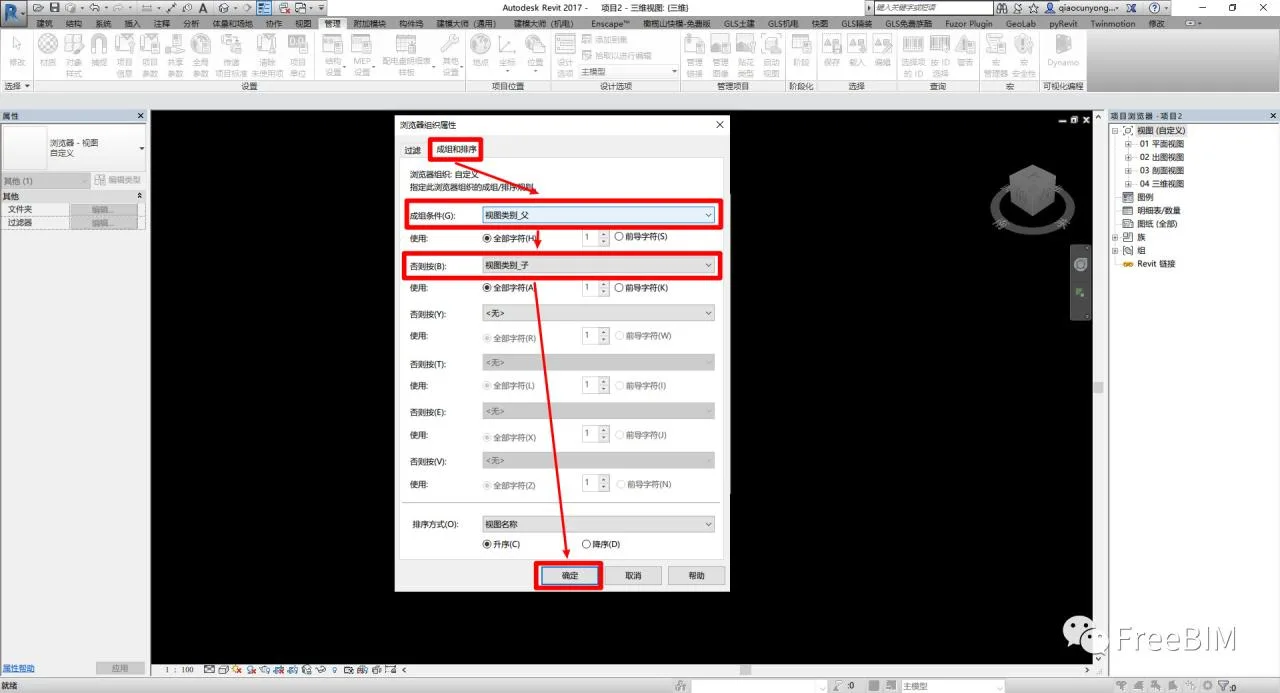
6. Return to the browser organization panel and select the organization method you just created.
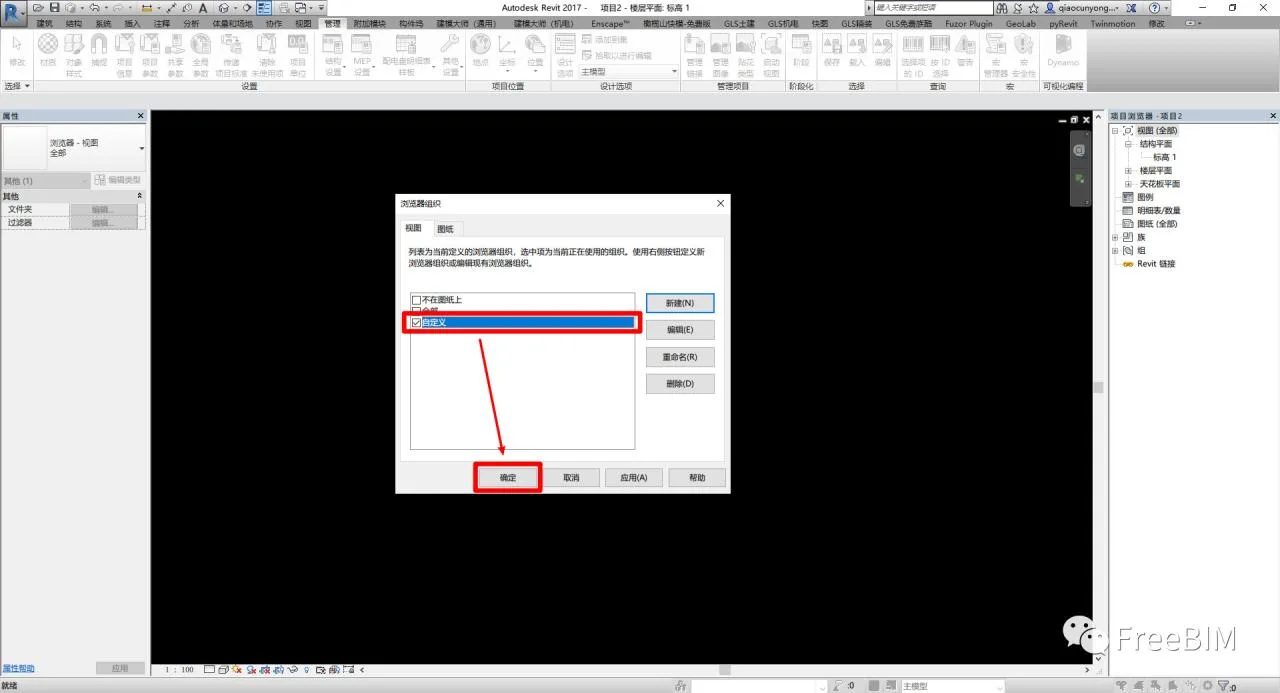
7. Finally, assign the appropriate values for View CategoriesParent and View CategoriesChild based on each view’s category, and your custom view organization is complete.
Postscript
It’s best to set up the view organization early on when creating project templates. This will make future projects much easier to manage and maintain.
Source: FreeBIM
Author: Qiao Yongbin
















Must log in before commenting!
Sign Up