
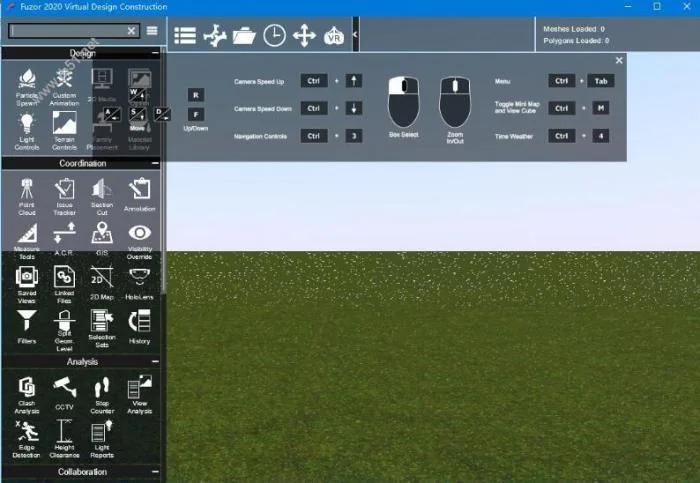
Fuzor 2020 is a BIM virtual implementation platform developed by Kalloc Studios. This powerful yet user-friendly 3D production assistant features a sleek interface that transforms BIM models into immersive BIMVR scenes. The latest update includes enhanced rendering modes, making your 3D animations more realistic than ever.
Introduction
Fuzor is an all-in-one software solution that combines BIMVR technology with 4D construction simulation. It quickly converts BIM models into vivid BIMVR scenes enriched with detailed project data, allowing stakeholders to communicate effectively within an immersive environment.
One of Fuzor’s standout features is its real-time, two-way synchronization with popular modeling software like Revit and ArchiCAD. Thanks to its strong compatibility with mainstream BIM models, Fuzor offers architecture, engineering, and construction (AEC) professionals a unified design environment for seamless workflow integration.
Fuzor supports direct importing of files from formats such as Revit, SketchUp, and FBX. Users can view projects in 2D, 3D, and VR modes, optimize model designs, and deliver high-quality results.
The software includes multiple functional modules—VR, multiplayer network collaboration, 4D construction simulation, and 5D cost tracking. Users can import schedules from Navisworks, P6, or Microsoft Project or create them within Fuzor. Machinery and workers can be added to simulate site layout and logistics, enabling users to review 4D construction simulations and related BIM data in VR. This approach boosts management efficiency, shortens project timelines, and reduces costs.
Installation Guide
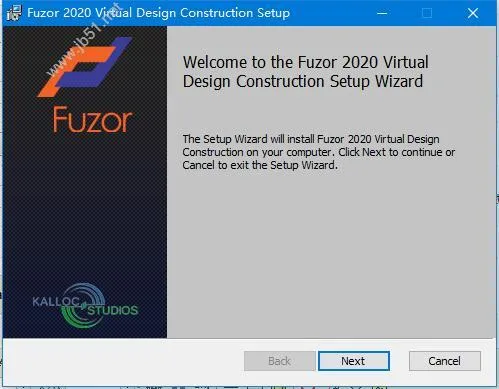
- Download the software package and double-click Fuzor-2020-Construction-VDC-full-featured-trial-version.msi to begin installation, as shown below:
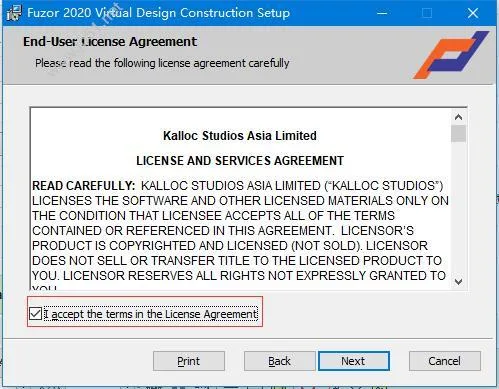
- Accept the license agreement by clicking “Accept.”
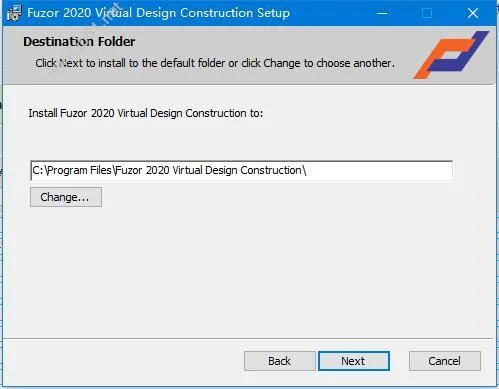
- Select the installation directory.
- Complete the installation and click “Exit.”
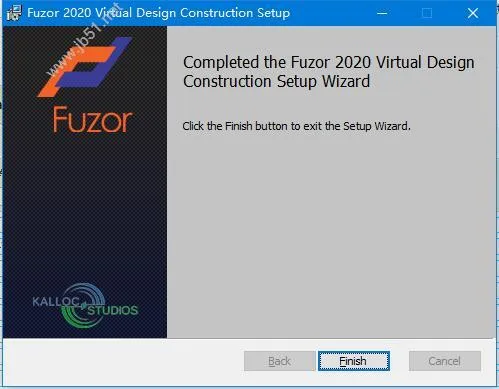
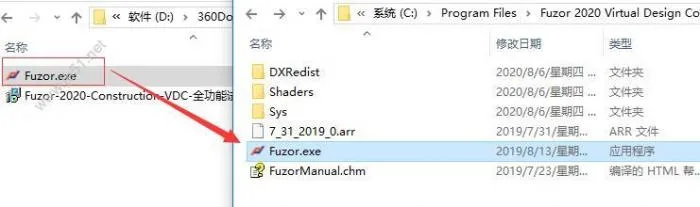
- Important: Do not launch the software immediately after installation. Instead, copy the Fuzor.exe file and paste it into the software’s installation folder.
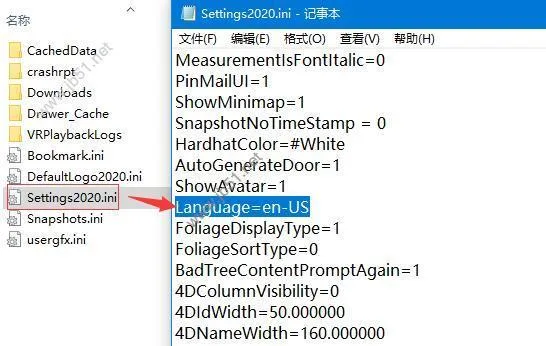
- To switch the interface to Chinese: navigate to My Computer > Documents > Fuzor, open the settings 2020.ini file with Notepad, and change language=en-US to language=zh-CN.
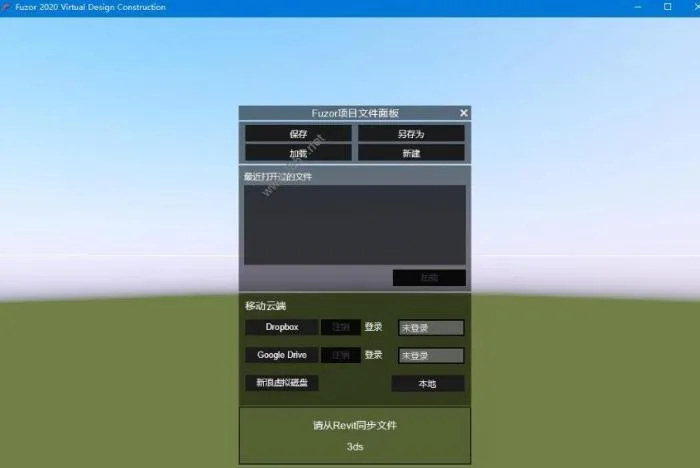
- Restart the software. It will now launch in Chinese, as shown below:
Features
- PBR Material Support: Fuzor 2019 supports physically based rendering (PBR) materials, allowing easy loading of SBSAR files with one click or importing six separate textures.
- ARCHVISION Materials: Log in to your Archvision account to apply RPC materials directly to your models.
- Event Trigger System: Create interactive scenes with triggers for quizzes or animations—perfect for safety training and construction briefings.
- 360-Degree Panoramic View: Export panoramic images viewable from any angle.
- CAVE System & Holographic Projection Support: Enhance immersion using CAVE systems or holographic displays.
- 3D Effects: Enable stereoscopic 3D in settings and use 3D glasses for a fully immersive experience.
- Enhanced VR Collaboration: Supports audio communication for peer-to-peer collaboration and allows assigning support personnel during meetings.
- Dynamic Blur & Camera Smoothness: Improves roaming fluidity and overall user experience.
- Improved Conflict Analysis: Save viewpoints, export partial conflict reports, view grid reports with up to 20 conflicts per page, group conflicts by component category, and load cached files.
- Sequence Animation: Combine components, edit custom animations, and assign movement paths.
New Features in Fuzor 2020
- Introduced a historical snapshot feature that allows undoing and redoing all operations, enhancing the standard Ctrl+Z functionality.
- Main view function enables switching back to the primary view at any time.
- Supports selecting, grouping, copying, and pasting multiple components simultaneously.
- Loading custom PBR material libraries now automatically updates materials with matching names.
- Components can be segmented individually or in batches by floor or spacing, with automatic model segmentation simplifying construction sectioning.
- Quick object selection is enhanced through a selection tree, improving efficiency.
- New selection set feature allows adding components to different sets for fast access.
- Component adjustments include free movement of the central axis position.
- “Top View” and “Elevation View” automatically appear when moving components, supported by multi-window assistance for precise positioning.
- Frame rate options added to viewpoint animation rendering settings.
- Event action types now include the ability to open a webpage.
- Sequence animations can be copied quickly.
- All supported files (FBX, SKP, IFC, etc.) can now be loaded using specified X, Y, Z coordinates for faster model localization and improved collaboration.
- The working radius of machinery is displayed to assist in site layout planning.
- Drivers (both male and female) can be added to machinery for realistic scenario simulations.
- Project participants can be invited via email to join collaborative conversations, with project file locations indicated in comments.














Trial version, 15 times in 2 days, can flash if deemed unnecessary
After the probation period, it cannot be used anymore