
=======================Correction=========================
=======================Original Text=========================
I want to first edit the drawing information in Excel, then import it into Revit to update the drawings.
Some plugins offer similar features, but this time, I will try a simple approach using Dynamo.
The basic logic is straightforward: first, retrieve all drawing names from Revit; then compare these names with those recorded in Excel. After finding matching names, extract the corresponding data from Excel and assign it back to the parameters of the relevant Revit elements.
There are two key points when implementing this process in Dynamo:
1. Finding the matching index by comparing drawing names
My approach uses the List.FirstIndexOf node to search for matches between two lists. This often returns many -1 values indicating no match. By filtering out -1, we get the desired indexes. There are various ways to handle this; I use GroupByFunction to extract the indexes. Once the indexes are obtained, we can retrieve the corresponding data.
2. Managing the output list structure
The node for setting Revit element parameters is Element.SetParameterByName, which requires three inputs: element, parameterName, and value. Each element must correspond to a set of parameterName and value, so the input lists generally need to be two or three levels deep. The values from Excel can remain in a three-level list structure, but parameterName often requires the use of List.OfRepeatedItem to create a matching list.
This is a simple initial attempt, and many aspects remain unaddressed. For example, logically, we could first identify the drawing information in Revit and modify it only if it differs from the Excel data. Additionally, we might need some control over the views in the drawings. I hope to explore these directions further in the future.
The Excel format looks like this:
Drawing Title & Drawing Information 1 & Drawing Information 2 & … < Image Name 1 & …
Below are the core Dynamo nodes used:
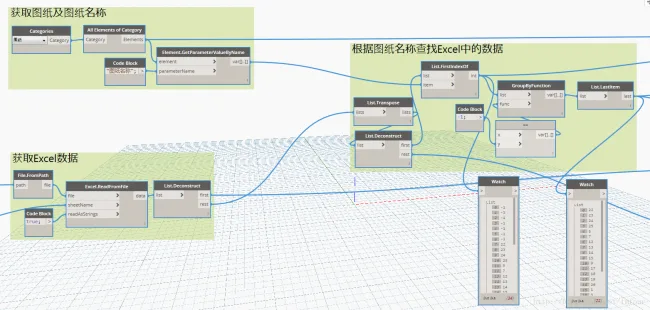
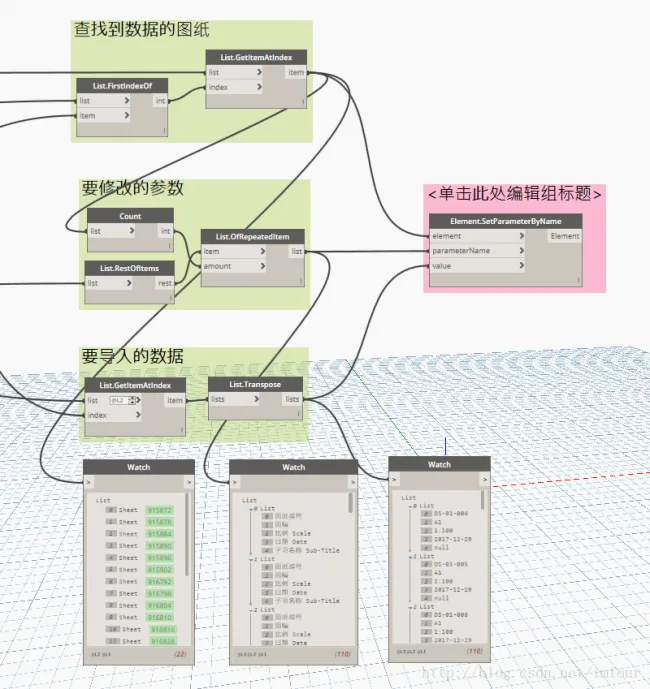













Must log in before commenting!
Sign Up