
A friend recently asked how to use Dynamo to number parking spaces. After some research, he documented a method for numbering parking spots using Dynamo.
There are various ways to number parking spaces, but here we focus on linear numbering. This approach involves drawing a line and numbering the parking spaces sequentially along the direction of that line. This method has been discussed in several online resources. The core technique presented here is based on a lecture by Mr. Tian Hongjun, the technical manager at Autodesk Taiwan. The idea is to extract lines from Revit, calculate the nearest point on the line for each parking space, and number the spaces according to the order of these points along the line.
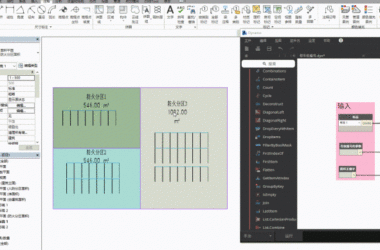
Example:
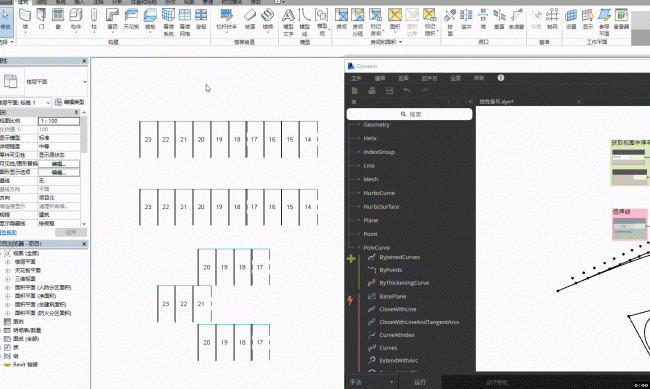
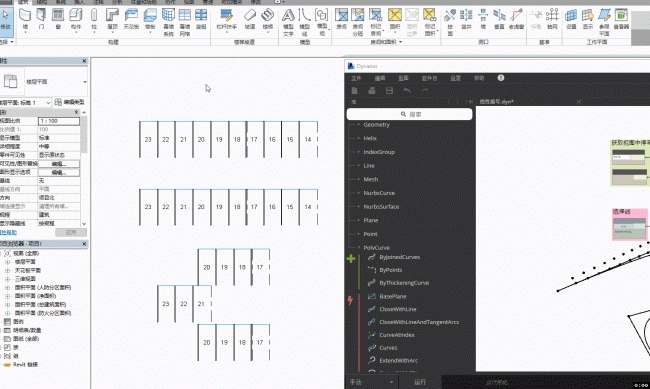
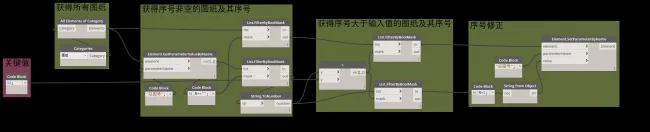
Dynamo node setup:
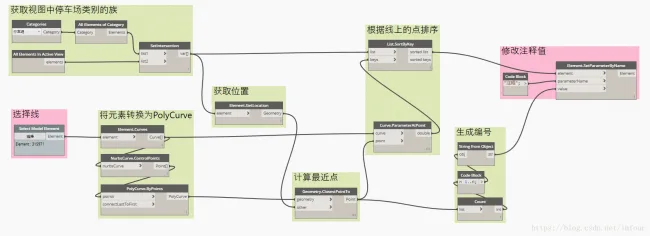
Key points to consider:
- Get Objects: Retrieve all parking family categories in the project using categories, then intersect them with the elements visible in the current view to isolate all parking families within that view.
- Convert Curve to Polyline: Since directly using a spline curve to find the nearest point can cause errors, first convert the spline curve into a polyline, then use the polyline to determine the nearest points.
- Get Nearest Points: Use the Geometry.ClosestPointTo node to calculate the nearest point on the line for each parking space. Note that the node connections should be adjusted to use the longest matching method.
- Sort Elements: Convert the points on the line into positional parameters, then use SortByKey to order the elements based on these parameters. After sorting, assign the numbers accordingly.













Must log in before commenting!
Sign Up