
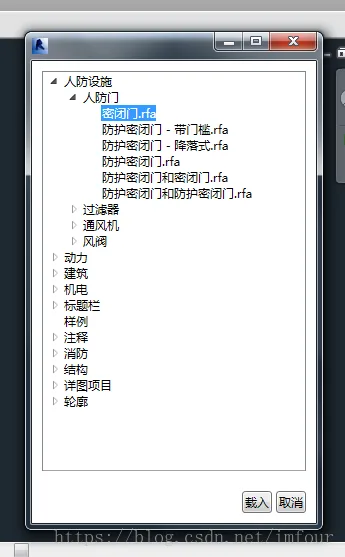
If you want to capture user input in Revit, besides using WinForms, you can also utilize WPF. Below is a simple example of a window created with WPF. The example reads the built-in Revit family library path and generates a tree list reflecting its folder structure. Users can select families from this tree to load into their project.
Personally, I find WPF forms more visually appealing than those made with WinForms, even when the interface is similar.
Window Screenshot:
WPF XAML Markup:
<Window x:Class="ClassLibrary2.FamilyManagerWPF"
 xmlns="http://schemas.microsoft.com/winfx/2006/xaml/presentation"
 xmlns:x="http://schemas.microsoft.com/winfx/2006/xaml"
 xmlns:mc="http://schemas.openxmlformats.org/markup-compatibility/2006"
 xmlns:d="http://schemas.microsoft.com/expression/blend/2008"
 xmlns:local="clr-namespace:ClassLibrary2"
 mc:Ignorable="d"
 d:DesignHeight="300" d:DesignWidth="300"
 Height="500" Width="300">
 <Grid>
 <Grid.RowDefinitions>
 <RowDefinition></RowDefinition>
 <RowDefinition Height="auto"></RowDefinition>
 </Grid.RowDefinitions>
 <TreeView Name="FamilyTreeList" Margin="10" Loaded="FamilyTreeList_Loaded" TreeViewItem.Expanded="FamilyTreeList_Expanded" TreeViewItem.Selected="FamilyTreeList_Selected"></TreeView>
 <StackPanel Grid.Row="1" HorizontalAlignment="Right" Orientation="Horizontal">
 <Button Name="Btn_Load" Margin="10,10,2,10" IsEnabled="False" Click="Btn_Load_Click">Load</Button>
 <Button Name="Btn_Cancel" Margin="2,10,10,10" IsCancel="True" Click="Btn_Cancel_Click">Cancel</Button>
 </StackPanel>
 </Grid>
</Window>
WPF Code-Behind (C#):
public partial class FamilyManagerWPF : Window
{
    // Path to the family library
    DirectoryInfo dirInfo = new DirectoryInfo(@"C:ProgramDataAutodeskRVT 2016LibrariesChina");
    // Selected family file path
    string familyFilePath;

    public FamilyManagerWPF()
    {
        InitializeComponent();
    }

    // Event handler for TreeView loaded event
    private void FamilyTreeList_Loaded(object sender, RoutedEventArgs e)
    {
        // Traverse directories
        foreach (DirectoryInfo di in dirInfo.GetDirectories())
        {
            // Create a tree item
            TreeViewItem item = new TreeViewItem();
            item.Tag = di;
            item.Header = di.Name;
            // Add placeholder if subdirectories or family files exist
            if (di.GetDirectories().Length > 0 || di.GetFiles("*.rfa").Length > 0)
                item.Items.Add("*");
            FamilyTreeList.Items.Add(item);
        }
        // Add family files to the tree
        CreateFamilyItems(dirInfo, FamilyTreeList);
    }

    // Event handler for expanding a node
    private void FamilyTreeList_Expanded(object sender, RoutedEventArgs e)
    {
        TreeViewItem item = (TreeViewItem)e.OriginalSource;
        item.Items.Clear();
        DirectoryInfo di = (DirectoryInfo)item.Tag;
        foreach (DirectoryInfo subDi in di.GetDirectories())
        {
            TreeViewItem subItem = new TreeViewItem();
            subItem.Tag = subDi;
            subItem.Header = subDi.Name;
            if (subDi.GetDirectories().Length > 0 || subDi.GetFiles("*.rfa").Length > 0)
                subItem.Items.Add("*");
            item.Items.Add(subItem);
        }
        CreateFamilyItems(di, item);
    }

    // Event handler for selecting a node
    private void FamilyTreeList_Selected(object sender, RoutedEventArgs e)
    {
        TreeViewItem item = (TreeViewItem)e.Source;
        Btn_Load.IsEnabled = item.Tag is FileInfo;
    }

    // Load button click handler
    private void Btn_Load_Click(object sender, RoutedEventArgs e)
    {
        if (FamilyTreeList.SelectedItem != null)
        {
            TreeViewItem item = (TreeViewItem)FamilyTreeList.SelectedItem;
            FileInfo familyFi = (FileInfo)item.Tag;
            familyFilePath = familyFi.FullName;
            DialogResult = true;
        }
        Close();
    }

    // Cancel button click handler
    private void Btn_Cancel_Click(object sender, RoutedEventArgs e)
    {
        DialogResult = false;
        Close();
    }

    // Helper method to add family files as tree items
    private void CreateFamilyItems(DirectoryInfo directoryInfo, Control control)
    {
        foreach (FileInfo fi in directoryInfo.GetFiles("*.rfa"))
        {
            TreeViewItem item = new TreeViewItem();
            item.Tag = fi;
            item.Header = fi.Name;
            if (control is TreeView treeView)
            {
                treeView.Items.Add(item);
            }
            else if (control is TreeViewItem treeViewItem)
            {
                treeViewItem.Items.Add(item);
            }
        }
    }

    public string FamilyFilePath => familyFilePath;
}
Example of calling the form:
FamilyManagerWPF form = new FamilyManagerWPF();
if (form.ShowDialog() == true)
{
    using (Transaction tran = new Transaction(doc, "Load Family"))
    {
        tran.Start();
        Family family;
        doc.LoadFamily(form.FamilyFilePath, UIDocument.GetRevitUIFamilyLoadOptions(), out family);
        tran.Commit();
    }
}

xuebim
Follow the latest BIM developments in the architecture industry, explore innovative building technologies, and discover cutting-edge industry insights.
← Scan with WeChat












Must log in before commenting!
Sign Up