
SketchUp Pro 2017, also known as SketchMaster 2017 in Chinese, is the latest graphic design software released by Google in 2017. It features a fast learning curve, simple operation, and a comprehensive set of tools. This software is designed to streamline the design process, allowing designers to fully express their ideas while enabling real-time communication with clients.
With SketchUp Pro 2017, designers can create concepts directly on their computers, making it ideal for 3D architectural design. The new version introduces a next-generation rendering pipeline that significantly improves rendering quality and performance. It supports high-resolution modeling and high DPI displays, such as Apple’s Retina screens, allowing for more precise and smooth capture and inference on these high-definition displays.
Additional enhancements include improved transparency display, customizable axis and inference colors, and a new plane-locking feature that locks references perpendicular to a surface—simply hover your mouse over a surface to start drawing. Note that this version is compatible only with 64-bit operating systems and requires only cracking and installation, without any localization needed.
Installation Guide
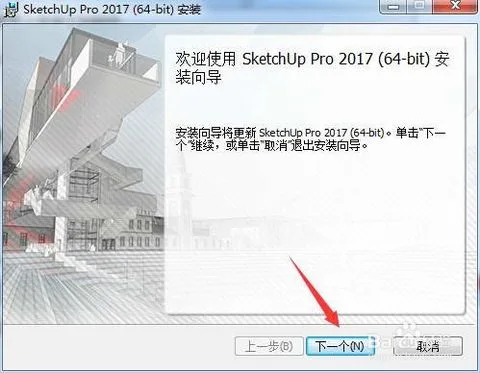
- Extract the installation package and run
SketchUpPro-zh-CN-x64-17.0.18899__AI_S_SC_0_AI_S_S_SC_1_.exeto begin installing SketchUp Pro 2017. The software will automatically detect the required components; click “Install”. - When prompted during installation, you can skip browsing and click “Next”.
- Select the installation path; the default is
C:Program FilesSketchUpSketchUp 2017. To change it, click “Change”. Then click “Next” to continue. - The installation will proceed and may take some time. After completion, move on to the next step.
Tutorial
- After installation, open the “Replace Files” folder in the installation package and copy the patch files to the installation directory (default:
C:Program FilesSketchUpSketchUp 2017). - Overwrite the original files to complete the SketchUp Pro 2017 installation.
New Features
- Next-Generation Graphics Pipeline: Major enhancements to the rendering engine unify rendering across SketchUp, my.SketchUp, SketchUp Mobile Viewer, LayOut, and 3D Warehouse, enabling new visual effects and improved performance.
- High DPI Modeling: Full support for high DPI displays like Apple’s Retina improves the accuracy and smoothness of capture and inference operations.
- Transparency Improvements: Enhanced transparent display offers better quality and frame rates, improved rendering of overlapping transparent surfaces, and adjustable opacity in X-ray mode.
- Custom Axis and Inference Colors: Users can customize axis colors and parallel/tangent inference colors via System Settings > Accessibility, enhancing visual clarity and accessibility. LayOut respects these settings as well.
- Drawing Tool Enhancements: Improved heuristic drawing helps create graphics quickly and accurately.
- Plane Locking for Rectangles: Rectangle tools now support plane locking with arrow keys, similar to Circle and Polygon tools, allowing drawing of off-axis rectangles.
- Offset 2.0: The offset tool has been rewritten to prevent overlaps and self-intersections, producing cleaner, more precise results. LayOut’s offset tool shares these improvements.
- Perpetual Face Inference: Added a reference lock perpendicular to surfaces, allowing easier plane-aligned drawing by simply hovering over a surface.
- Component Origin Reference: Components now display an origin inference (small crosshair), making it easier to locate and capture the component’s origin point.
- Group to Component Conversion: When converting groups to components, you can now specify properties such as name, description, classification, bonding plane, and pivot location, simplifying organization.
- Content Organization: The new version clarifies file paths for materials, styles, component libraries, and templates in System Settings > File, easing content management and backup.
- Trimble Connect Updates: Integration now supports detailed task creation and assignment, displays updated references, and allows alignment edits to synchronize across connected projects.
- LayOut Tables: Introduces spreadsheet-like tables with features such as text editing, styling, cell merging, and clipboard saving for easy reuse.
- CSV and XLSX Import: Import spreadsheet files into LayOut with dynamic linking; changes in source files update LayOut tables, useful for reports and data integration.
- Associative Dimensions & Labels: Dimensions and labels now update automatically when the SketchUp model changes, using Persistent IDs technology.
- Flexible Dimensions: Dimensions can be dragged to new positions without losing association with their geometry.
- LayOut Offset Tool: Provides offset functionality similar to SketchUp, avoiding intersecting lines.
- LayOut Warnings: Alerts notify of issues like cropped text boxes or unrendered models; these can be disabled until ready.
- Next-Gen DWG/DXF Export:
- Exports multi-page LayOut files into a single DWG with separate tabs.
- Preserves LayOut entities (dimensions, tables, labels, etc.) as native DWG entities.
- Improves handling of model and paper space with automatic scaling.
- Offers options for layer-based coloring or special “Index 7” color for visibility.
- Includes selection modifiers to prevent accidental movement during selection.
- Extension Manager: Easily enable, disable, or uninstall SketchUp extensions. Access digital signatures for quality assurance.
- Persistent IDs: Unique identifiers for edges, faces, groups, and components improve recognition and handling across SketchUp and connected apps.
- Chromium Web Dialogs: Built-in cross-platform web browser simplifies extension development.
- LayOut C API Updates: Expanded support for angle dimensions, tables, arcs, and clip masks enhances developer capabilities.
- Action Manager: New notification system for extensions enables auto-dismissing pop-ups and user prompts.
- Ruby 2.2 Upgrade: The Ruby API has been upgraded from 2.0 to 2.2 for improved scripting functionality.
Software Features
- Unique, streamlined interface allows rapid mastery by designers.
- Versatile applications across architecture, urban planning, landscaping, interior, and industrial design.
- Convenient push-pull tool enables easy creation of 3D geometry from 2D shapes without complex steps.
- Quickly generate sections anywhere to analyze building interiors; export 2D sections to AutoCAD.
- Seamless import/export of DWG, DXF, JPG, 3DS files; integrates with AutoCAD, Revit, 3DSMAX, PIRANESI, and more.
- Extensive component library includes doors, windows, columns, furniture, and materials.
- Effortless creation of presentation videos to fully convey design ideas.
- Multiple display modes: draft, line draft, perspective, rendering, and others.
- Accurate shadow and sunlight positioning for real-time analysis based on location and time.
- Simple annotation of spatial dimensions and text labels, which always face the designer.
Usage Tips
- Double-click a single face to select both the face and its bounding edges.
- Double-click a face on an object to select the entire object’s faces and edges.
- Use the input box at the bottom right to enter eye height when using roaming or camera commands.
- Enter a number followed by “deg” (e.g., 60deg) during dynamic zoom to adjust the camera angle.
- Enter a number followed by “mm” (e.g., 35mm) during dynamic zoom to adjust focal length.
- Use “Along the Axis Mirror Mode” from the right-click menu to create groups or components.
- Select an object, use the scale tool, choose the scaling direction, and enter -1 to mirror the object.
- Use push-pull once; double-click next time to repeat the previous push-pull distance.
- Hold Ctrl while selecting to add to the selection; Shift to add or subtract; Ctrl + Shift to subtract.
- Shift + middle mouse button enables panning.
- Hold Shift to maintain direction lock (parallel, polar axis, etc.) when drawing.
- Holding Ctrl, Shift, or both while selecting changes the selection set.
- Single-click selects a line or face; double-click selects connected geometry; triple-click selects the entire body.
- Hold Ctrl and use move/copy commands to duplicate selected objects.
- When exporting, select options to include edges and faces for better output.
- Hold Shift while zooming to switch to a wide-angle lens view.
- Double-click a new surface to repeat the last stretch size.
- Right-click a face to align view or axis to that face.
- In Settings > Rendering > Edge Lines, enable “Use Axis Colors” to check for model face issues.
- Hold Ctrl while moving objects to move and copy simultaneously.
- For multiple copies, drag copied objects out, then enter the number followed by “x” (e.g., 5x) to replicate.
- Hold Shift while deleting to hide edge lines.
- Drag selection box from right to left to select all intersecting objects.
- Hold Shift and enter new values between two points in the measurement tool to scale the entire model.
- Close unnecessary layers to improve performance with large files.
- Replace furniture with 2D components during layout refinement to boost speed.
- Disable shadow display to enhance performance.
- Turn off material effects display to speed up calculations.
- Hold Shift in the measurement tool, point at a distance, then enter a new length to scale objects proportionally.
- Use array by copying once, then entering the number of copies with “x” in the info bar (e.g., 5x).
SketchUp Pro 2017 | SketchUp Master












Must log in before commenting!
Sign Up