
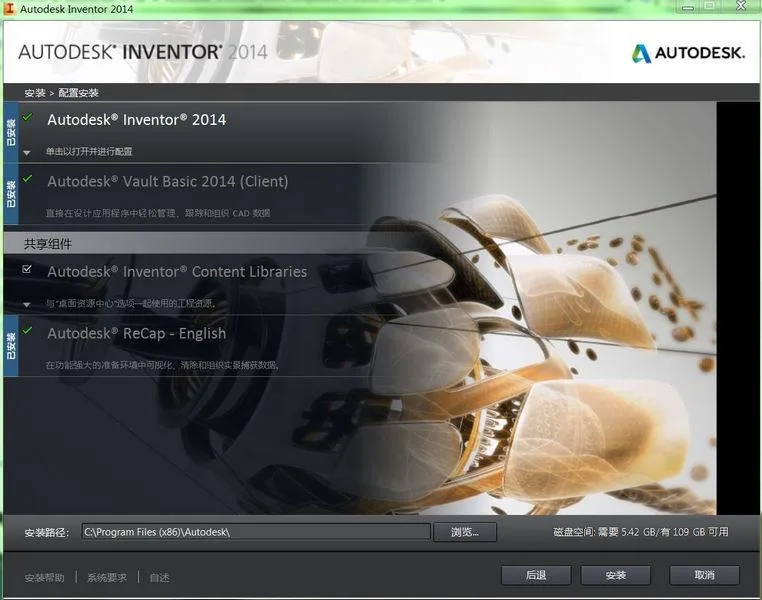
Inventor 2014 is an official 3D CAD software developed by Autodesk, designed specifically for mechanical design. It offers a comprehensive and flexible suite of tools for 3D mechanical visualization, simulation, tooling, and mold design, enabling manufacturers to move beyond basic 3D design and embrace digital prototyping solutions.
Currently, Inventor 2014 is the most stable release, focusing on enhancing efficiency for both new and experienced users working on component design. This version introduces shared Inventor models, new quick modes, advanced component diagnostic tools, improved slot sketching capabilities, and better workflow interoperability.
The main goal of Autodesk Inventor 2014 is to boost productivity in component design environments. Based on long-term user feedback, improvements have been made in parts handling, sketching, engineering drawings, and other areas. Additionally, new tools facilitate wider sharing of Inventor models, streamlining collaboration with building engineers and architects through Autodesk 360 services.
Here, you can find the 32-bit and 64-bit Chinese versions of Autodesk Inventor 2014 for download, including the serial number product key and registration machine to fully activate the software.
Inventor 2014 Installation Guide & License Type Selection: Standalone / Serial Number / Product Key
1. Download the required installation files from this website and select the appropriate version for your system. Launch the setup by clicking the Setup icon to install Autodesk Inventor 2014.
Available serial numbers: 666-66996969, 667-98989898, 400-45455445
Product Key: 797E1Note: During installation, if a prompt appears indicating that .NET Framework 3.5 is already installed and triggers a repetitive installation loop, terminate the process and restart the installation.
2. After installation, when launching Autodesk Inventor 2014 for the first time, activate the software before clicking “Activate” by using one of the following methods:
A. Disable your network card or unplug the network cable.
B. Click “Activate”; if a password error appears, close the software, restart it, and click “Activate” again. Either method A or B can be used.3. Write down the request code and select “I have an activation code from Autodesk”.
4. Open the xf-desk2014 registration tool located in the CRACK folder of the installation disk. Click “Mem patch” in the interface, enter the recorded request code into the “Request Code” field, then click “Generate” to obtain the activation code.
5. Copy the entire activation code and paste it into the activation field in step 3 to complete the activation process.
System Requirements
Operating System: 32 & 64-bit Windows XP, Windows 7, Windows 8, Windows 8.1
CPU: Intel Pentium 4 or AMD Athlon 64, 3 GHz or higher
Memory: Minimum 2GB for basic operation; 8GB or more recommended for smooth performance
Hard Drive: At least 8GB of free space
Graphics Card: Direct3D 10 compatible
Browser: Internet Explorer 7.0 or later
Flash: Adobe Flash Player 10
New Features of Autodesk Inventor 2014
1. Increased Efficiency
The new Connect command revolutionizes the component design process by allowing you to locate components and define their motion with a single step. This simplifies understanding and mastering component behavior for new users, while providing experienced users with streamlined tools for creating and managing components.
Additional enhancements aimed at improving efficiency include:
- Fast Mode: A new approach for handling very large components, increasing loading speed by 5 to 10 times, saving significant work time.
- Component Diagnostic Tool: Quickly identify and correct errors related to constraints and connections.
- Component Copy/Paste: Create exact copies of components while preserving orientation and relationships.
- Styling Kernel Improvements: Enhanced success rates for complex transitions and sweep operations.
- New Groove Sketching Tool: Significantly reduces the time needed to create circular, rectangular, and curved grooves.
2. Enhanced Workflow Interoperability
Material workflows have been streamlined, simplifying the creation of custom libraries that can be shared across Inventor, Revit, and AutoCAD.
New BIM interoperability tools allow easy conversion of detailed Inventor components into simplified Revit families for BIM content use. These tools facilitate collaboration with building engineers and architects, supported by Autodesk 360 cloud services.
3. Improved Connection Experience
The 2014 version offers a straightforward process for saving and opening files directly from Autodesk 360, enabling anytime, anywhere access and sharing. This enhances design verification, maintenance troubleshooting, and design collaboration through cloud services.
Detailed New Features of Inventor 2014
1. Connect Command
The Connect command provides an intuitive way to position components and define their motion in one step. Using endpoints, midpoints, and center points together, you can easily locate components. The selected geometry determines the default connection type, which you can also specify manually.
Notes:
- After introducing the Connect command, both constraints and joins are now collectively referred to as “relationships”.
- The “Constraints” folder in the browser has been renamed to “Relationships” and is visible in both assembly and styling views.
- You can combine connections and constraints to position components and describe their motion effectively.
2. Fast Mode for Large Components
Fast Mode offers a new way to handle large components by increasing their opening speed by 4 to 6 times, significantly reducing wait times.
To enable, activate the “Quick” option under the “Components” tab in Application Options and set a file size threshold. Components exceeding this threshold will open automatically in Fast Mode.
3. Mold Design and Extended Parting Surfaces
The core/cavity environment introduces new commands for creating parting surfaces. Previously, these surfaces were limited to the XY plane or a user-defined direction. The new Extend Profile Surface command creates profile surfaces that extend along component tangents or specific rules.
4. Enhanced Graphics Performance
In both Full and Quick modes, graphic performance improvements enhance translation, scaling, and rotation of large models:
- Maximum frame rate increased from 10 Hz to 20 Hz.
- Prioritization of rendering the largest objects first.
- Utilization of multiple CPU cores for optimized graphics performance.
- Introduction of a background “merge” operation that groups objects with identical appearance to improve GPU usage.
5. Advanced Sweeping
The enhanced Sweep command now supports more complex sweeps, allowing larger cross-sectional profiles to follow smaller rounded corners and bends smoothly.
6. Linear and Arch Groove Tools
Similar to basic shape commands, five new slot creation commands enable precise drawing of linear and arch grooves:
- Center-to-Center Groove: Creates a linear groove defined by direction, length of the groove centerline, and groove width.
- Overall Slot: Defines linear slots by direction, length, and width.
- Center Point Slot: Creates linear slots based on the slot center, direction, length of the centerline, and width.
- Three-Point Arc Slot: Defines an arc slot using a three-point center arc and slot width.
- Center Arc Slot: Creates an arc slot defined by the center of the circle, two-point center arc, and slot width.
7. Table Splitting
You can split parts lists, hole tables, revision tables, or regular tables and reposition these segments anywhere on your engineering drawings.
To split a table, right-click on the table row text and select “Split Table”. The table will break into two parts, with the new fragment shown as a child item in the browser. To merge tables back, right-click the fragment and select “Merge Table”.
Note: Editing the parent table updates all child segments, but changes made to child segments do not affect other parts.
8. BIM Simplification
If a full product definition is unnecessary, Inventor’s simplification tools can convert models into simpler representations. This allows you to remove intellectual property before sharing or prepare Revit family files directly in Inventor.
Features include:
- Creating view representations using selected components.
- Defining envelopes to simplify components with box or cylindrical shapes.
- Generating simplified parts based on current view representations, excluding hidden components.
9. Custom Help via Team Website
If your company requires tailored workflows or content adjustments to meet internal standards, the team website feature provides quick access to custom help resources.
Configure this in the “File” tab under “Application Options” by specifying the desired website, page, or file. This custom link appears on the welcome screen under “More Learning Resources” and in the “Help” menu as “Team Website”.












Must log in before commenting!
Sign Up