
This article is from the WeChat official account: BimLearning.
1. Old Drawing List
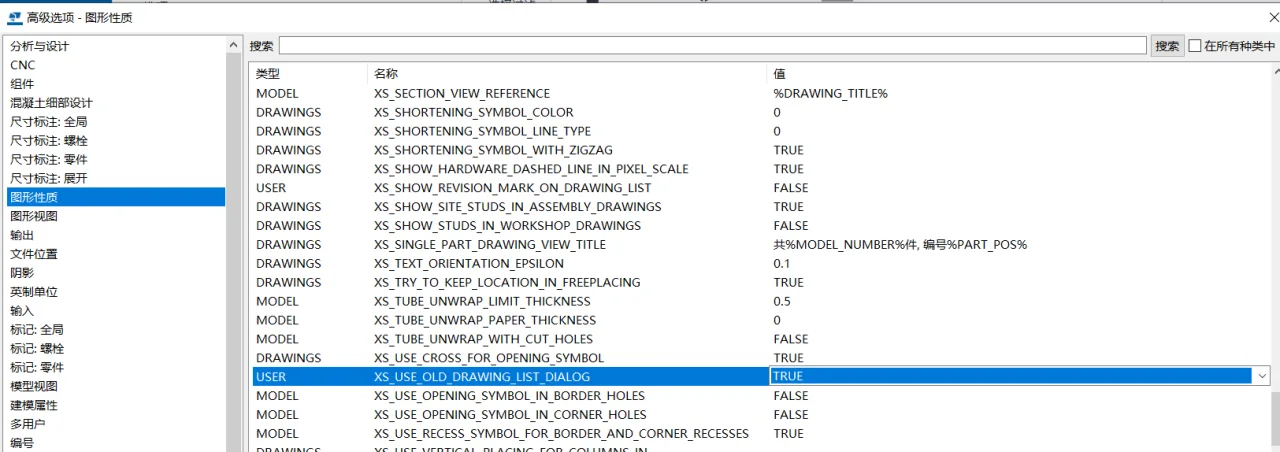
Since the 2018i update, Tekla Structures introduced a new drawing list interface (drawing manager), which many users find less intuitive compared to the previous version. However, you can revert to the classic drawing list interface through advanced option settings by following these steps:
Navigate to Menu > Settings > Advanced Options > Graphics Properties, then set XS-USE-OLD_DRAWING_LIST_DIALOG to TRUE (default is FALSE).
2. Old Drawing Output
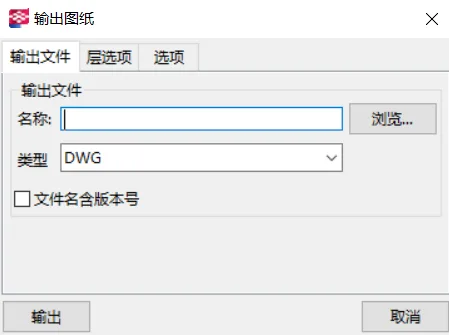
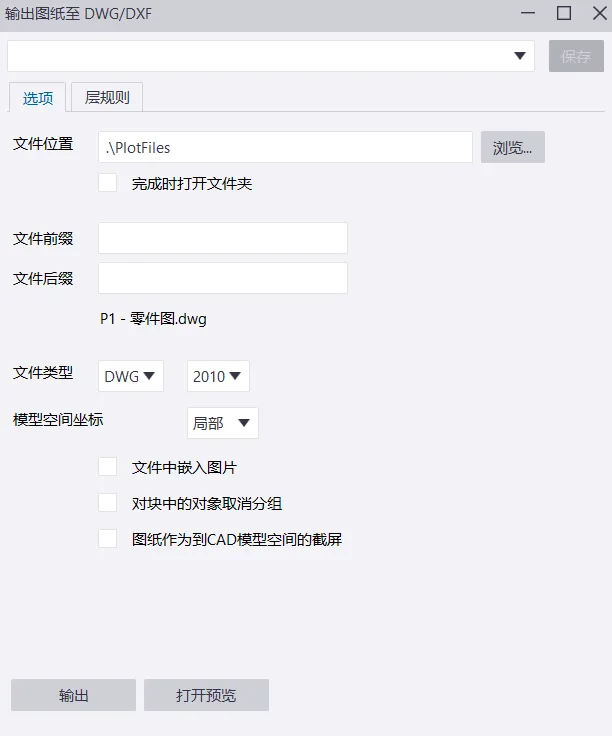
Following the 2017i update, Tekla Structures revised the drawing output interface, which may feel unfamiliar to users accustomed to the earlier version. You can switch back to the old drawing output interface via advanced options:
Open the model folder, locate the option.ini file, and open it with Notepad. Add the following line:
XS_USE_OLD_DRAWING_EXPORT=TRUE
Restart Tekla Structures and reopen your project to access the classic drawing output interface.
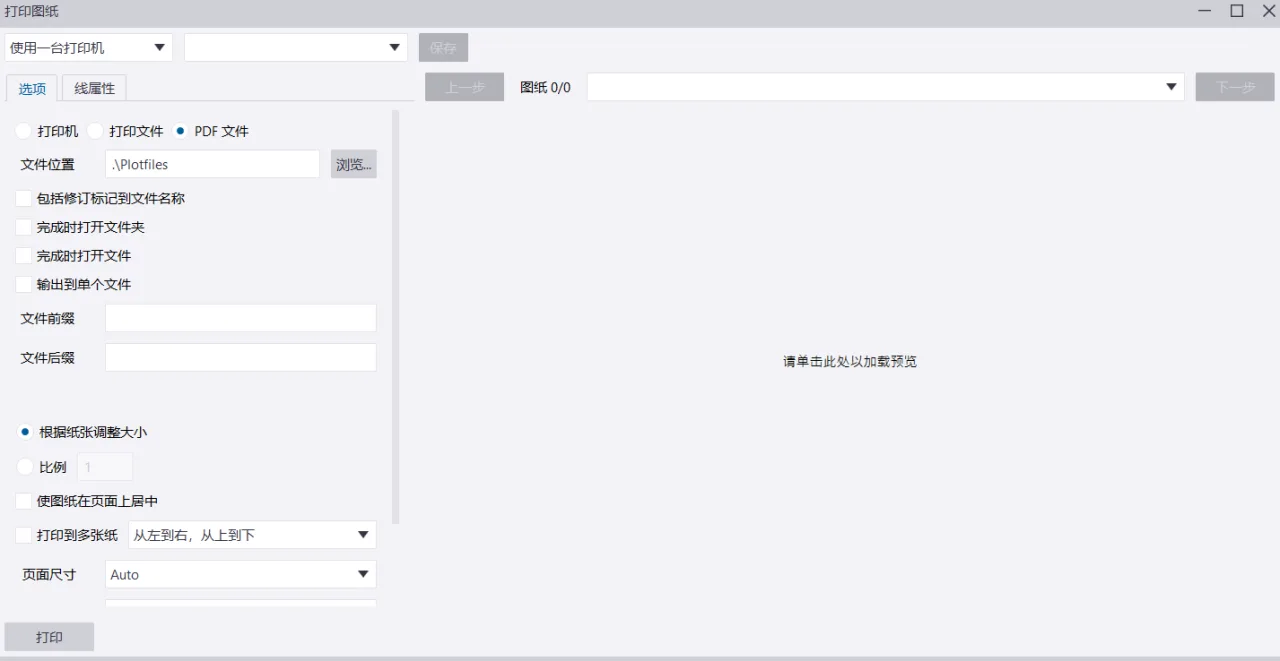
3. Old Printing Drawing Interface
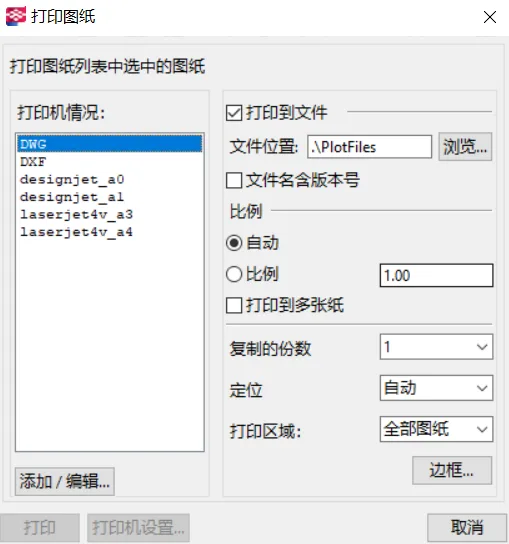
After the 2017i update, the printing interface in Tekla Structures was changed, which may be less familiar to longtime users. To restore the old print drawing interface, follow these instructions:
Locate the option.ini file in the model folder and open it with Notepad. Add the line:
XS_USE_OLD_PLOT_DIALOG=TRUE
Restart the software and open your project to see the classic print drawing interface.
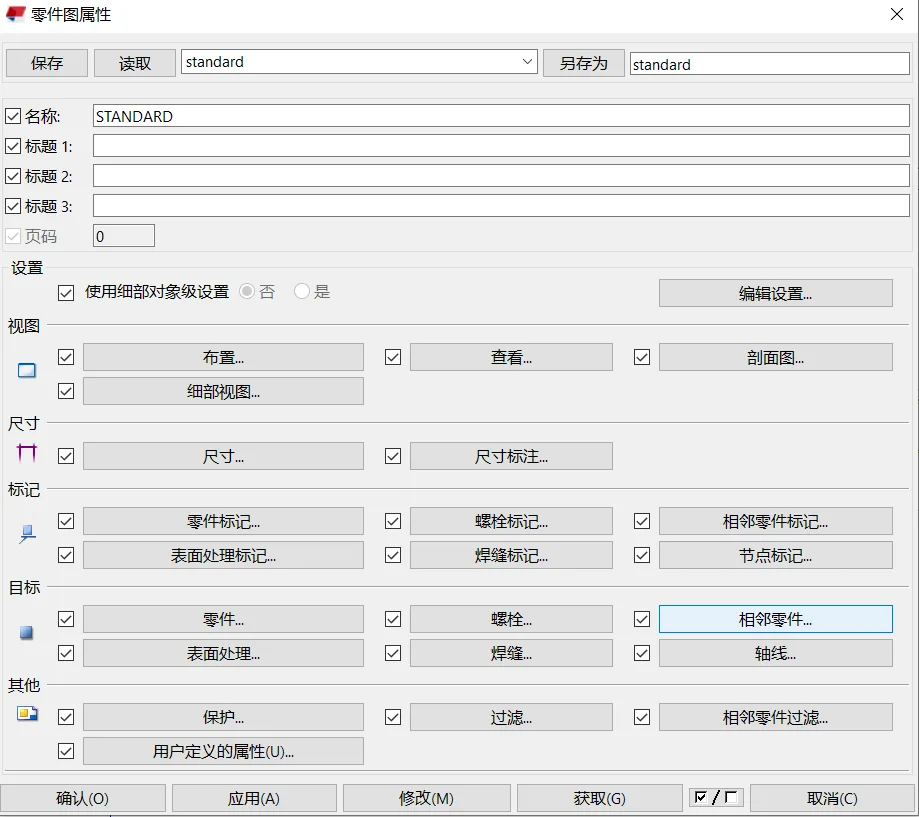
4. Old Part Drawing Attributes
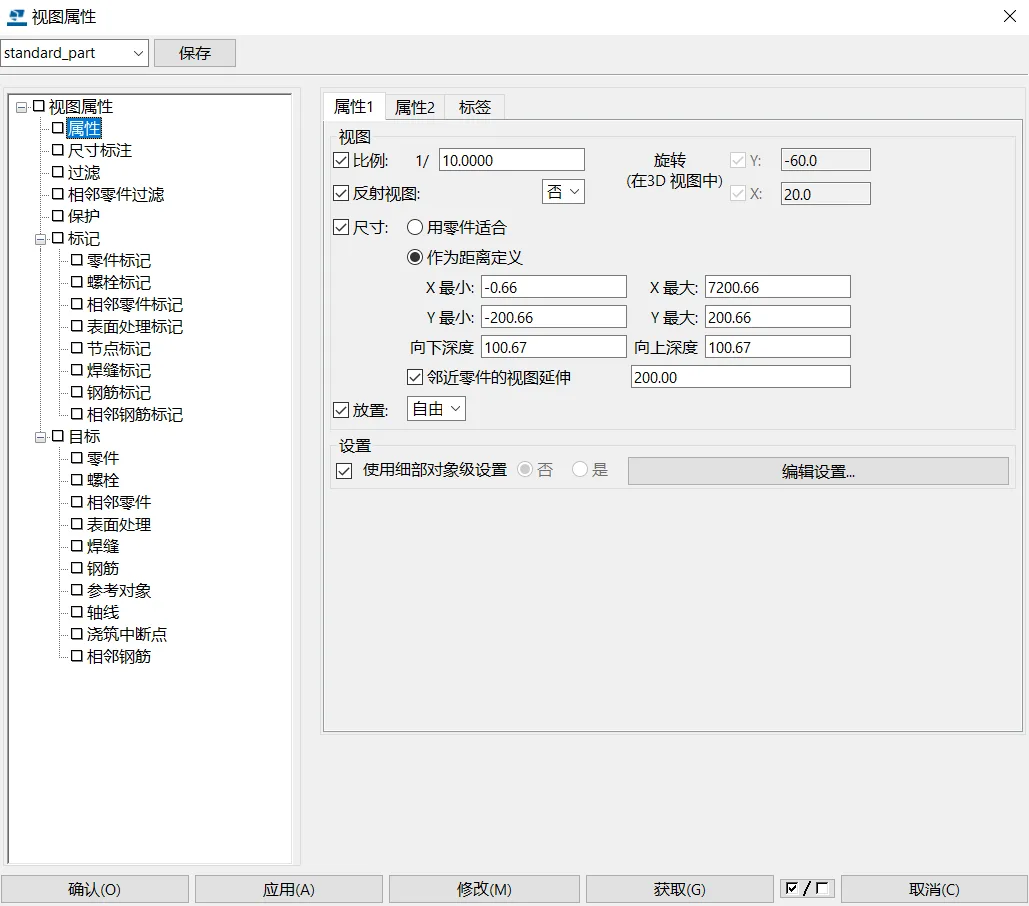
Since 2018, the part drawing properties interface in Tekla Structures was updated, which might feel unfamiliar to users who prefer the previous design. You can revert to the old part drawing attributes interface by doing the following:
Open the option.ini file located in the model folder with Notepad and add:
XS_USE_OLD_DRAWING_CREATION_SETTINGS=TRUE
After restarting the software and opening your project, the old part drawing properties interface will be available.
5. Wireframe Representation (Feature Discontinued)
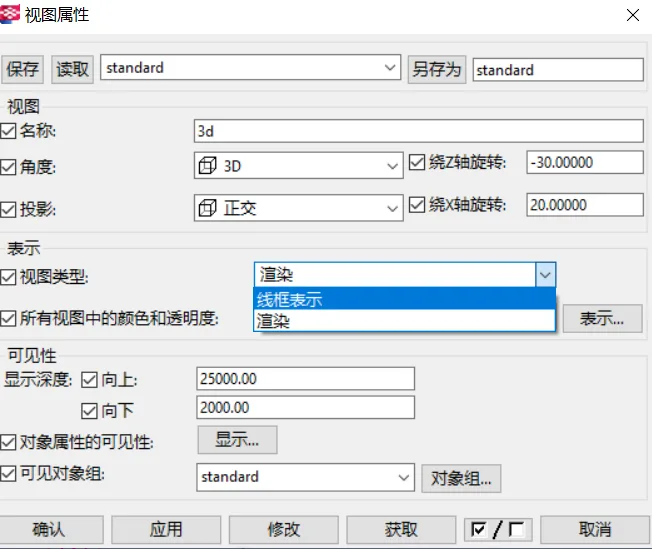
The wireframe representation was particularly useful in earlier versions of Tekla Structures. Prior to version 19.1, you could enable it directly via Tools > Options > Advanced Options > Model View by setting XS_ENABLE_WIRE_FRAME=TRUE.
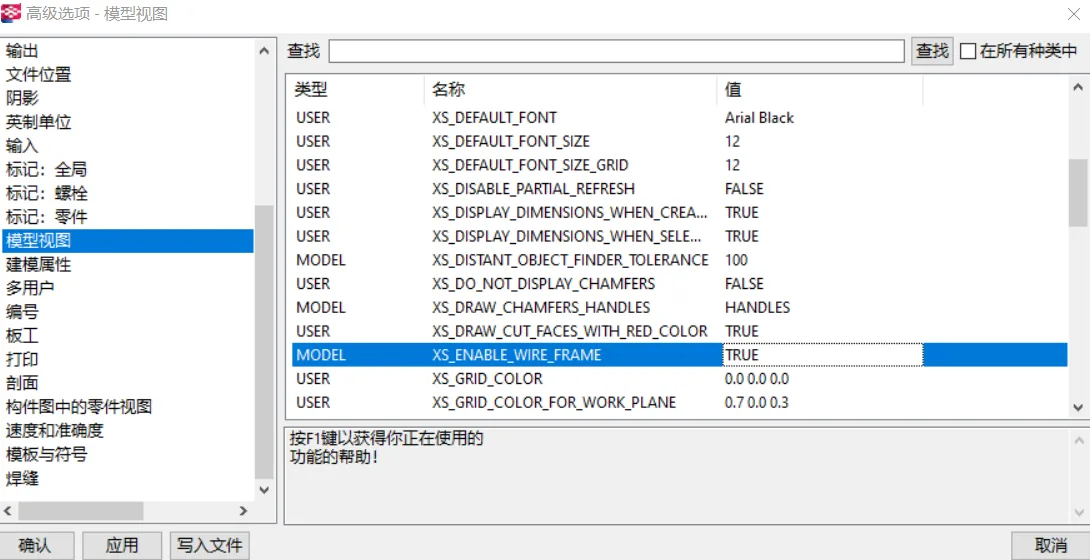
After version 19.1, the wireframe/rendering mode advanced option was removed from the built-in system options. To enable it manually, edit the option.ini file in the model folder, add:
XS_ENABLE_WIRE_FRAME=TRUE
Restart Tekla Structures and open your project to view the wireframe/rendering mode.
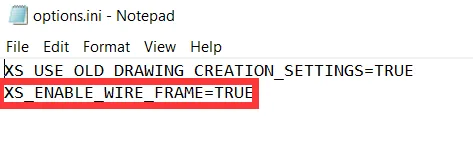
Note: As of 2010, Tekla Structures discontinued support and development for the wireframe feature. It is recommended to use the new rendering display shortcut Ctrl+1 to achieve similar visual effects.
6. Old Component Attribute List for Parts and Components
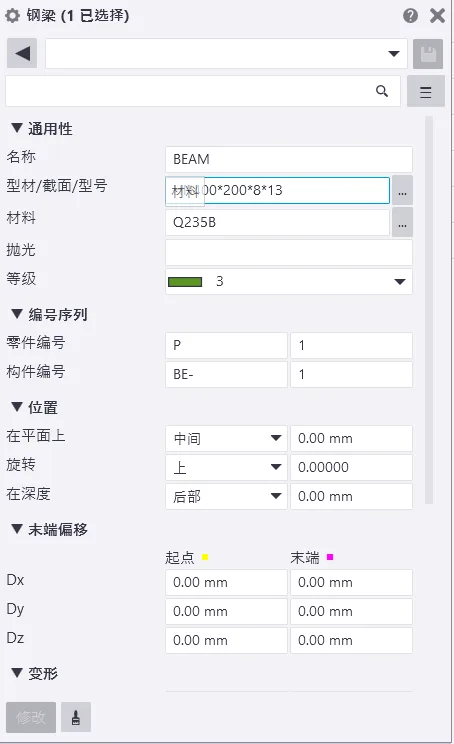
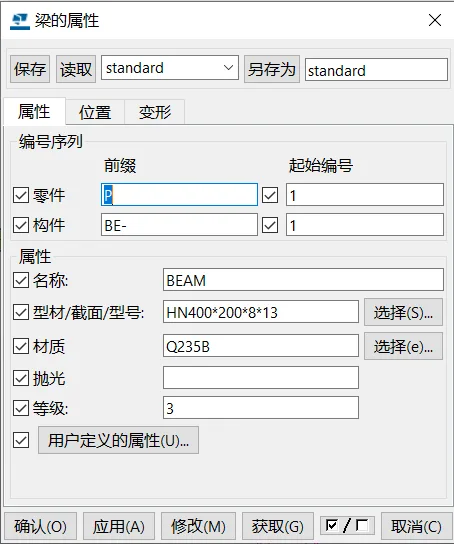
In the 2018 update, Tekla Structures revamped the property window, introducing a more fixed-position property bar. This change may feel unfamiliar to users accustomed to the older floating property box. Unfortunately, there is no special advanced option to restore the old property window. However, you can edit properties by selecting a part/component, holding down the Ctrl key, and double-clicking to make changes.
Disclaimer: This article is shared for personal use only and is not intended for commercial purposes. If any infringement occurs, please contact us promptly.
















Must log in before commenting!
Sign Up