
Detailed Explanation of Key Features
Component
The “D5 Component” series consists of extension modules built on the streamlined ontology of the D5 renderer, designed to enable advanced functionality (refer to “D5 Component” 10 for details). You can view and manage the available components by navigating to Menu > Preferences > Components, where you can enable or disable components with a single click.
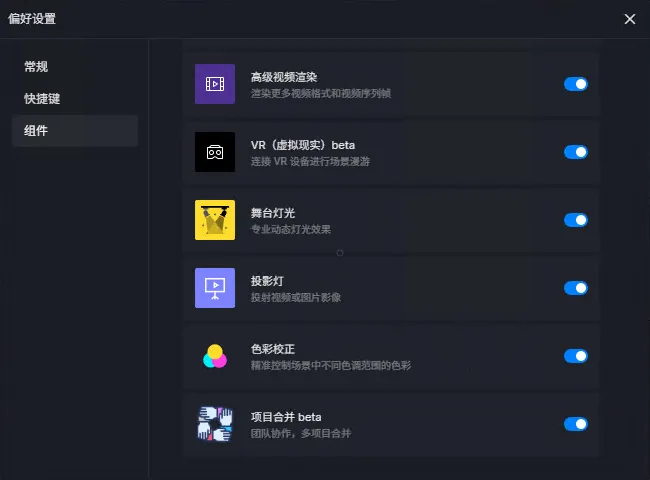
1. Project Merger (Beta)
After enabling project merging in Menu > Preferences > Components, you can merge up to 10 project files simultaneously. This feature simplifies collaboration among team members by consolidating multiple projects into one.
There are three ways to access the project merging function:
- Click the icon in the upper-right corner of the Welcome Page under Recently Used.
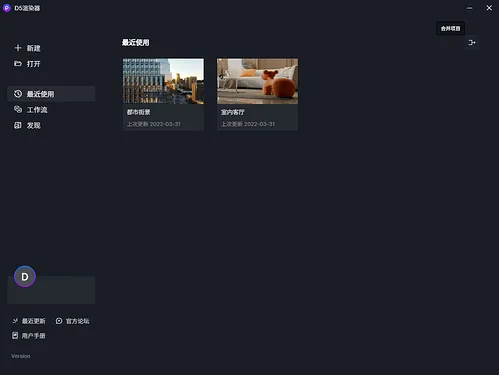
Project merger beta1024 × 768 80.3 KB
- Right-click a project in the Recently Used list and select Merge Projects.
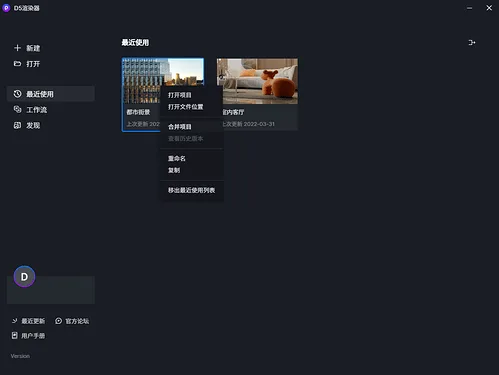
Project merge beta1023 × 768 81.5 KB
- In scene editing mode, access the Merge Projects function via Menu > File.
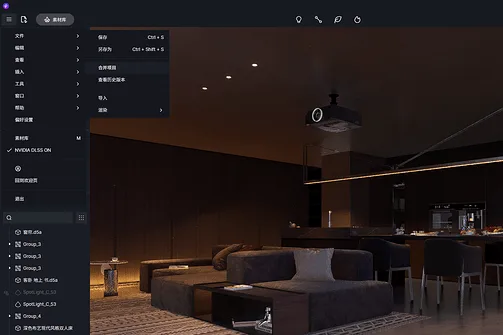
Project merger beta1280 × 852 1.18 MB
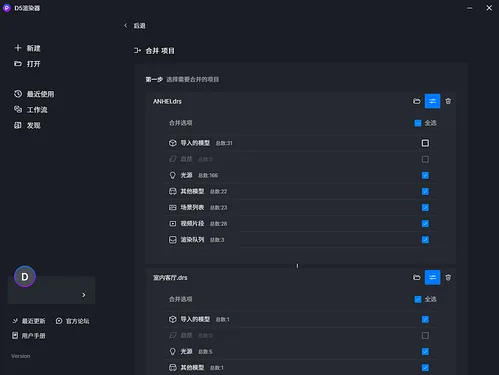
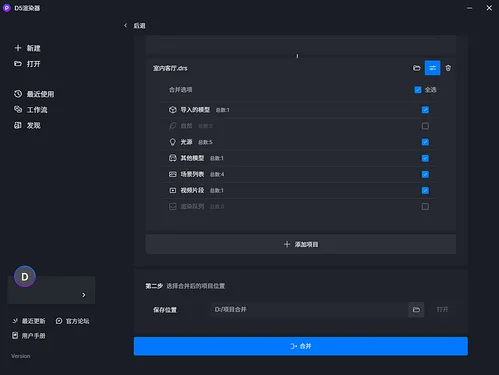
To merge projects, add at least two projects, configure options for models, lights, or scene shots in each project, and select the destination to generate the merged project files.
Project merge beta1024 × 768 42.5 KB
Project merger beta1024 × 768 36.6 KB
Projects are merged in the order they are added, with the first project serving as the main project. When entering the merge page directly, you start fresh; when entering via existing projects, the selected project becomes the main project automatically. Subsequent projects are merged sequentially, overwriting parameters of the same elements. For example, if both projects contain the same light and the merging option is selected, the parameters from the later project will override the earlier one.
The merging logic retains only the selected settings; unchecked items are discarded. If multiple projects select the same option, only one instance is kept, while unique elements are added automatically.
2. Projection Lamp
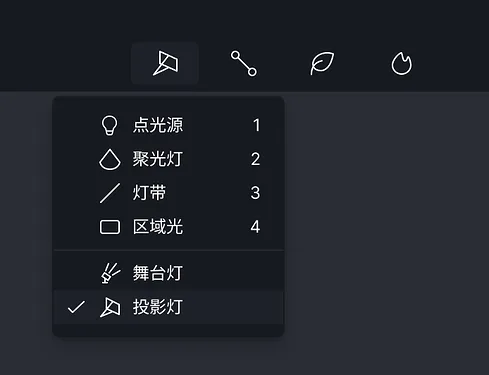
After enabling the projection lamp in Menu > Preferences > Components, you can add a “Projection Light” from Navigation Bar > Light Source to your scene.
Projector 694 × 532 41 KB
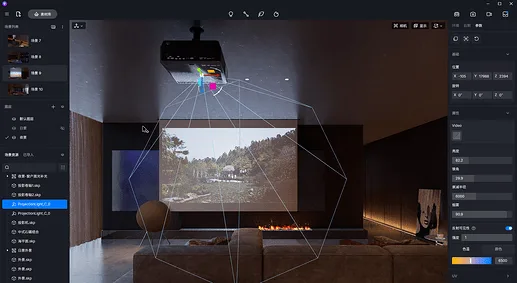
Projection lamps are a new light type featuring a rectangular projection effect. They support media files in image formats (jpg/png/bmp) and video formats (mp4/avi/wmv).
Projector 1280 × 702 1010 KB
Once added, projection lamp parameters can be adjusted in the right sidebar. The cone angle controls the projection pattern’s coverage, while UV parameters adjust the position and size of images or videos within the projection. The smoke effect requires enabling the “Tyndall Effect” under Environment > Weather > Mist.
3. Added Rotation Parameter for Stage Lighting
A rotation parameter has been introduced for stage lighting to control the rotation of the light pattern when the prism effect is off.
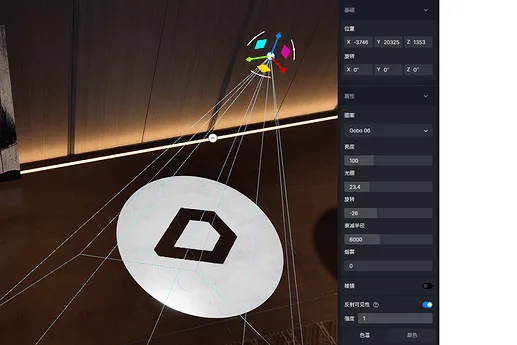
Stage lighting rotation parameter 1219 × 813 1010 KB
When set to 0, the light pattern remains stationary. A negative value rotates the pattern clockwise—the smaller the value, the faster the rotation. Positive values rotate it counterclockwise, with speed increasing as the value grows.
Rendering
4. Weather System: Precipitation
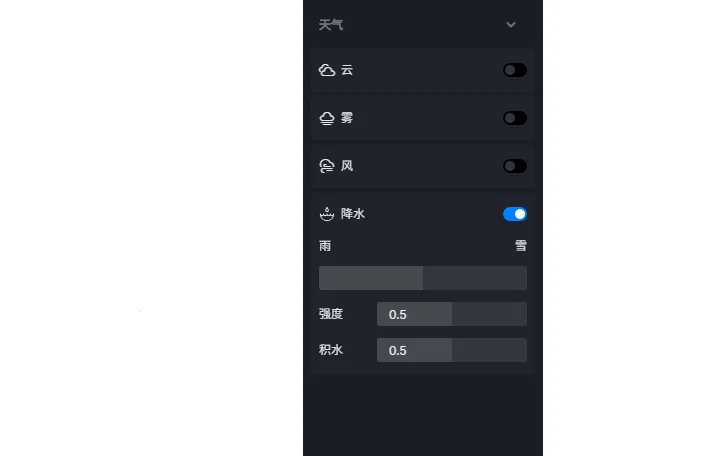
New rain and snow weather effects have been added, allowing you to adjust precipitation intensity and ground water accumulation.
Weather System: Precipitation 703 × 456 4.96 KB
Rain and snow parameters allow direct switching and transition between weather states. Extreme values increase particle speed.
The intensity parameter controls both size and density of raindrops or snowflakes, simulating conditions from light rain to heavy snow. Water accumulation controls ground effect; 0 means no accumulation, higher values increase water or snow on the ground.
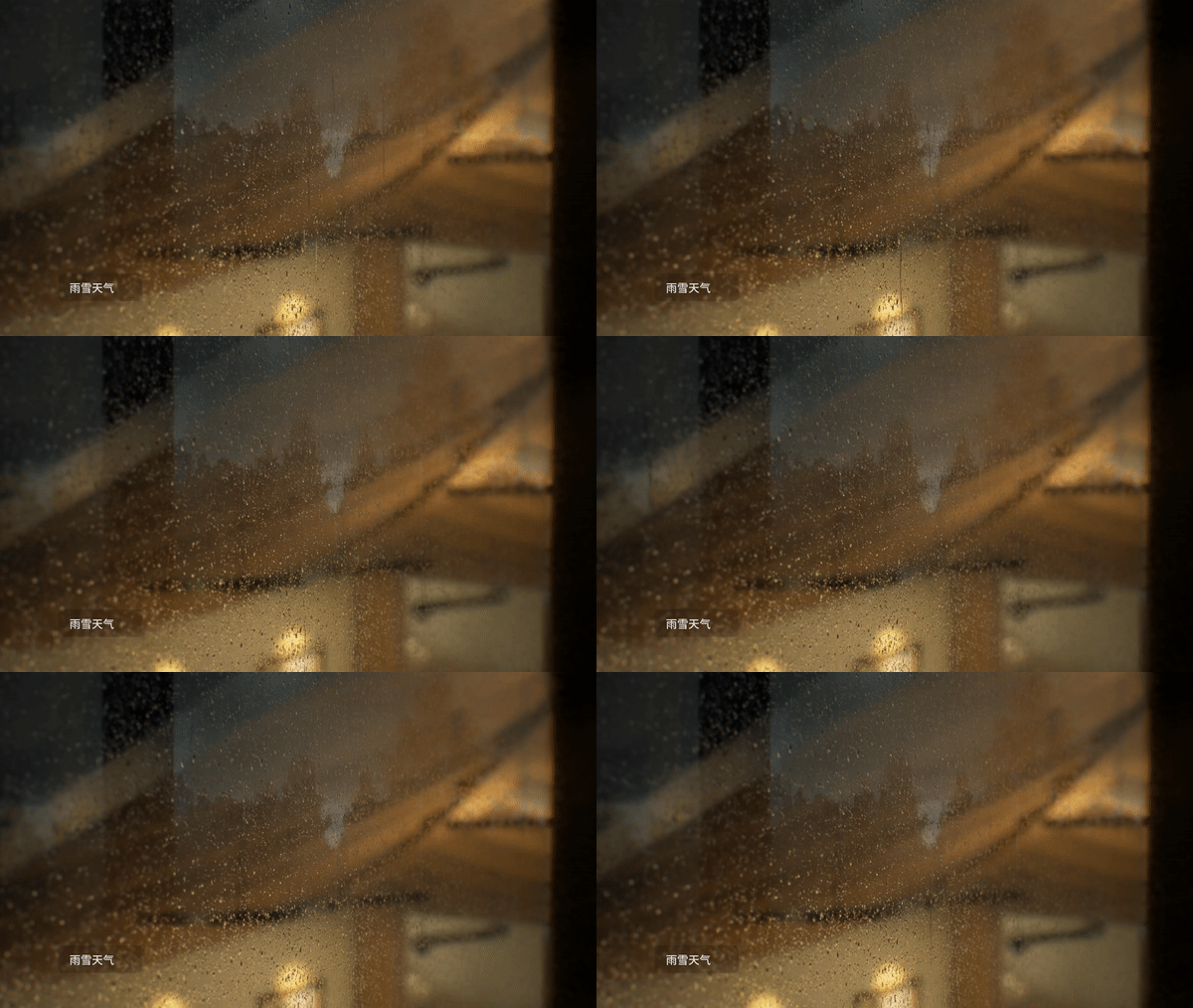
Rainwater dynamically detects outdoor glass materials, creating realistic rain marks on glass surfaces.
5. Post-Production Parameters: Tone, Vignette, Chromatic Aberration
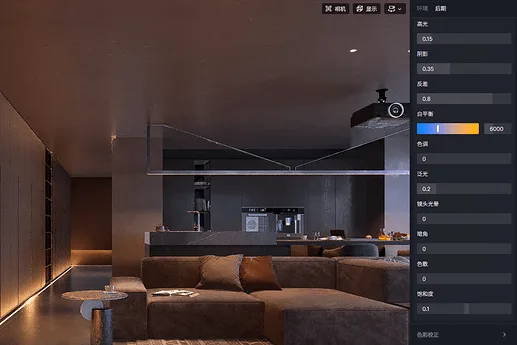
Post-production parameters: tone, vignette, chromatic aberration 1137 × 759 744 KB
Tone: Works with color temperature to adjust the scene’s white balance, shifting between cyan and magenta hues.
Vignette: Simulates the natural darkening of camera lens corners.
Chromatic Aberration: Replicates color dispersion effects found in real camera lenses.
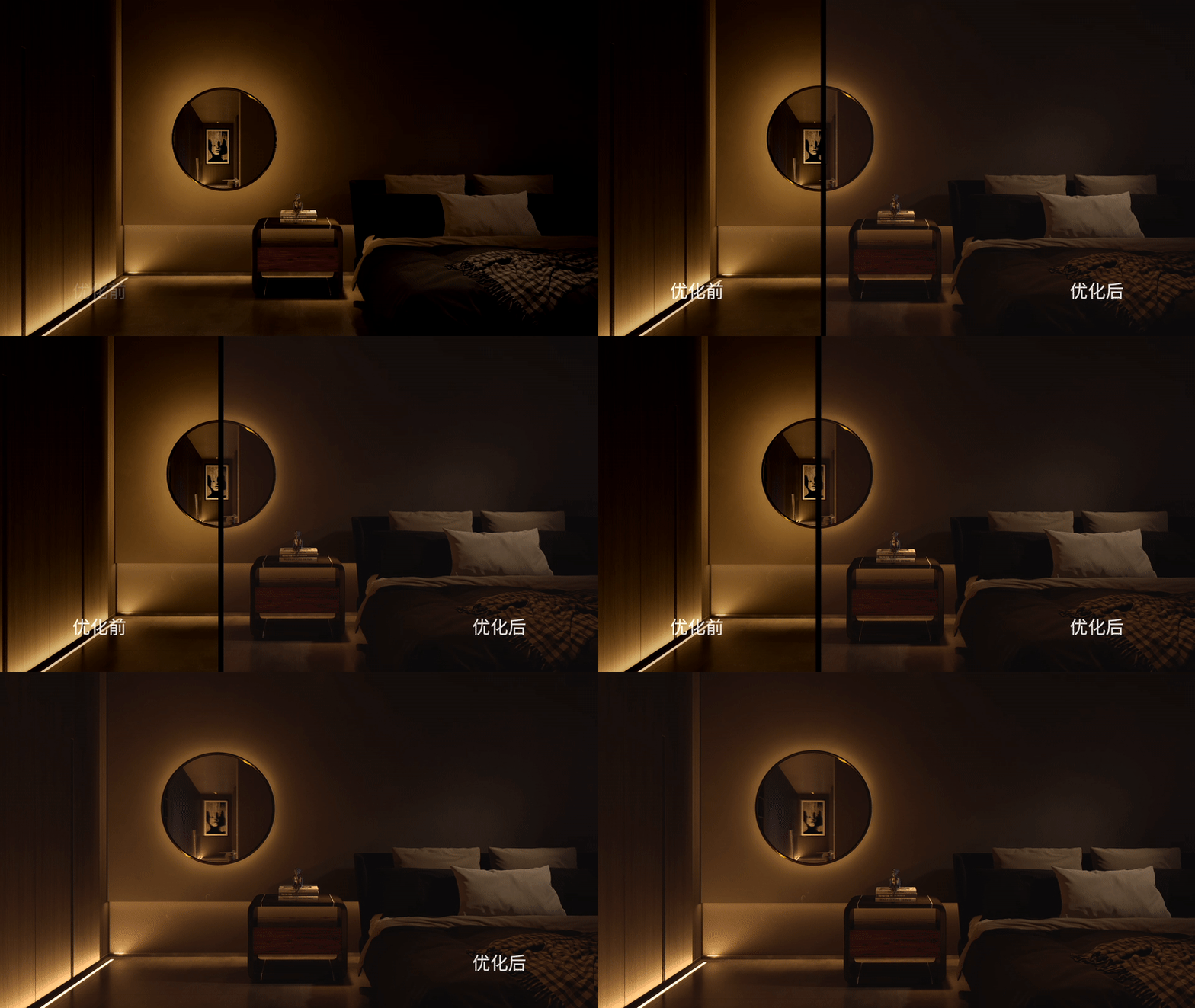
6. Enhanced Accuracy of Self-Illumination Attenuation
7. Improved GI Effect on Plant Materials
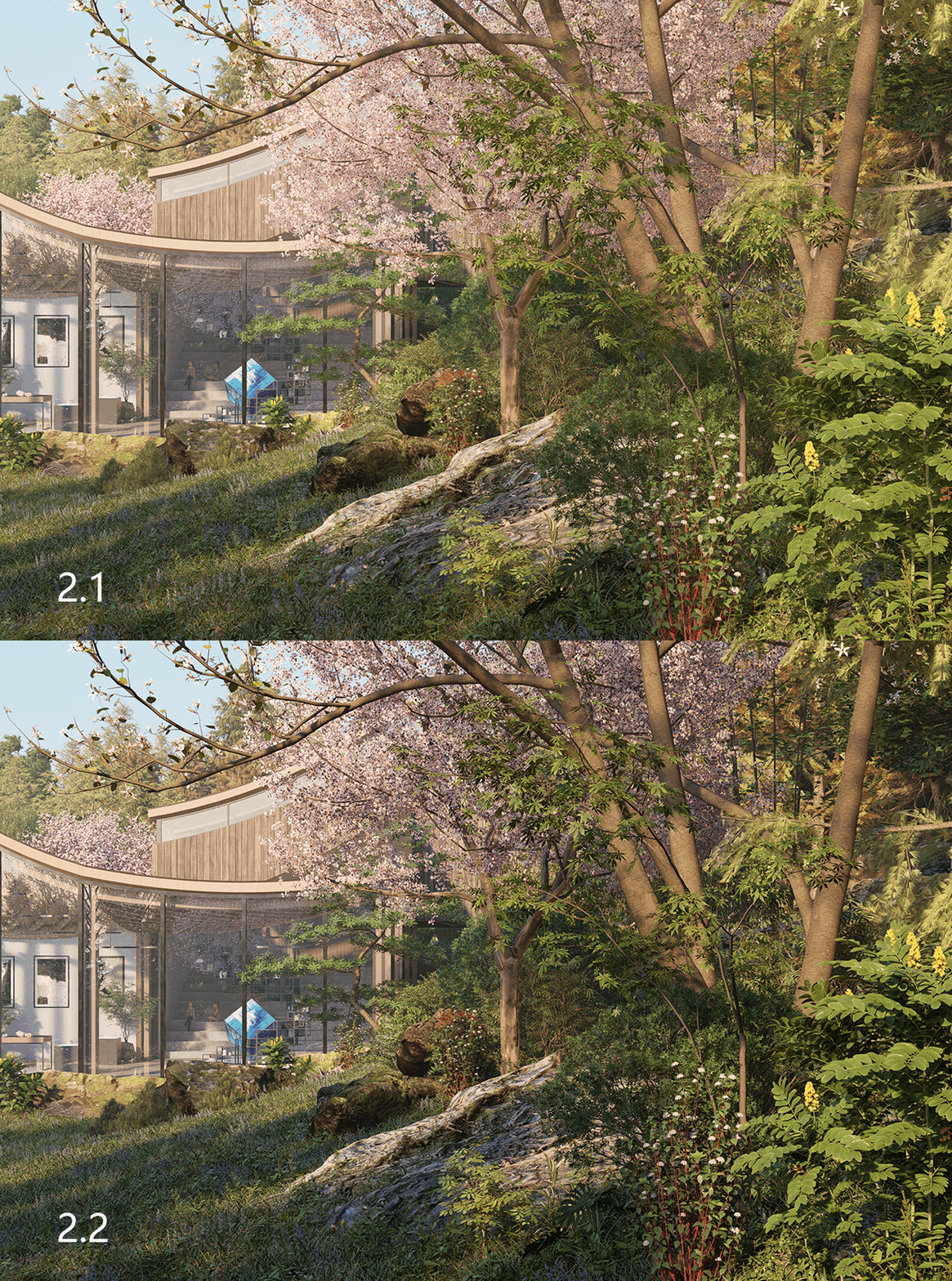
Vegetation shading has been enhanced, improving the three-dimensionality and layering of plants.
8. Material ID Channel Color Enhancement
The color contrast in material ID channels has been increased, facilitating easier selection in post-production software.
9. Post-Production Default Color Tone Mapping Adjustments
The default screen contrast and saturation have been increased for a more vivid display.
Function
10. Layer Management
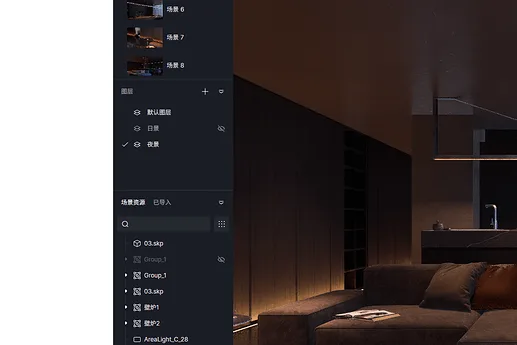
A new layer management feature has been added to the left sidebar to help you organize and classify scene resources more efficiently.
Layer Management 1035 × 690 604 KB
Each scene contains a default layer. Click the “plus” icon to create new layers. The active layer is indicated by a checkmark, and new objects are added to the currently active layer. Only one layer can be active at a time. You can view an object’s layer in the right sidebar and change it via a dropdown menu.
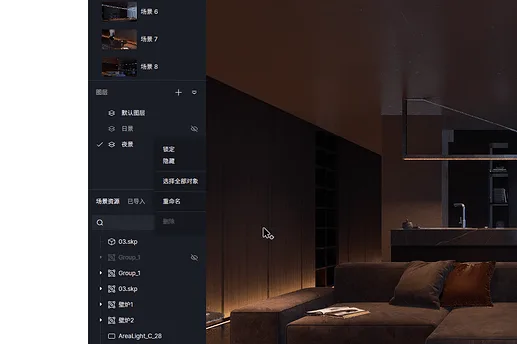
Layers support locking and hiding. Locked layers prevent object modifications, while hidden layers hide all objects and newly added ones. The layer’s right-click menu offers options to select all objects, rename, or delete the layer and its contents.
Layer Management 1051 × 700 689 KB
Note: Deleting a layer removes the layer and all contained objects. To preserve objects, first right-click the layer, select all objects, and move them to another layer before deletion.
The resource list filter now includes a “current layer” option, enabling you to display only objects on the active layer.
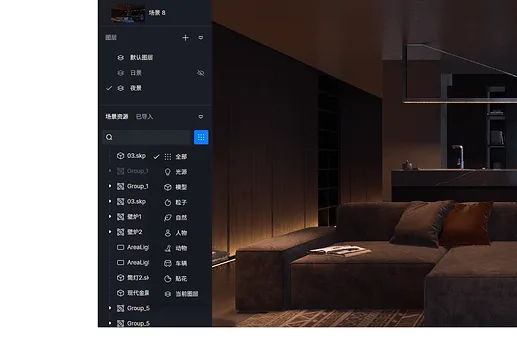
Layer Management 1086 × 724 702 KB
11. Customizable Shortcut Keys
You can customize shortcut keys via Menu > Preferences > Shortcuts, tailoring key assignments to your workflow.
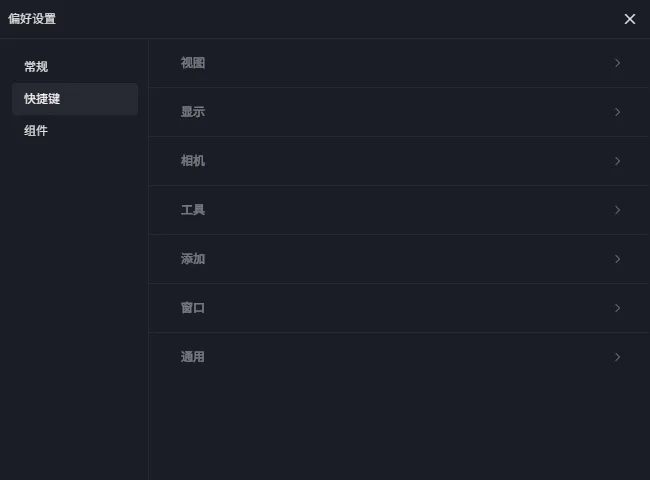
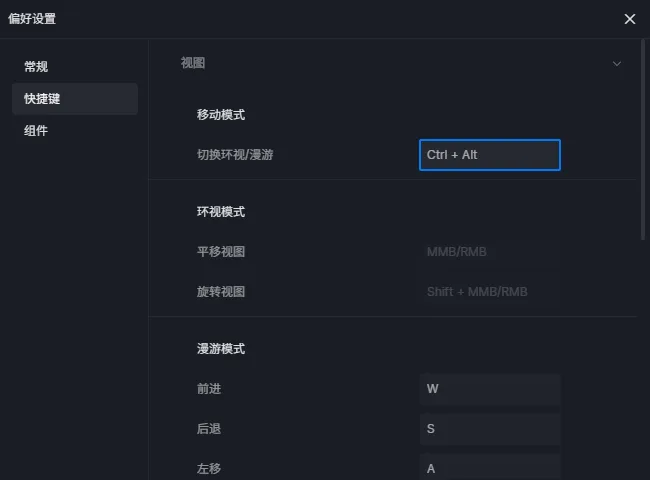
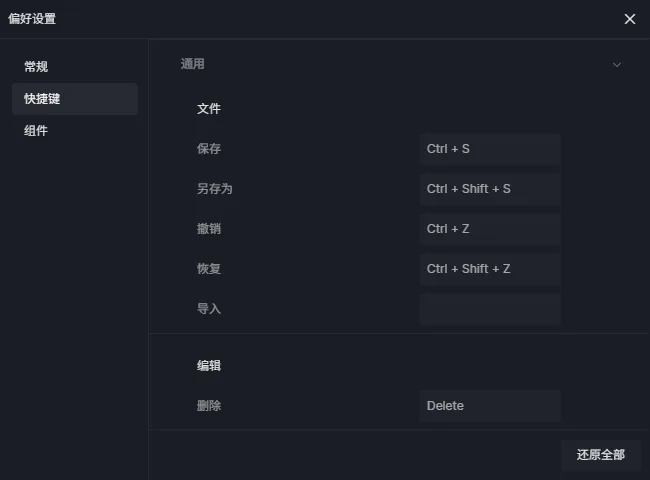
Common operations such as viewpoint movement, view switching, and various tools now support key remapping. Some functions reserve empty key slots for direct customization. Click on an input box, type the desired key, and press Enter to save changes. A “restore” button allows resetting to defaults. If a conflict arises, right-click the shortcut to cancel the assignment.
Note: Numeric keypad keys are now treated separately from the main keyboard numbers, allowing distinct shortcuts. Previously, numeric keypad keys (1, 2, 3, 4) could add light sources; this is no longer supported.
12. Brush and Scatter Record List
When using brush or scatter tools to paint plants on an unlocked model, selecting the model displays brush records in the right sidebar.
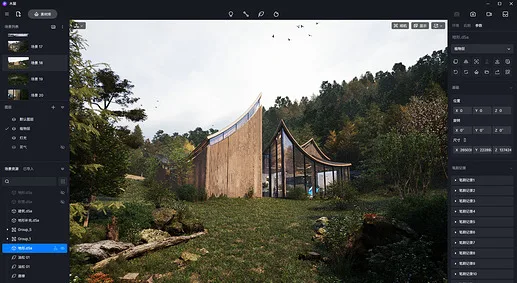
Brush and scatter record list 1280 × 703 372 KB
Each record contains information about the plants painted. You can hide or apply plants from a record using brushes or erasers. Right-click a brush record to rename or delete it, simplifying scene management.
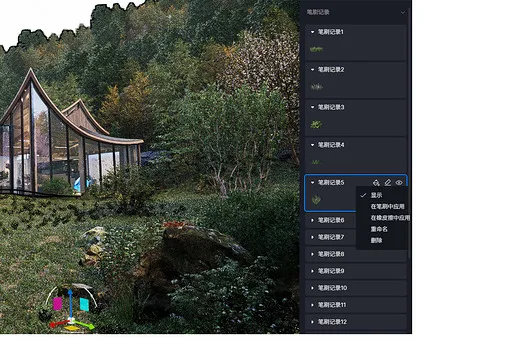
Brush and scatter record list 1100 × 733 399 KB
When painting with the same plant multiple times, strokes merge into the same record. For example, if stroke one paints plants A/B/C, stroke two paints B/C/D, and stroke three again paints A/B/C, there will be only two brush records: one for A/B/C and one for B/C/D.
13. Direct Import for SketchUp 2022
SketchUp 2022 files can now be opened directly from the welcome page or scene.
14. EXR Format Support for HDR Sky
Custom HDR skies now support importing EXR format files.
15. Depth of Field with Auto Focus
An Auto Focus option has been added under Camera > Depth of Field in the upper-right corner of the scene.
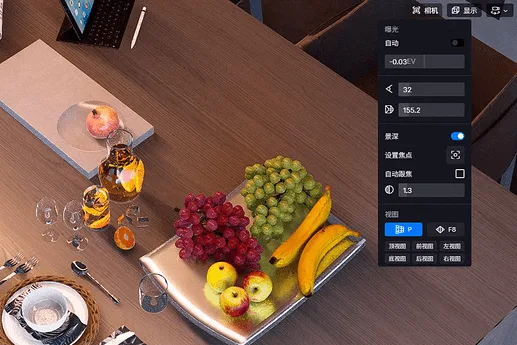
Auto focus 909 × 606 813 KB
16. Model Import Supports Synchronized Coordinate System
The model import menu and right sidebar now include a Synchronize Coordinate System option. Clicking this aligns the model to the coordinate position used in your modeling software.
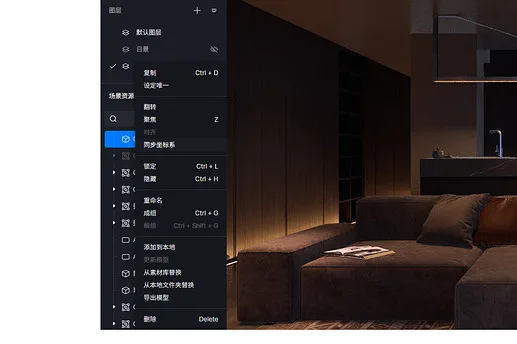
Model import supports synchronized coordinate system 983 × 655 119 KB
The existing alignment function aligns multiple selected models relative to each other based on the original modeling axis. Synchronizing the coordinate system restores models to their absolute positions in the modeling software.
17. Optimized Resource List Sorting
Newly added items are now placed directly below selected items in the resource list, improving organization. When disassembling groups, elements are arranged downward based on the top element.
18. Preserve Rendering Output Settings
Image and video rendering modes now save your selected format, resolution, channel maps, and other settings for the next session.
19. Retain Info Statistics Toggle State
The Display Statistics option under Menu > View remembers its on/off state between sessions.
20. Accelerated Perspective Movement
In roaming mode, holding Shift while moving with directional keys accelerates the camera movement up to 20 times. Holding the spacebar slows movement down to 0.5 times the normal speed.
21. Cancel Material Updates
When opening a project, if a prompt indicates some materials are incompatible with the latest version, you can now click “Cancel” during the update process to pause updating specific materials.
Efficiency and Stability
22. Reduced Video Memory Usage in Large Scenes
Text streaming has been further optimized to lower memory consumption in expansive scenes.
23. Real-time Multi-Light Reflection Optimization
When many light sources are present, real-time preview switches to high-performance mode, boosting frame rates during reflections and refractions.
24. Resource List Performance Improvement
The resource list in the left sidebar now supports over 5000 items smoothly.
Material Library
25. Material Library Tool Shows Selected Materials
After selecting tools and models in the material library, the selected plant information appears in the material toolbar at the lower-left corner.
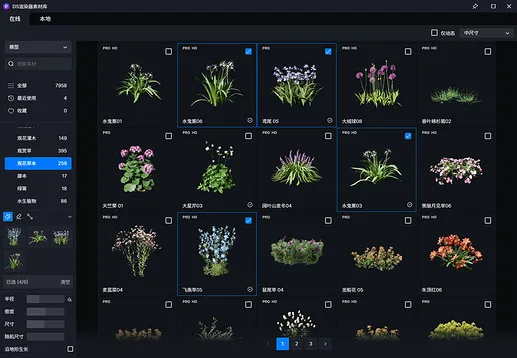
Material library tool showing selected materials 1315 × 911 235 KB
The toolbar displays the number of selected materials and the total available. Click the “minus” icon on a thumbnail to remove a selected material, or use “clear all” to reset selections.
26. New Identification for Newly Added Materials
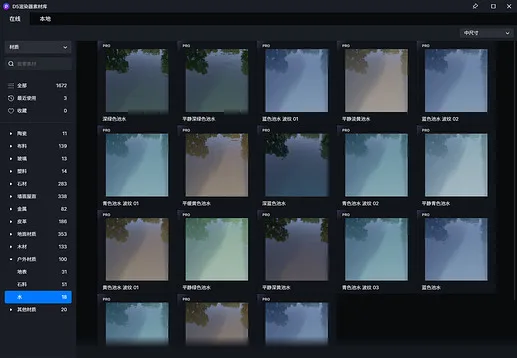
New materials marked with a “new” logo 1315 × 911 153 KB
27. Particle Materials Parameter Adjustment
All particle materials now support parameter adjustments.
28. Added “Dynamic” Switch and Left/Right Steering to Vehicle Models
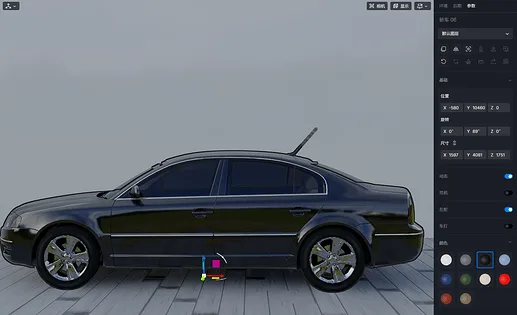
Vehicle model with dynamic switch and steering options 1490 × 911 1.65 MB
29. New Decal Materials Added
New decal materials include road markings, damaged walls, water stains, graffiti, and more. Download them from Material Library > Models > Stickers. Stickers can be applied to any surface in the scene.
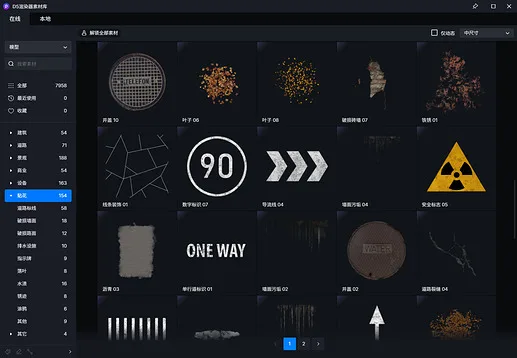
New decal material 1315 × 911 162 KB
Stickers support size adjustments, including their flat dimensions and projection impact range. The default projection direction is along the positive X-axis. Objects within the sticker’s bounding box are affected by its projection. Sticker materials can be customized in the right sidebar after placement.
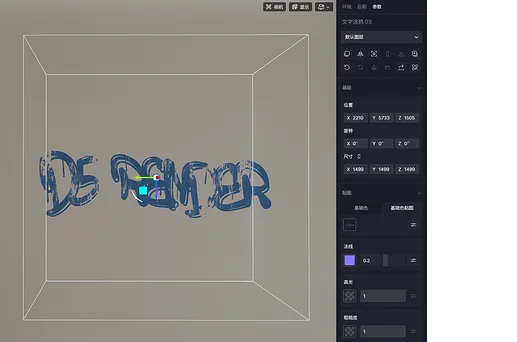
image1367×904 1010 KB
30. Added Snow Scene Model

Snowscape model 3000 × 300 325 KB
31. Added Terrazzo, Wall Tiles, Roof, and Water-Based Materials

Terrazzo 8000 × 800 8.35 MB

Wall tiles 8000 × 798 8.89 MB

Roof 8000 × 800 8.06 MB

Water 3000 × 300 957 KB
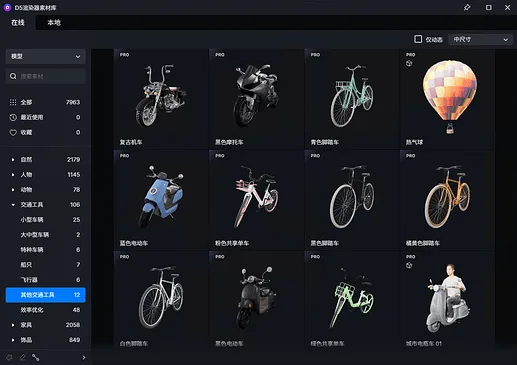
32. Added Static Transportation Model
Static transportation 1100 × 777 319 KB
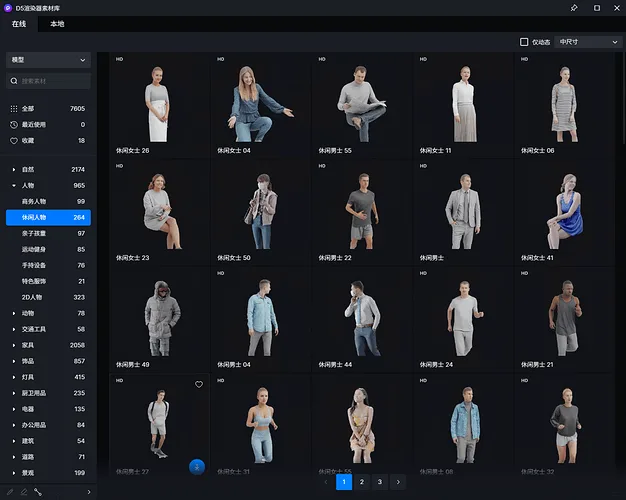
33. Optimized Character Material Animation Performance
Improvements made to facial expressions, gait, and thumbnail displays for character materials.
Character material animation optimization 1255 × 1002 392 KB
34. Transportation Model Performance Optimization
Performance enhancements for scenarios involving multiple vehicle models.
Workflow Plugin
35. Improved Archive Association Logic During Plugin Linkage
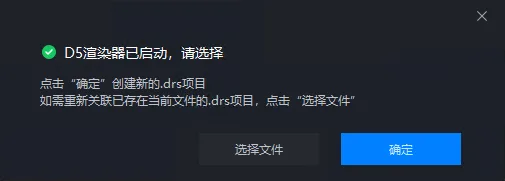
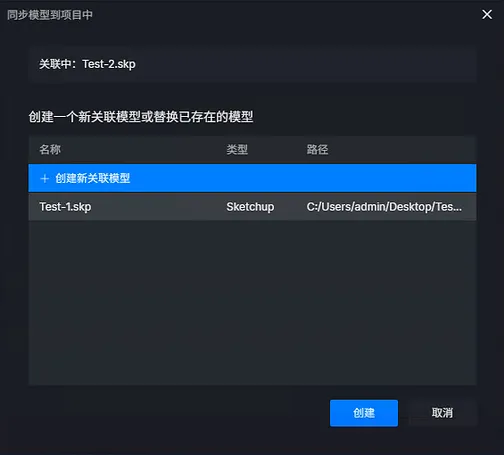
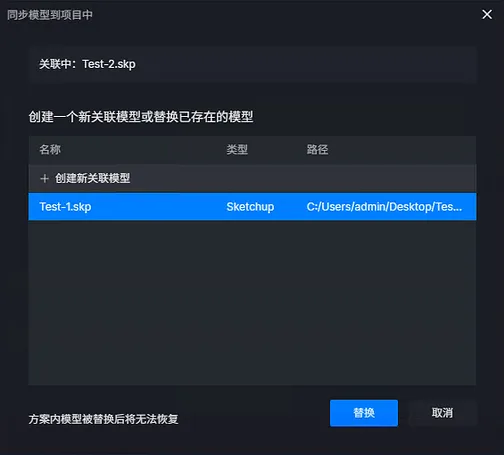
When starting the workflow plugin, you can either create a new .drs project or re-associate an existing one by selecting a file. This action either creates a new associated model in the scene or replaces the existing one.
Create 566 × 510 42.5 KB
















Must log in before commenting!
Sign Up