
This article is brought to you by the official account: A Yan Fang.
1. Regional Tools Update
The area tool now supports displaying and annotating in both elevations and sections.
This update is one of the most significant improvements, and it has been highly anticipated by many ARCHICAD users. Frankly, it’s surprising that this feature was only introduced in ARCHICAD 25.
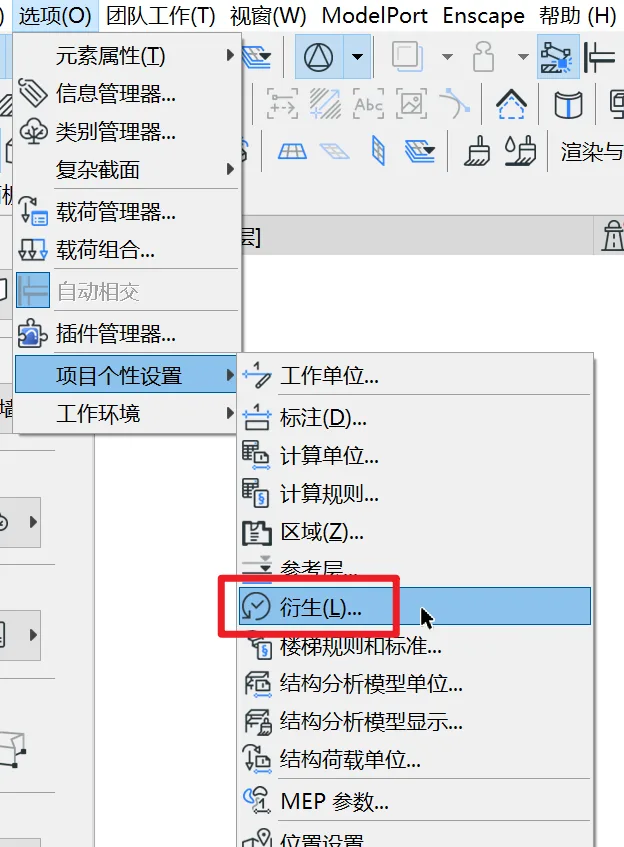
Note: To enable this feature, navigate to Options > Project Personality Settings > Legacy, then uncheck Hide Area and Its Associated Labels on Section Type Views. Otherwise, area elements won’t be visible in elevations, sections, or other views.
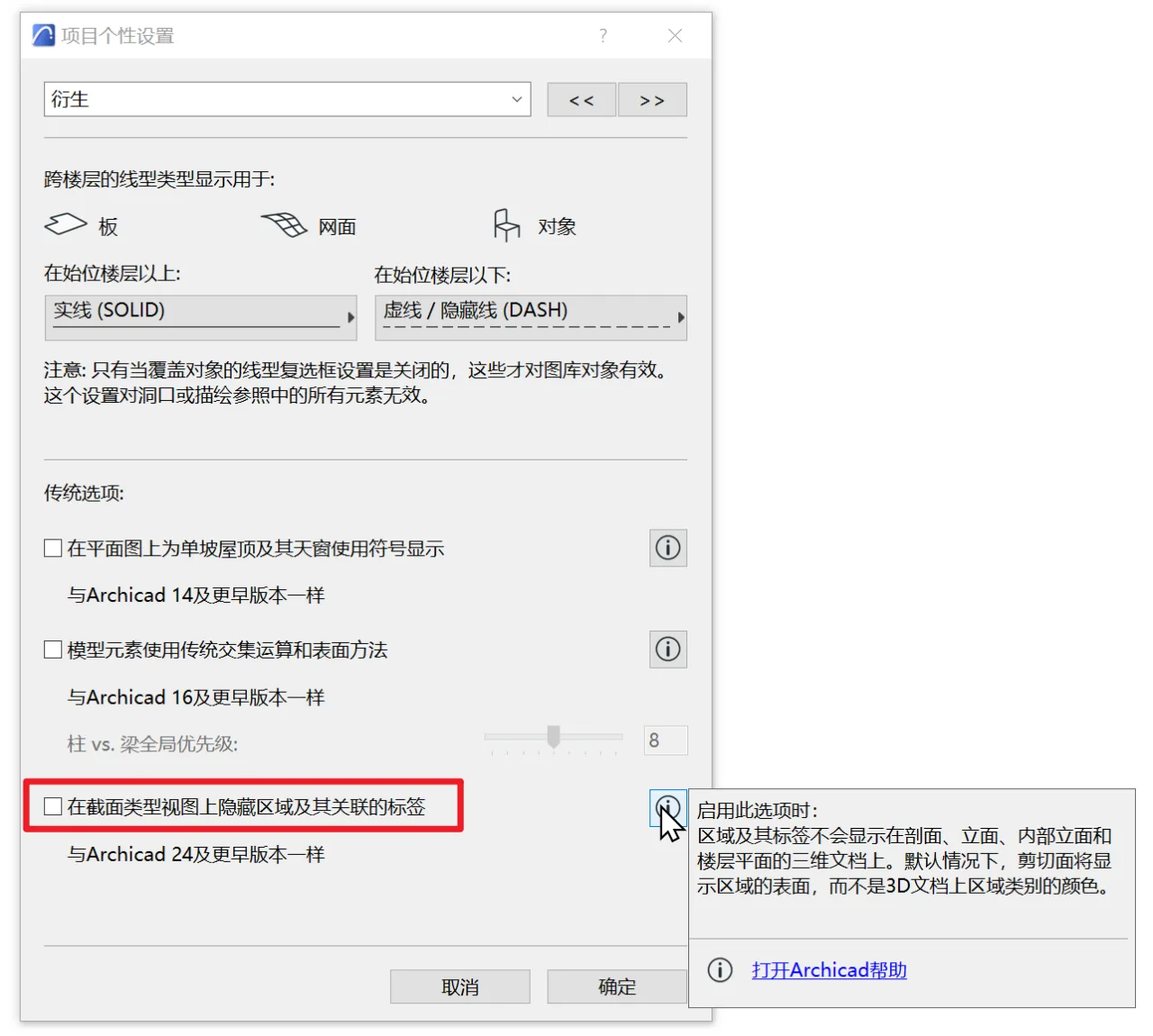
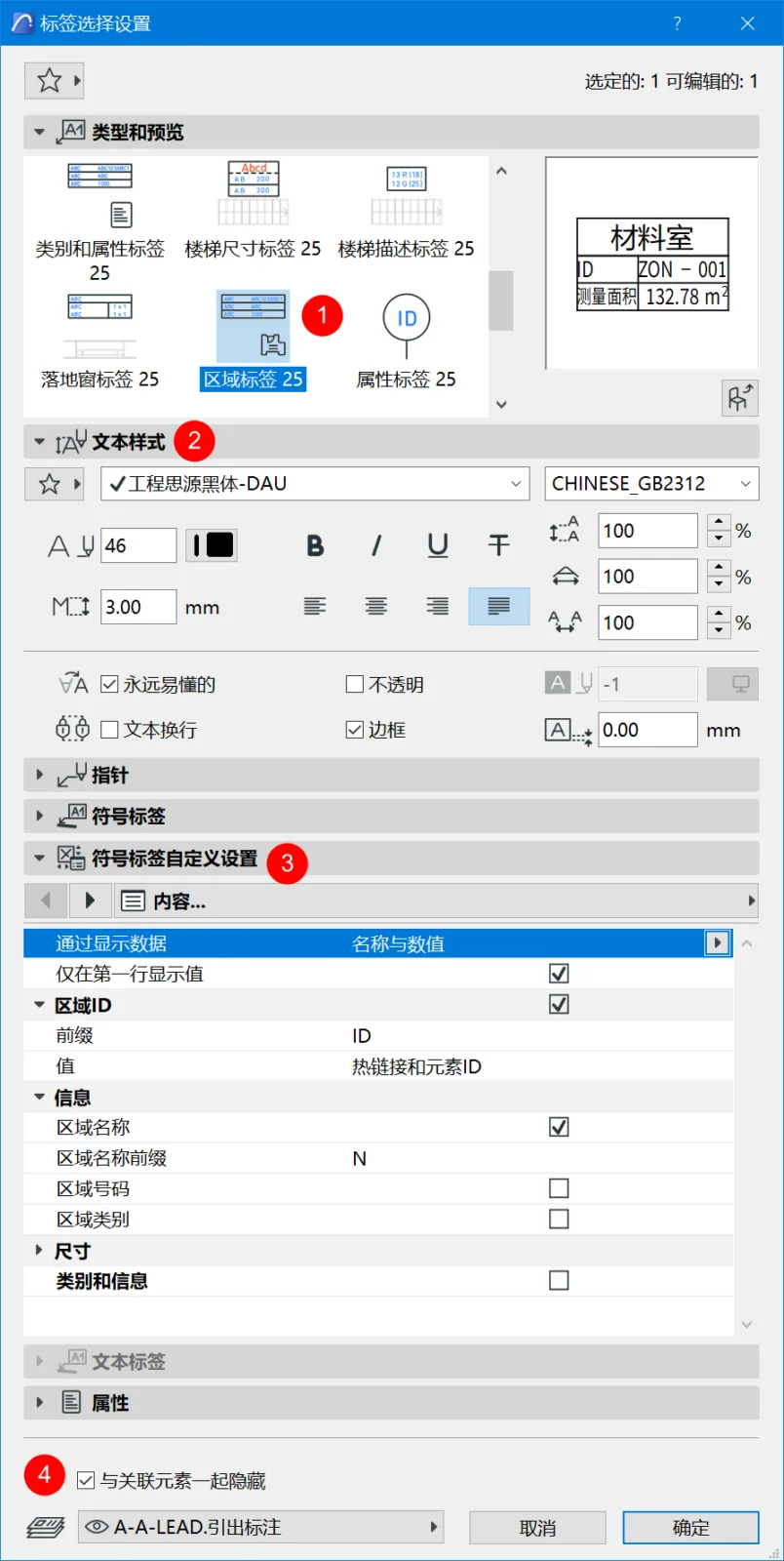
Once enabled, you can see the section fill of area objects within sections, and select them directly. Alongside this feature, a new label category named Area Label has been added. It reads and displays area element data, allowing you to annotate drawings with this information. These data are linked across multiple views.
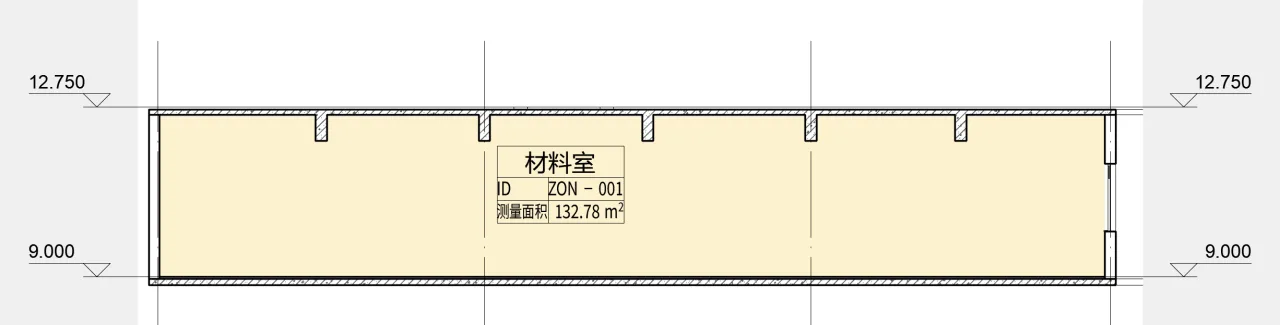
The screenshot above is from my own test. You can see that with the fill color applied, area elements are selectable and can be annotated using area labels. The parameter settings dialog box is shown below.
Currently, the area fill color overlays furniture and other objects within sections, and the layering order cannot be adjusted through the element components’ display order settings. If you want to display furniture and other objects while maintaining area color fills, further investigation is needed to find better settings, which I will share once confirmed.
For now, if you want to display area names without showing the fill color, uncheck the Hide with associated elements option (point ④ in the image above), then turn off the area layer in the section view.
2. Enhanced Hole Opening Tools
The hole opening tool now supports editing polygonal lines and circular arcs.
This enhancement expands the tool’s capabilities beyond basic rectangular and circular shapes, greatly improving its practicality. In real projects, various types of floor openings can now be created easily using the hole opening tool. This improvement means my previously custom-made 2D hole symbols are no longer necessary.
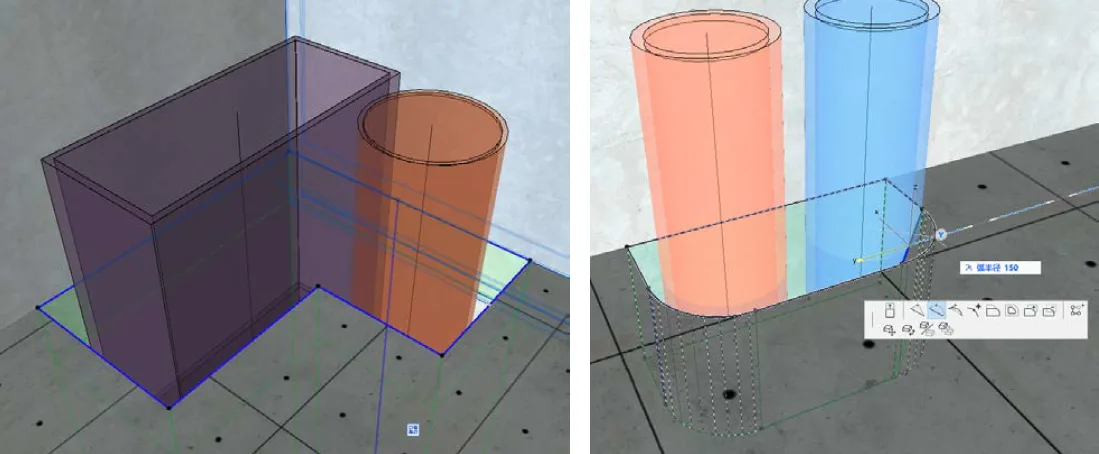
Moreover, you can now use the magic wand tool to select polygon outlines and create openings effortlessly.
This polygonal opening tool also broadens the design possibilities for walls of various shapes, opening up numerous creative applications for users to explore. The images below showcase several examples of different openings created using the hole opening tool.
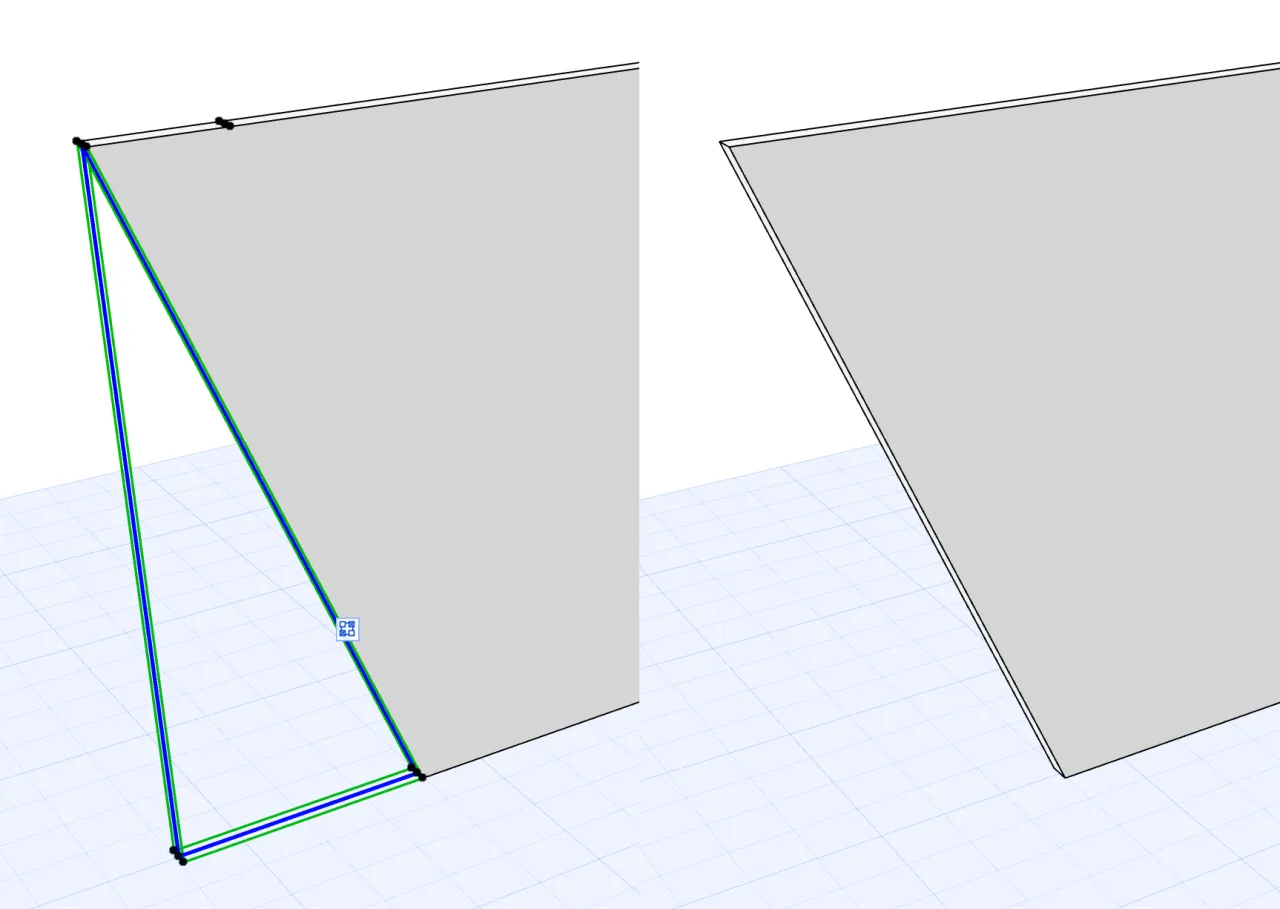
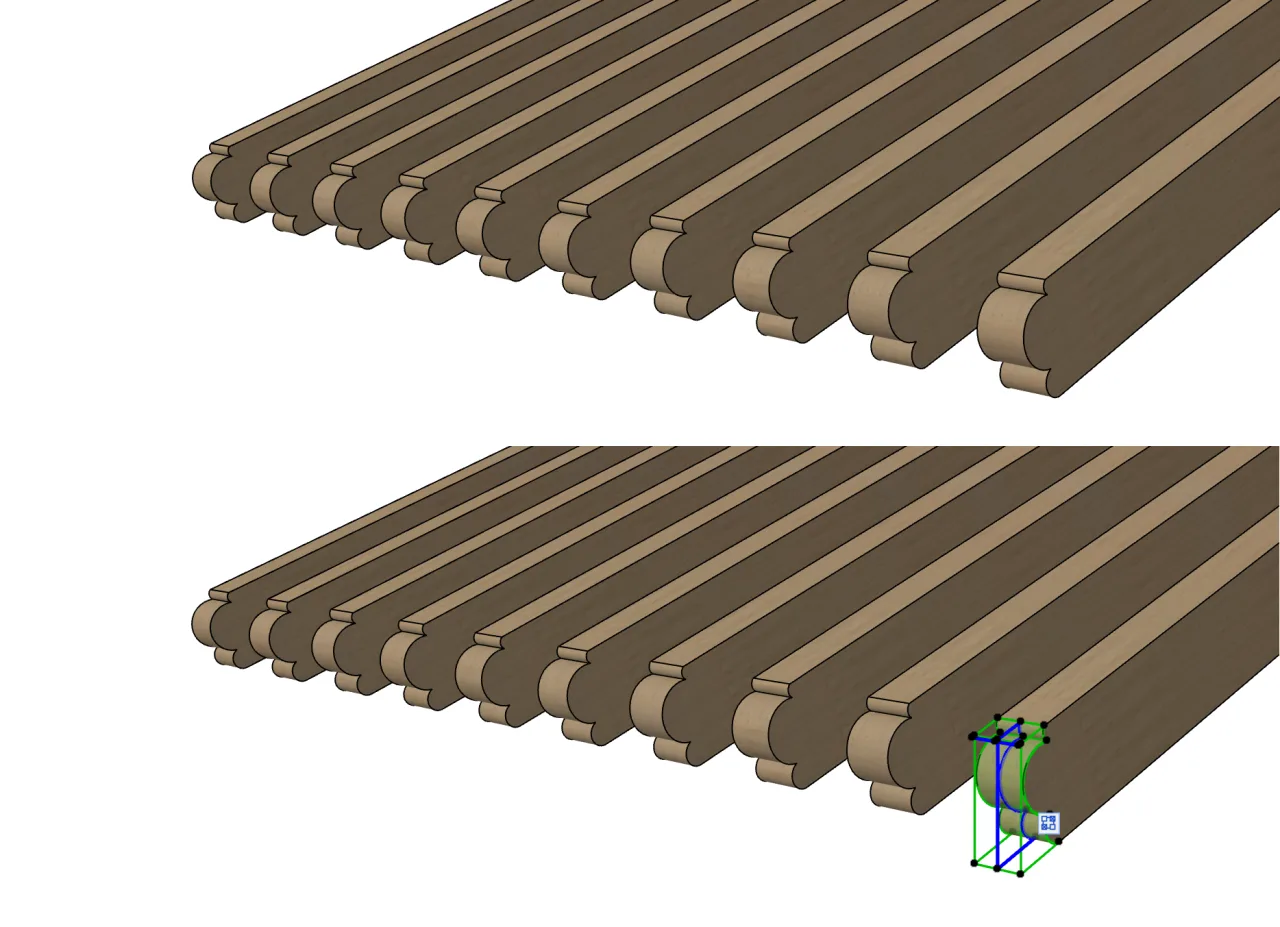
3. New 2D/3D View Operation Commands
ARCHICAD 25 now supports hiding selected element components individually within 3D views.
This feature allows you to hide specific element components in 3D views for easier modeling and clearer graphic presentation. However, this functionality is not available in plan views.
To use it, select the element component you want to hide in a 3D view, then right-click and choose Hide Selected. For frequent use, you can assign a shortcut key.
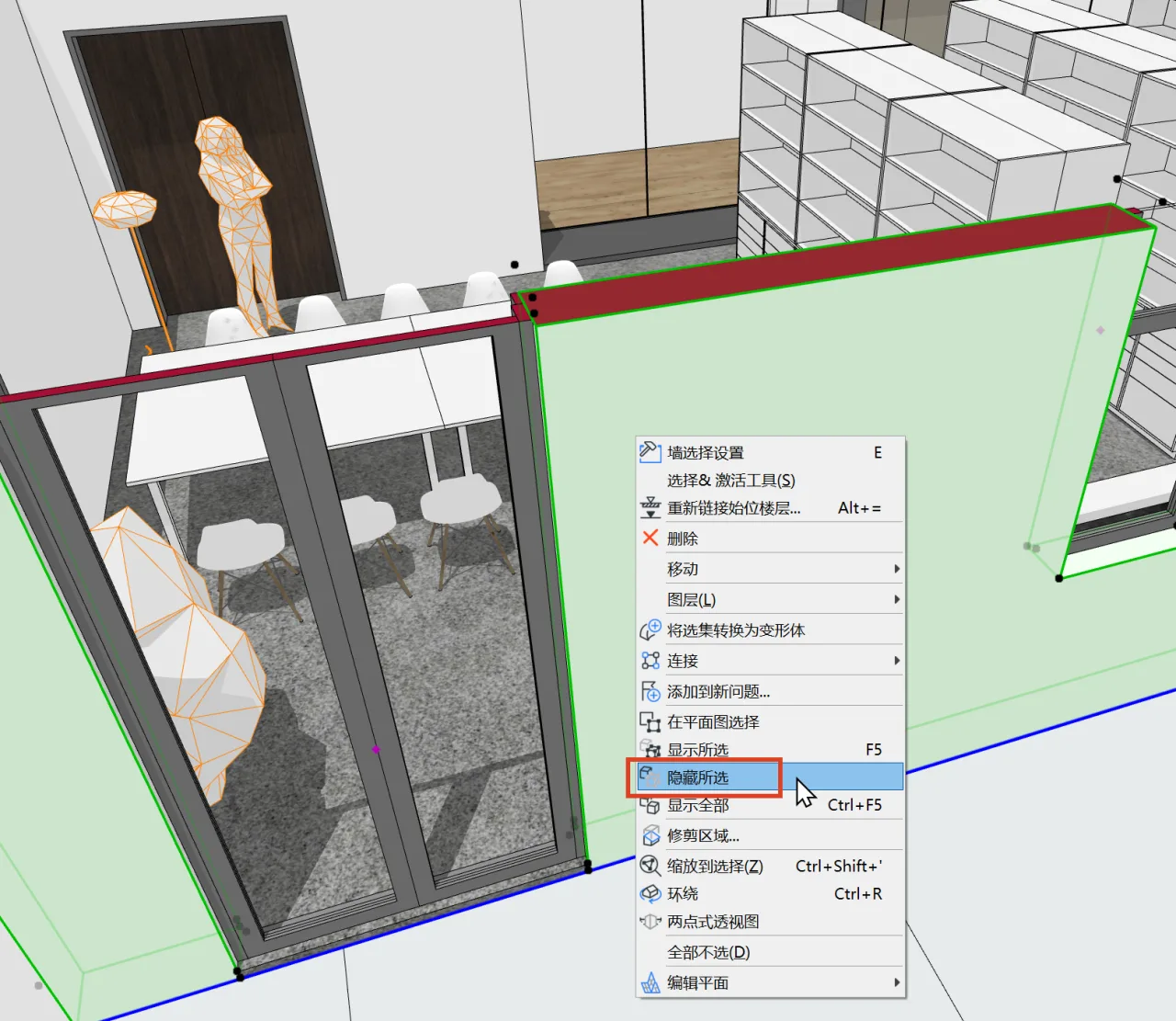
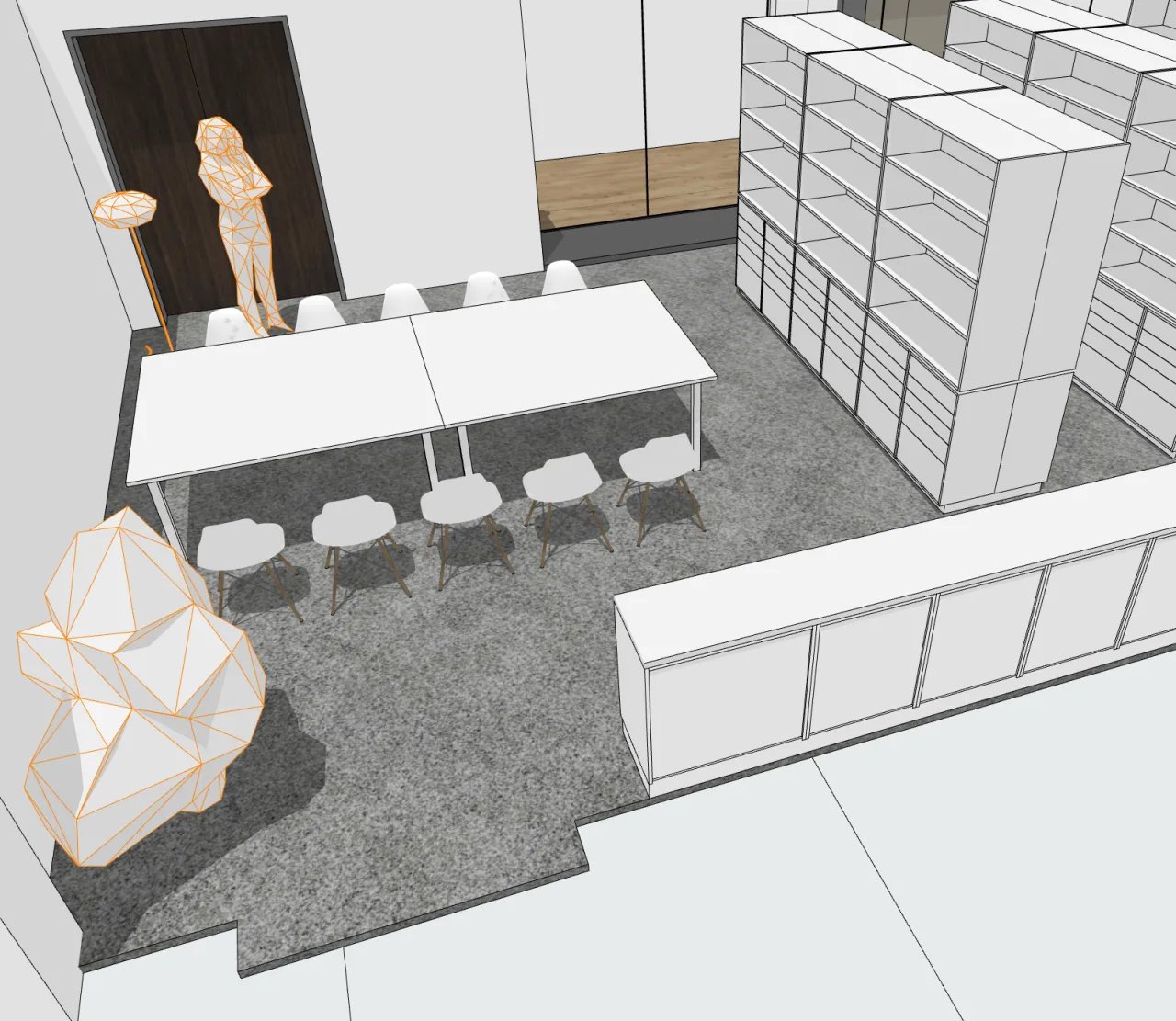
Note that hidden element components cannot be shown individually; to reveal them all, use the Show All option from the right-click menu.
Additionally, ARCHICAD 25 introduces the ability to track selected elements when switching between different views.
There are two commands for this feature:
- Select in 3D: When an element component is selected in plan, elevation, or section views, right-click and choose Select in 3D. The view switches to 3D, and the element is selected and centered for easy inspection.
- Select in Plan View: The reverse operation—when an element is selected in 3D, right-click and choose Select in Plan View. The view switches to the plan, and the element is selected and centered. This works similarly in elevations and sections.
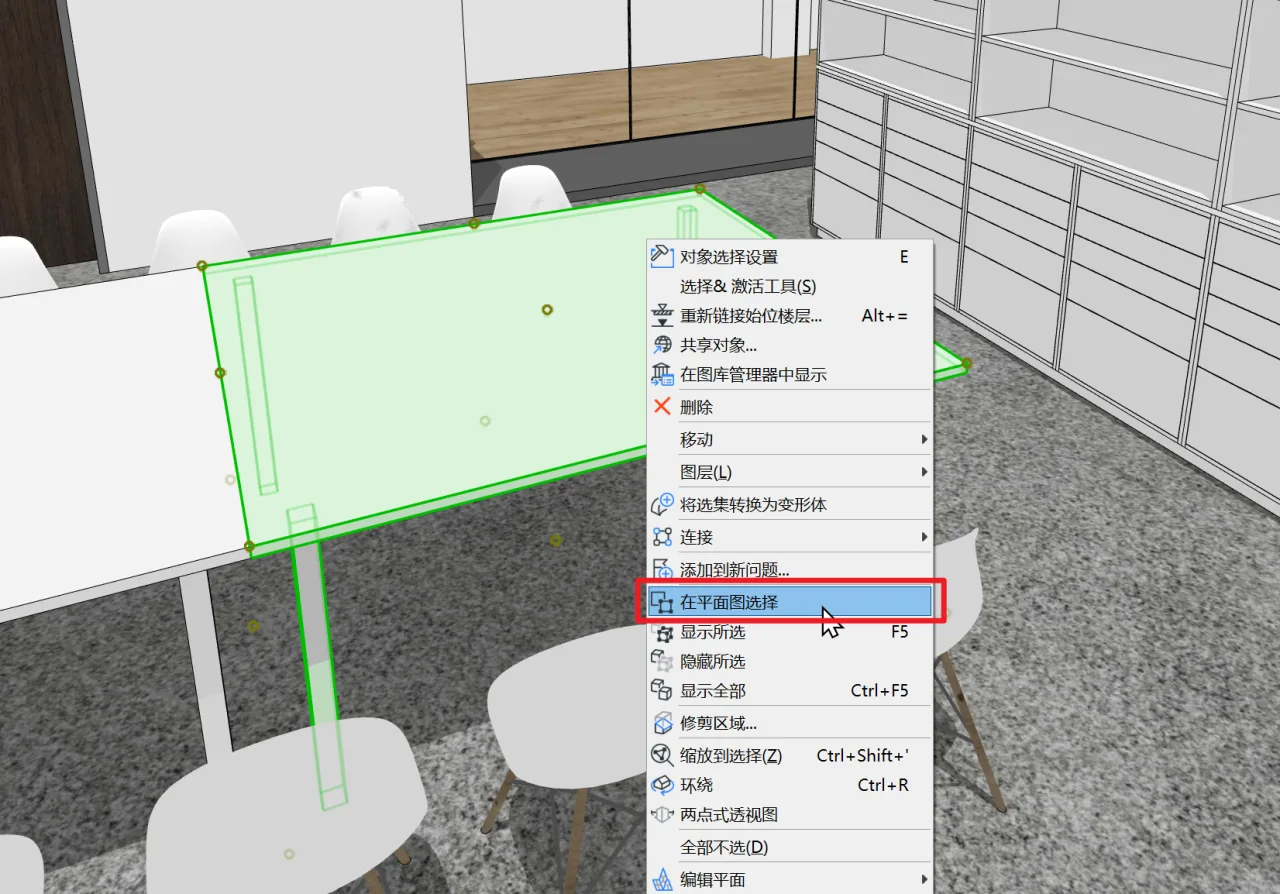
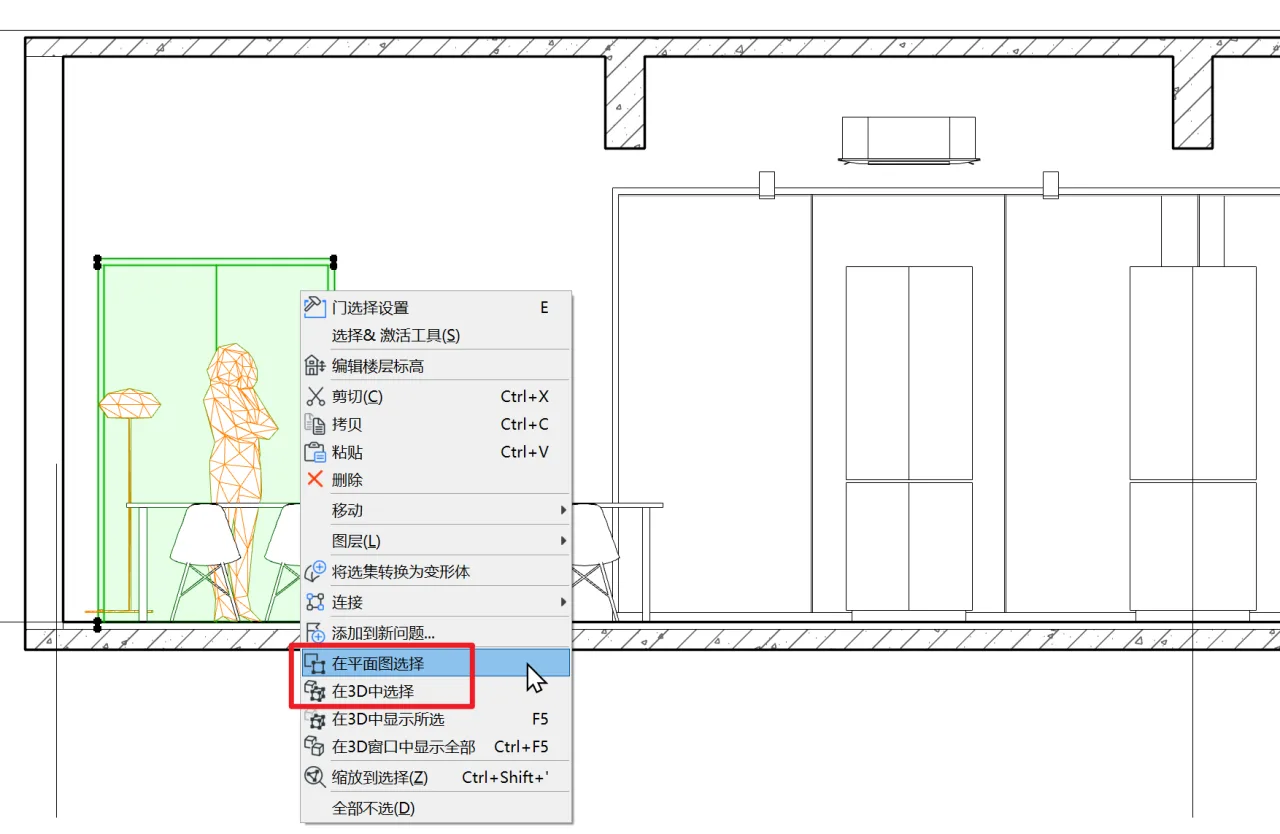
This functionality, common in many 3D modeling software programs, marks a welcome improvement in ARCHICAD’s view operations by Graphisoft. All these commands can also be assigned shortcut keys for faster access.
4. Minor Improvements to PARAM-O
PARAM-O remains a technical preview, so users should proceed with caution.
Since ARCHICAD 24 update 3, PARAM-O has been included in the software package, eliminating the need for manual installation.
It now offers native support for macOS, making Apple users particularly happy.
The 3D preview window has been enhanced to display textures and contour lines, resulting in a more polished appearance.
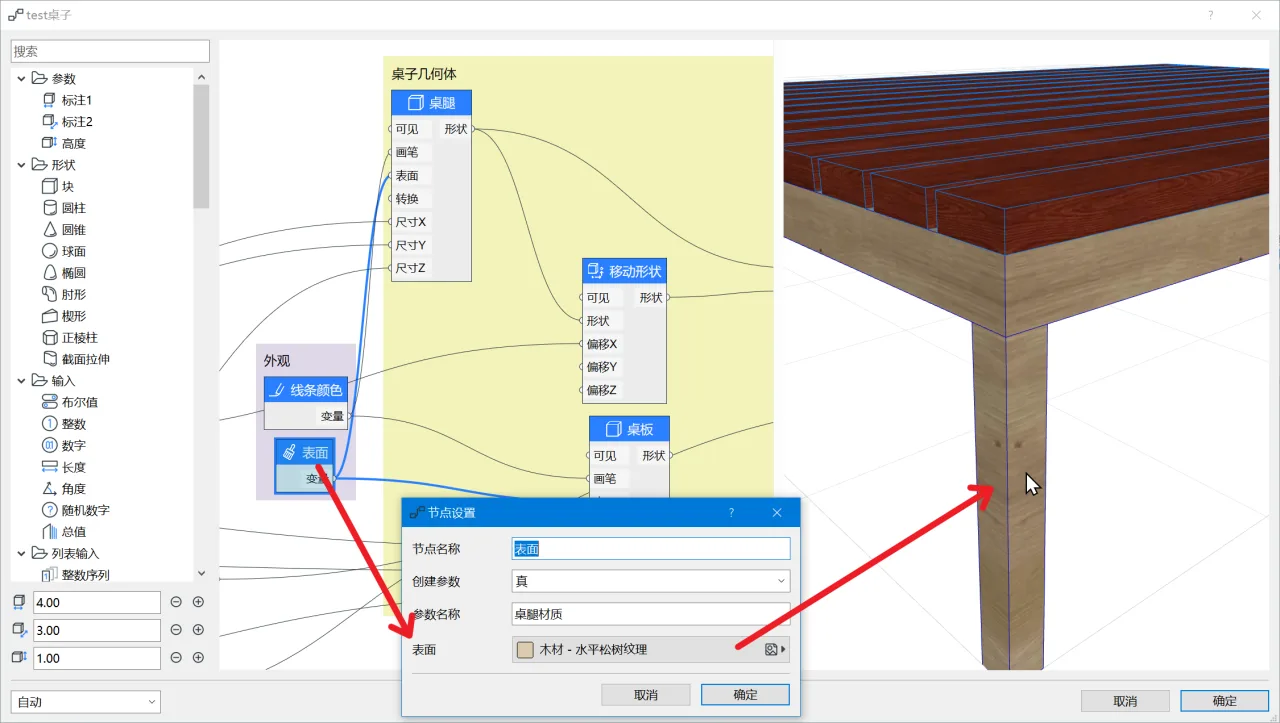
When updating PARAM-O objects, custom display parameters are now retained.
















Must log in before commenting!
Sign Up