
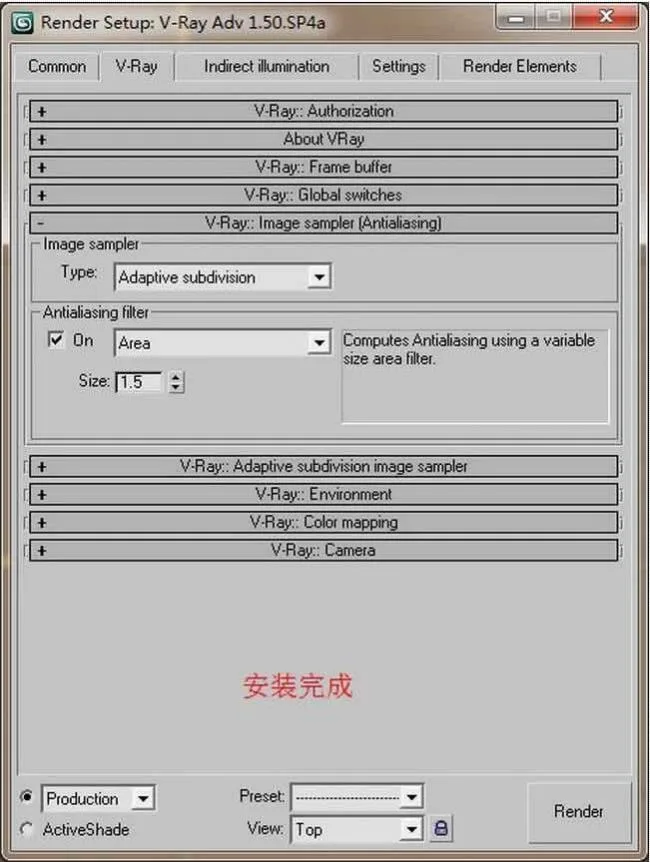
This VRay 1.5 only supports max2009_x64 bit systems (using the Windows/64 bit/3dsmax2009/sp4 VRay Adv 1.5 RC5 Advanced renderer Simplified Chinese version installation and usage instructions).【 Installation and Usage 】 Usage:1. Before installation, it is necessary to uninstall the previously installed Vray English or Chinese version, otherwise there may be conflicts. Remember! Remember! Remember!2. Start the installation, enter the “Select Components to Install” column, please read carefully and select the required components, then click on __AI_S_SC_0_.3. During installation, the program will pop up a “V-Ray License Server” warning dialog box. Click “OK” to enter the license, and then a “License Application Form” will pop up asking for the license to be entered. At this time, open the “Vray Registration Machine”, copy the request code from the “License Application Form”, paste it into the “Code” column of the “Vray Registration Machine”, and the authorization code will be automatically generated below. Copy the authorization code to the “Enter Provided License” column of the “License Application Form”, click “OK”, then click “OK”, and finally complete the installation.4. Start 3ds Max, click on “Rendering” in the main menu bar, select “Render”, a panel will pop up, click on the “Common” panel, select the “vray1.5 [adv 1.5 sp4] renderer” renderer in “Assign renderer”, then click on the “renderer” panel, expand the “V-Ray: Authorization” panel, click on “Edit and Set License Server Information”, a settings dialog box will pop up, fill in your computer name in the “License Server” column in “General Settings”, and then click “OK” to leave.Note:If you have installed other versions, there may be conflicts. If this problem occurs, you can uncheck the box in front of the vray1.5 【 adv 1.5 sp4 】 renderer file except for V-Ray additional plugins in the 3dsmax plugin manager.












Must log in before commenting!
Sign Up